How to remove a passkey
Remove a passkey from your account so that device can no longer sign you in.
Remove a passkey when you lose the device, replace it, or no longer want that sign-in method.
Before you start
- You must be signed in.
- You can remove passkeys only from your own account.
- You must have at least one passkey in Your passkeys.
- You must have your account password if you did not confirm it recently.
After you remove a passkey, you cannot use that device to sign in with a passkey until you add it again.
View Passkeys
- Open Settings.
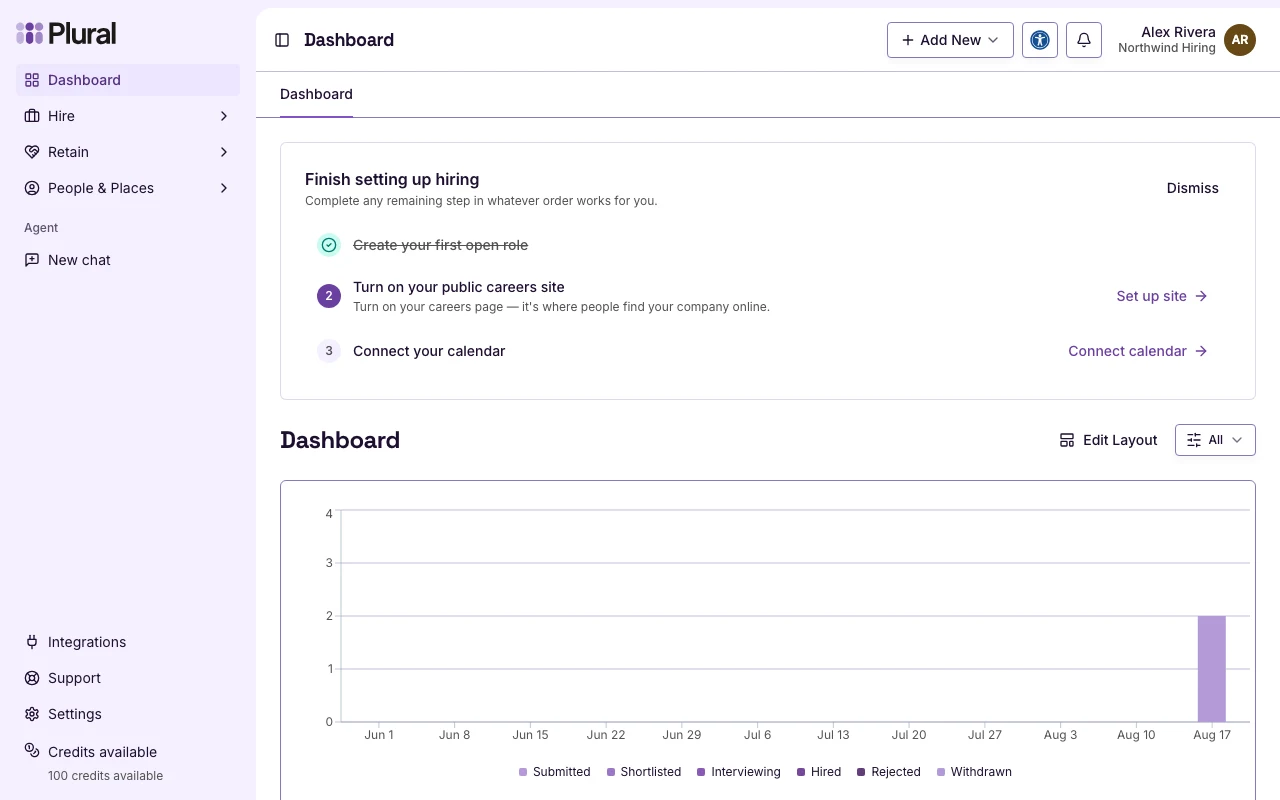
- Under User settings, select Passkeys.
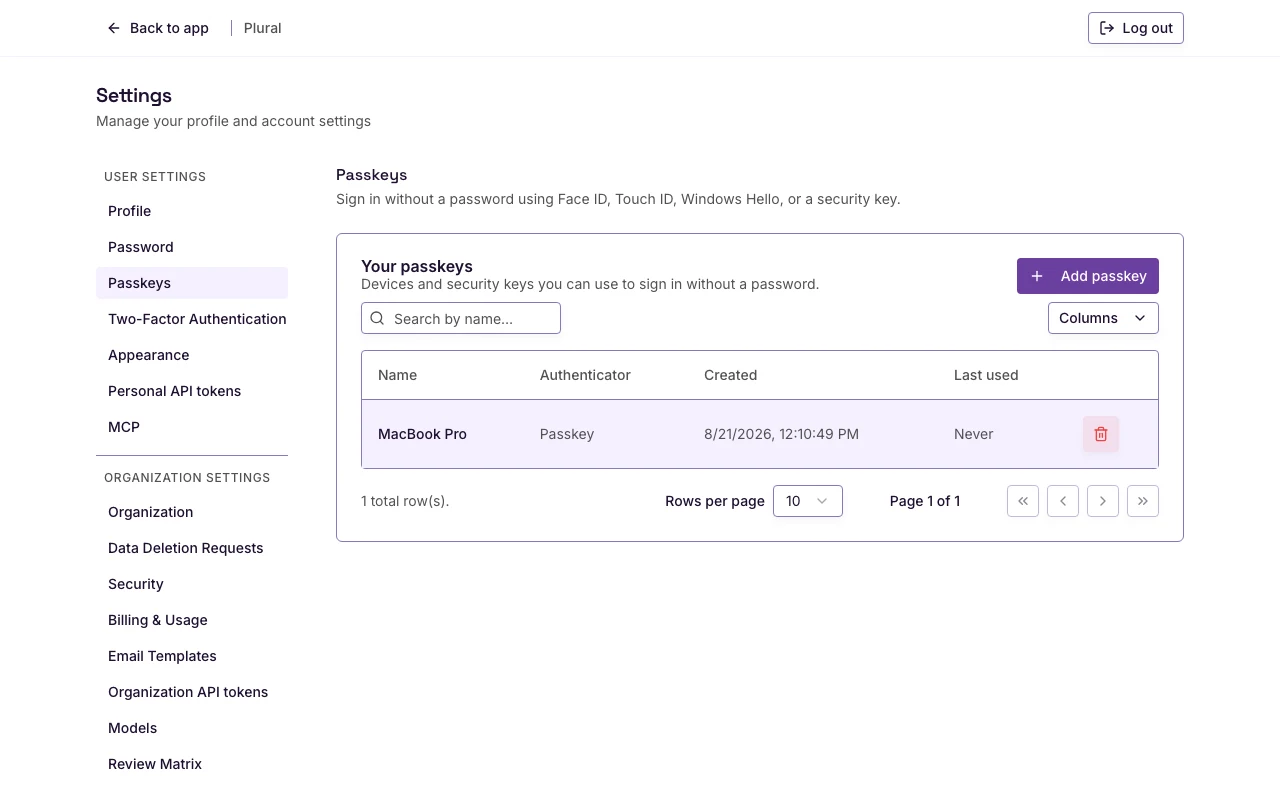
The page title is Passkeys. The Your passkeys card lists each passkey.
Remove a passkey
- Find the passkey in Your passkeys.
- Type in Search by name… if you need to filter the list.
- Select Remove passkey. That control is the trash button on the row.
If you confirmed your password recently, Plural removes the passkey.
If you did not, the dialog title is Confirm your password. The text below the title is Confirm your password to manage passkeys on this account.
- In Password, type your account password.
- Select Confirm password. Select Cancel to keep the passkey.
The dialog can also show Confirm with a passkey. Use that control if you already have a passkey.
If removal fails, the page shows: Unable to delete this passkey.
After you finish
The passkey is gone from Your passkeys.
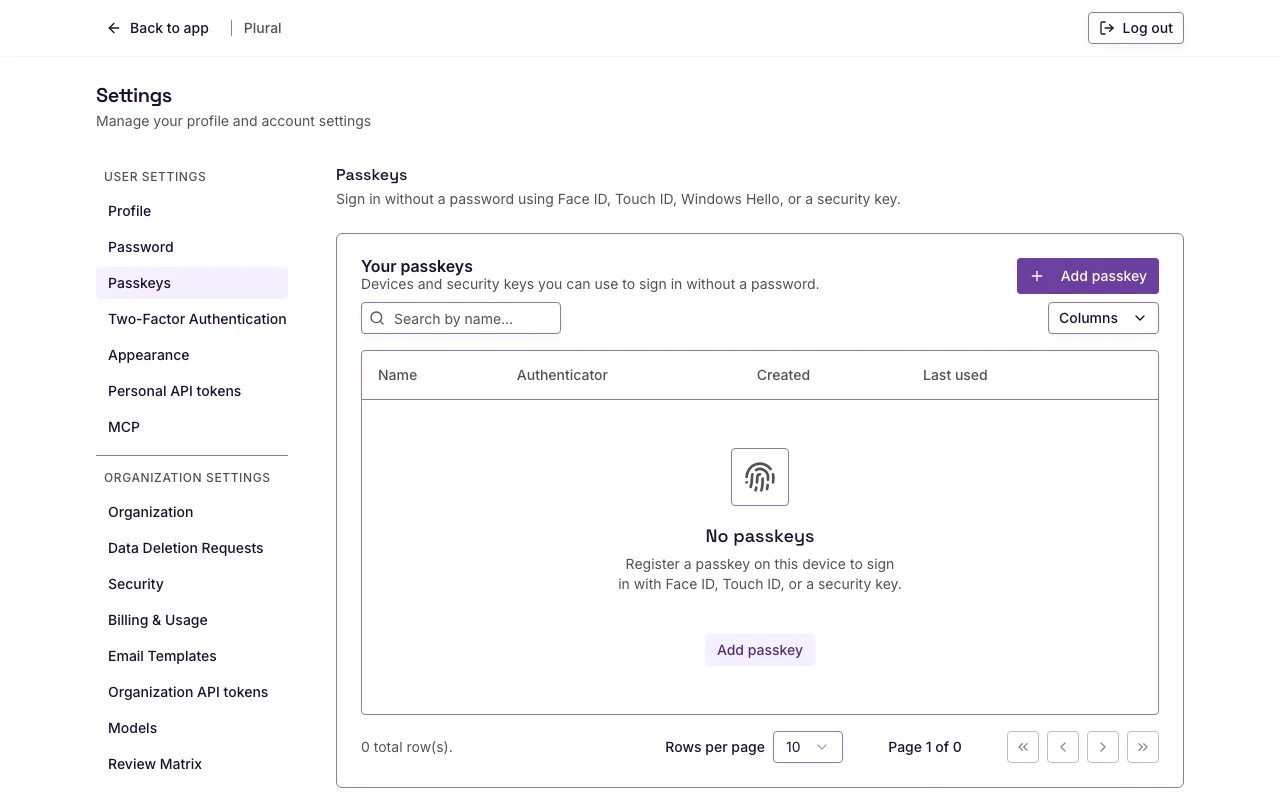
If you have no passkeys left, the card shows No passkeys.