
Adding teams
Add a Team and add members.
A Team groups people in your organization. You can assign a Career to a Team.
Before you start
- You must be signed in.
- These plans include this feature: Hire, Retain, Hire + Retain, and Enterprise.
- These roles can add a Team: Owner and Administrator.
- These roles can add members: Owner and Administrator.
- A Hiring Manager and Office Administrator can open Teams. They cannot add a team. They cannot add members.
View Teams
- Open People & Places, then open Teams.
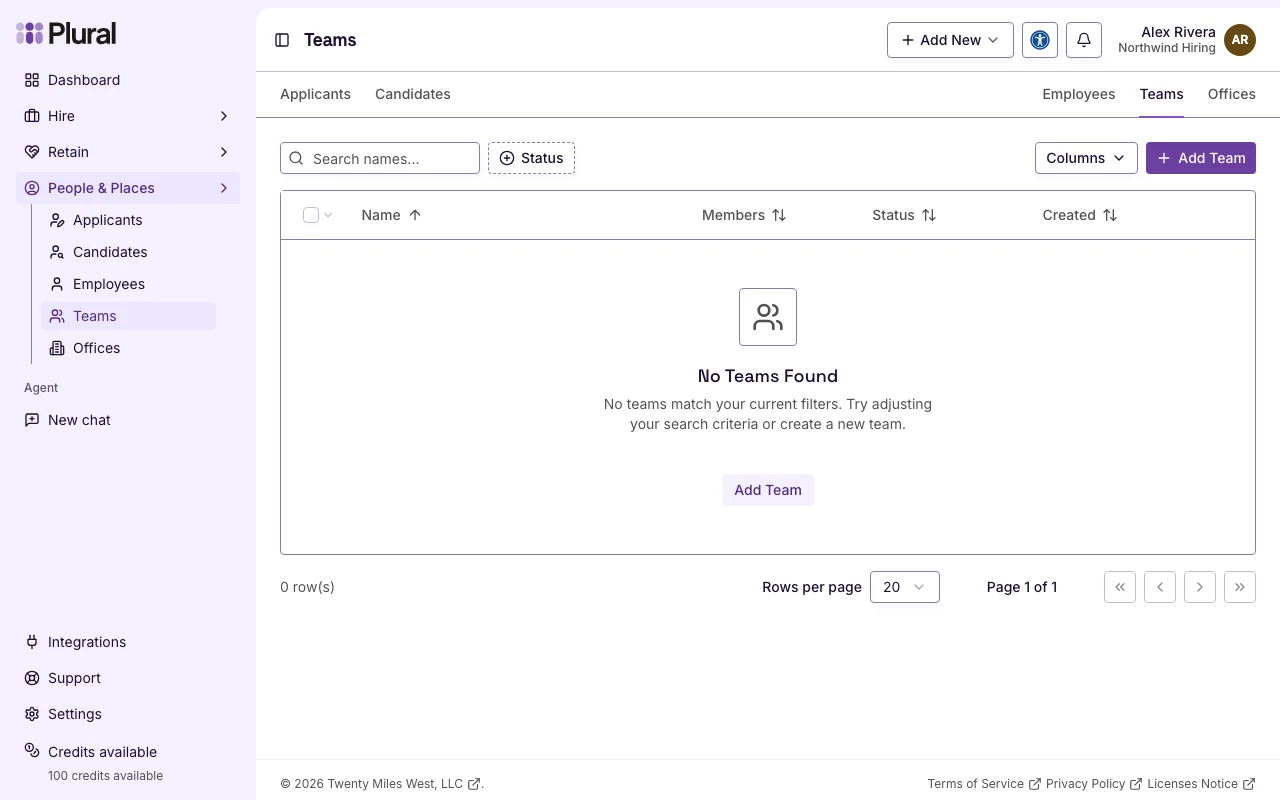
The page title is Teams.
- Select Add Team.
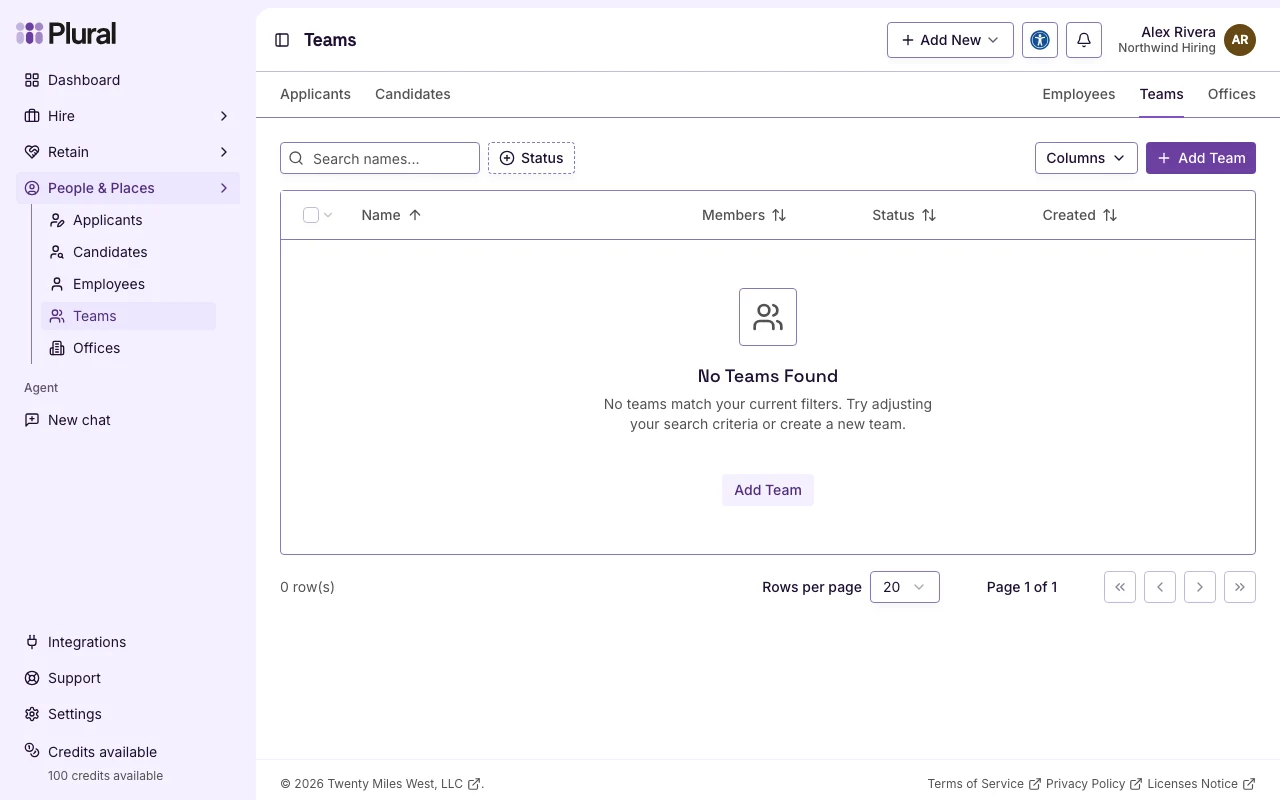
Add a team
The dialog title is Add Team. The text below the title is Add a new team to organize members and projects.
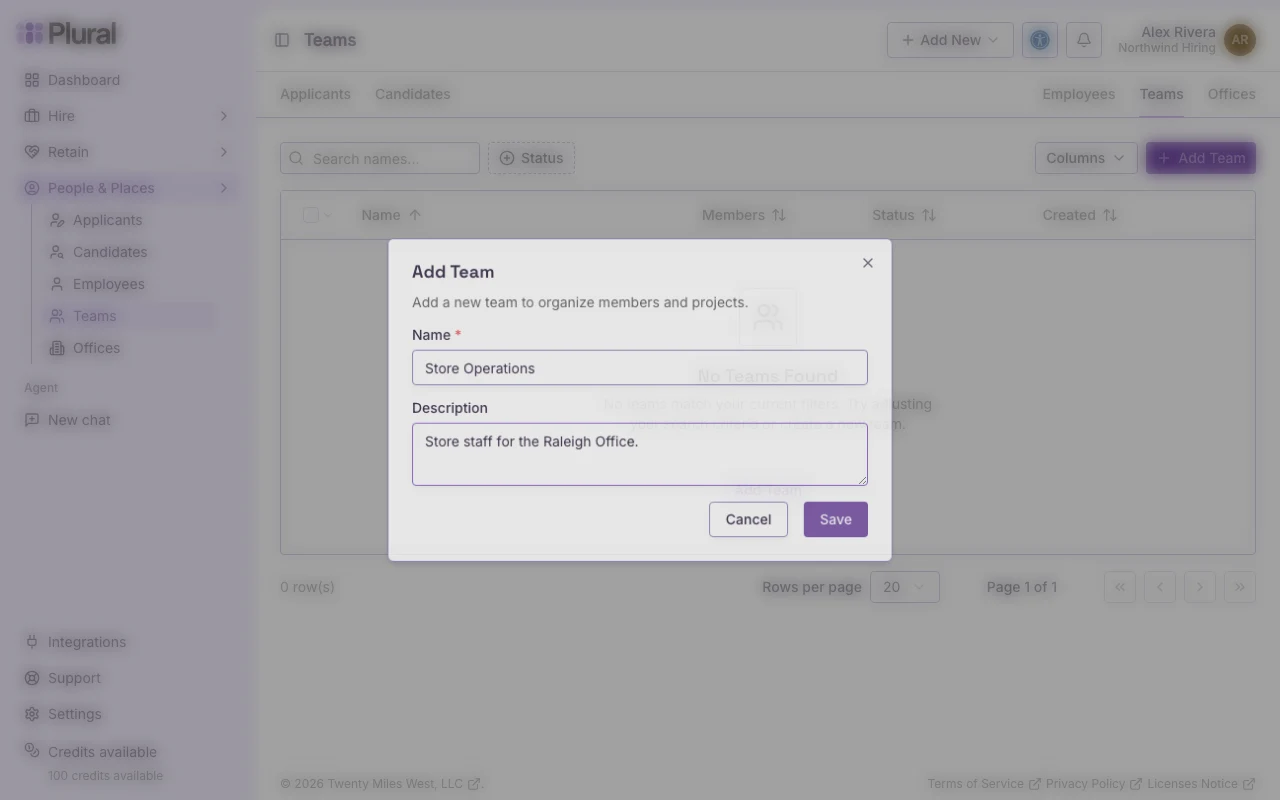
- In Name, type the name of the team. This example uses Store Operations. The name can have up to 255 characters.
- In Description, write a short summary. This field is optional. The description can have up to 1000 characters.
- Select Save. Select Cancel to close the dialog without a new team.
If Name is empty, the form shows: Team name is required.
A new team is Active. After you save, you see the team in the Teams list. A success message shows Team created.
Add members
You add people who are employees. If no employee is available, the dialog shows: No one is available to add to this team. Select Add a person to create an employee first.
- Open the team.
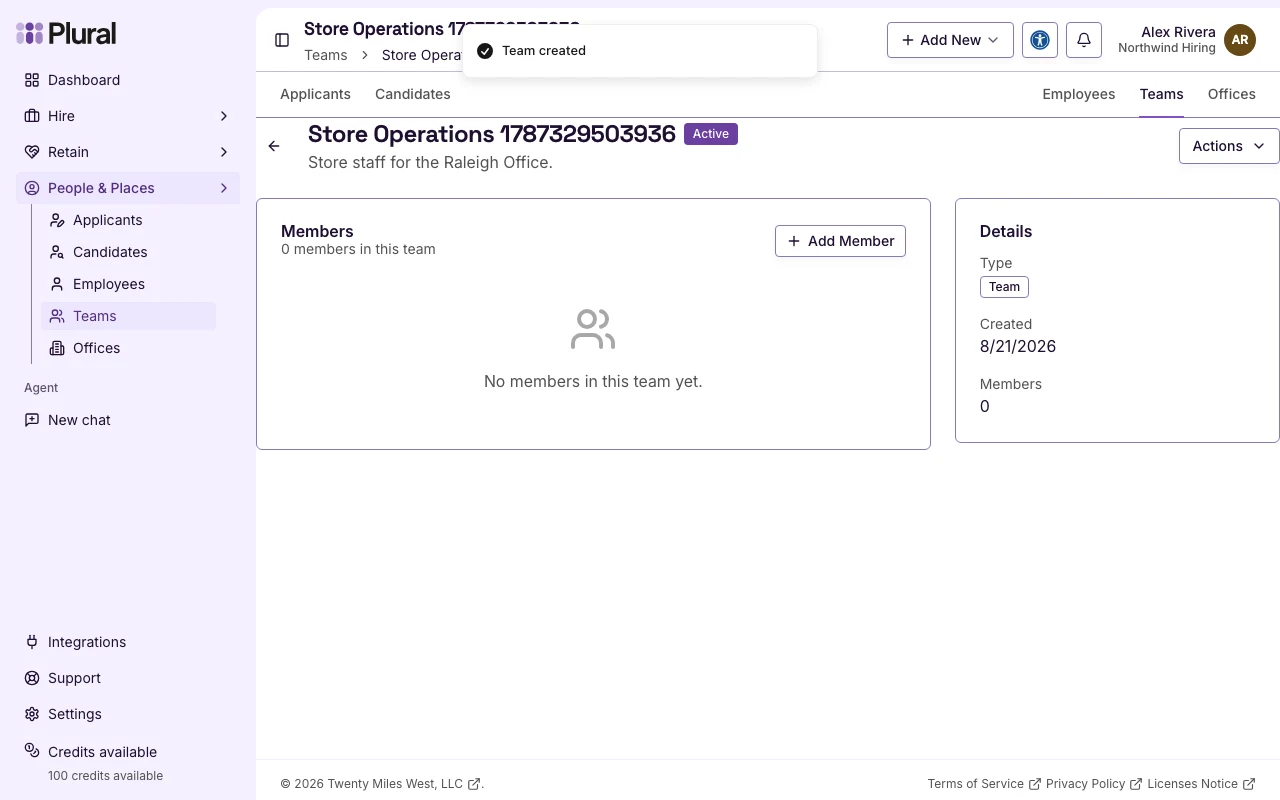
- Select Add Member.
The dialog title is Add Members. The text below the title is Select people to add to this team.
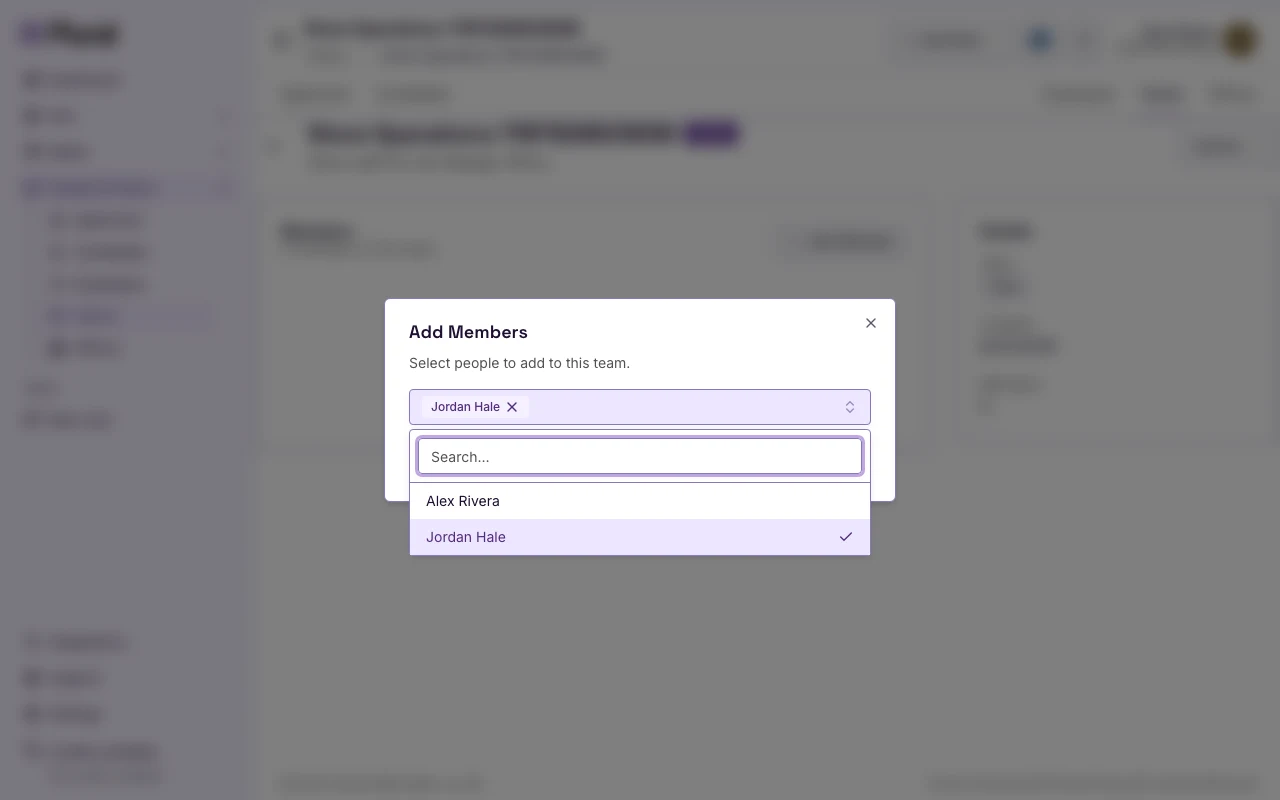
- In the people field, select each person to add. The field shows Search people… when it is empty. This example uses Jordan Hale.
- Select Add Members. Select Cancel to close the dialog without a change.
You can also add members from the Teams list. Open the row menu for the team. Select Add Members.