
Adding employees
Add a person, invite them to the platform, and link a user account.
An employee is a person in your organization directory. You can invite that person to sign in. You can also link the person to an existing user account.
Before you start
- You must be signed in.
- These plans include this feature: Hire, Retain, Hire + Retain, and Enterprise.
- These roles can add an employee: Owner, Administrator, Hiring Manager, and Office Administrator.
- These roles can add an employee and invite a person to the platform: Owner and Administrator.
- These roles can link a person to a user: Owner, Administrator, and Office Administrator.
- If you are an Office Administrator, you see people who belong to an office that you administer.
- An invitation sends email to the person. The person is not linked to a user until the person accepts the invitation.
- Link to User connects a person to a user account that already exists.
View Employees
- Open People & Places, then open Employees.
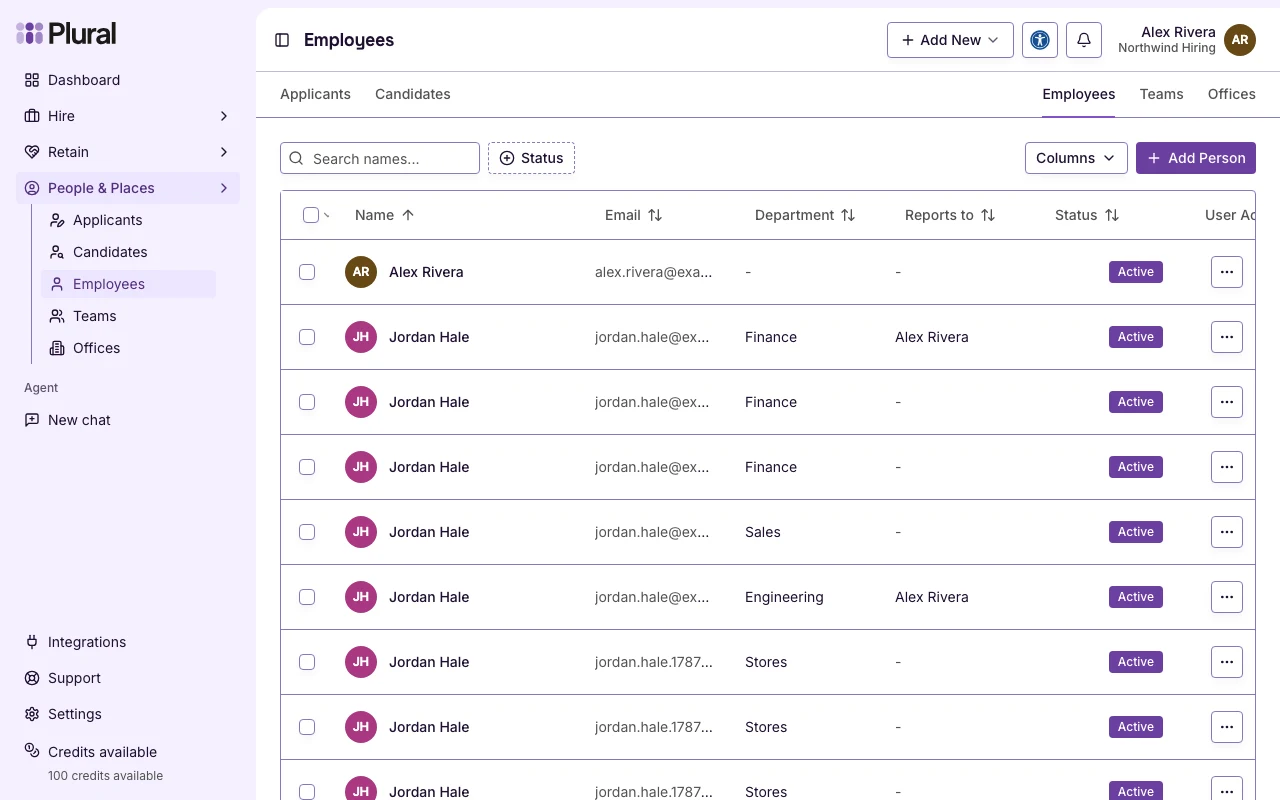
The page title is Employees.
- Select Add Person.
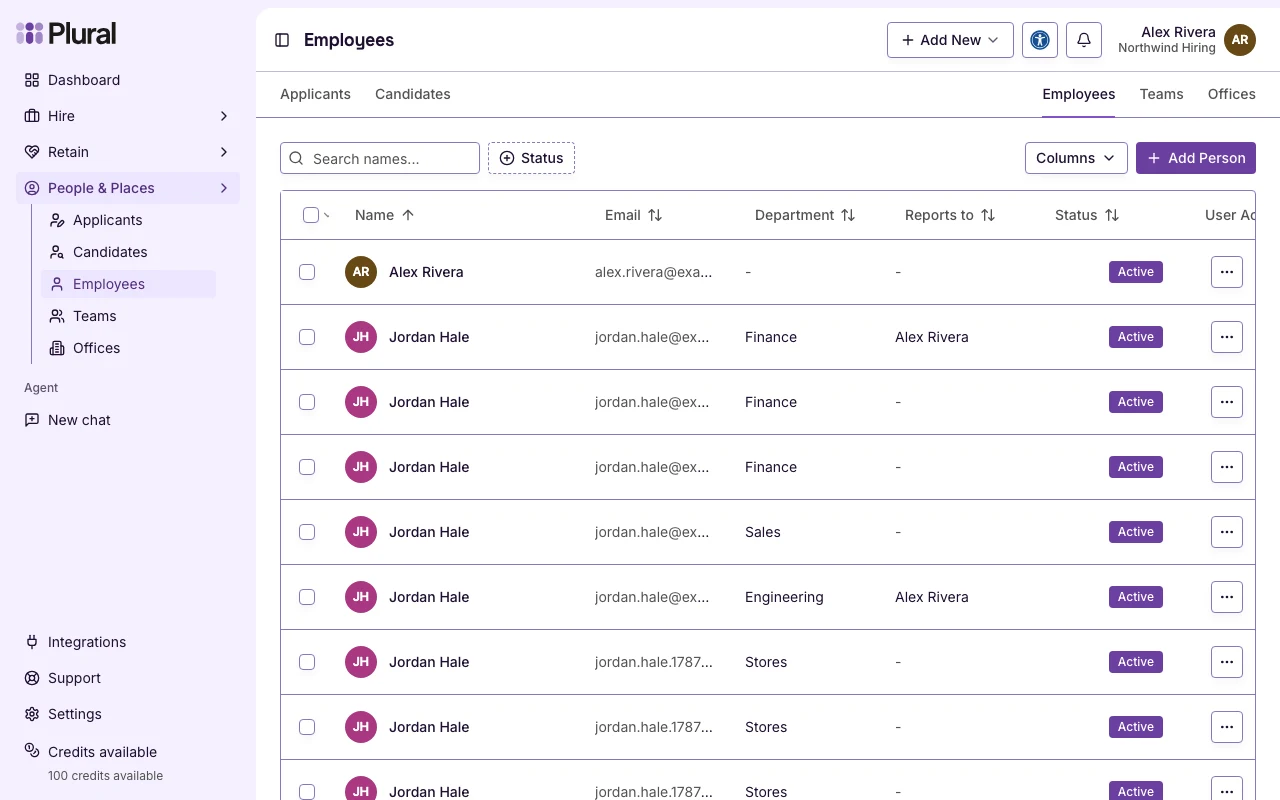
Add a person
The dialog title is Add employee. The description is Add a new person to your organization’s directory.
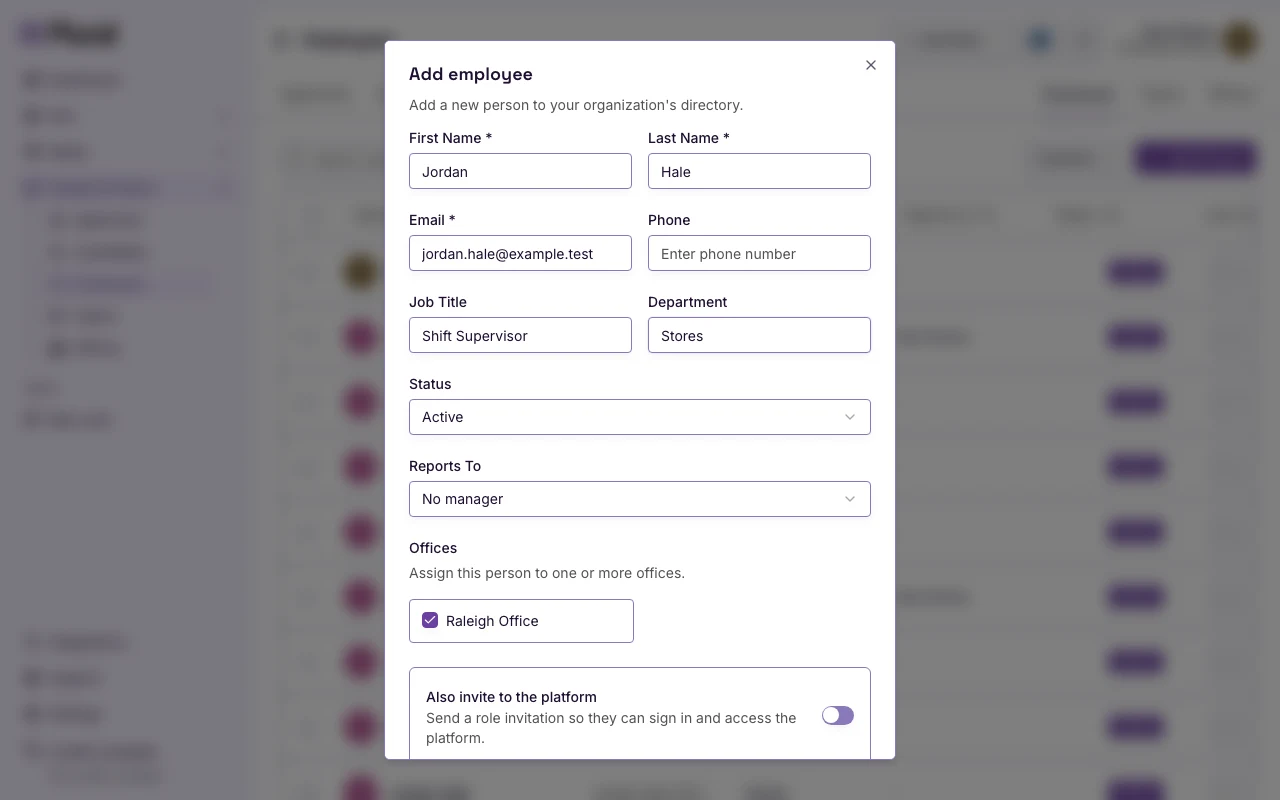
- In First Name, type the given name. This example uses Jordan.
- In Last Name, type the family name. This example uses Hale.
- In Email, type the work email. This example uses
jordan.hale@example.test. - In Phone, type a phone number, or leave the field empty.
- In Job Title, type the role. This example uses Shift Supervisor.
- In Department, type the group. This example uses Stores.
- In Status, keep Active, or select Inactive or Terminated.
- In Reports To, select the manager, or keep No manager.
- In Offices, select every location for the person. This example uses Raleigh Office. The help text is Assign this person to one or more offices.
If the organization has no offices, the form shows: No offices yet. Add offices from the Offices page.
Select Save when the details are complete. Select Cancel to close the dialog.
Invite on add
You can send an invitation in the same dialog. The switch is Also invite to the platform. The help text is Send a role invitation so they can sign in and access the platform.
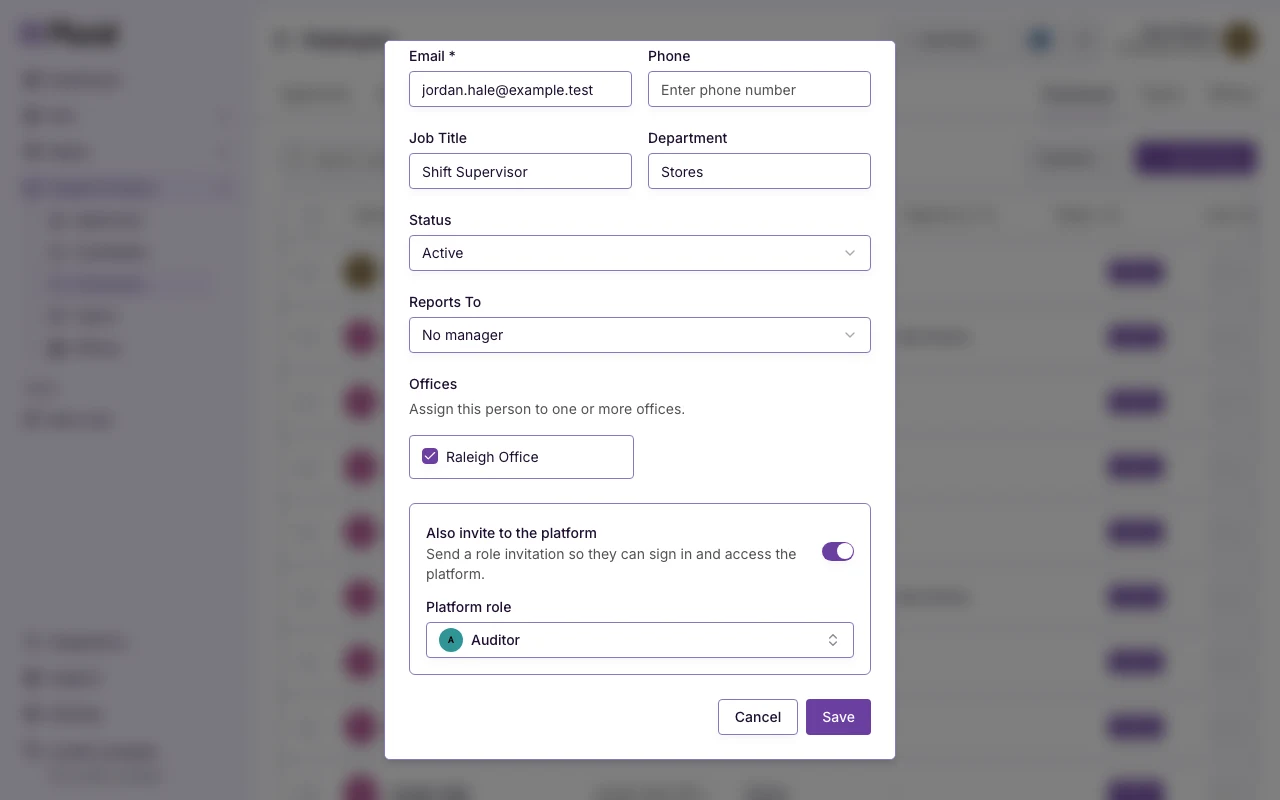
- Turn on Also invite to the platform.
- In Platform role, select the role the person receives. The placeholder is Select role…
- Select Save.
If you turn on the switch and you do not select a role, the form shows: Select role…
If no roles are available, the form shows: No roles available to assign. You may not have permission to invite users.
The default role is often Auditor. Other roles can include Employee, Hiring Manager, Office Administrator, Administrator, and Owner. Select the role that matches the access the person needs.
After Save:
- If the invitation sends, a success message says Employee created and invitation sent successfully.
- If the person is created and the invitation fails, a success message says Employee created successfully. An error message says you can invite the person from the people table.
Invite later
Use this path when the person is already on Employees and does not have a user account.
- Open the Quick Actions menu for the person.
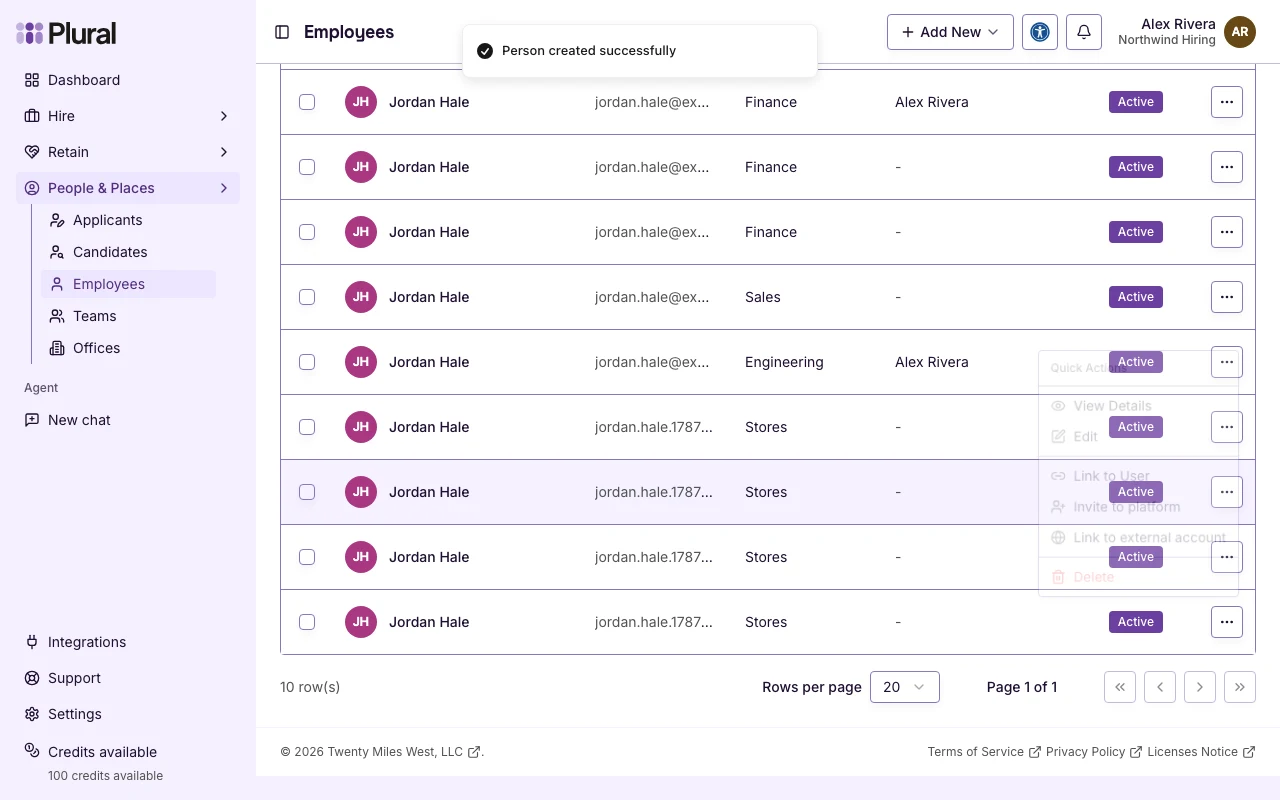
- Select Invite to platform.
The dialog title is Invite to platform. The dialog asks you to choose a role. The person receives an invitation for that role.
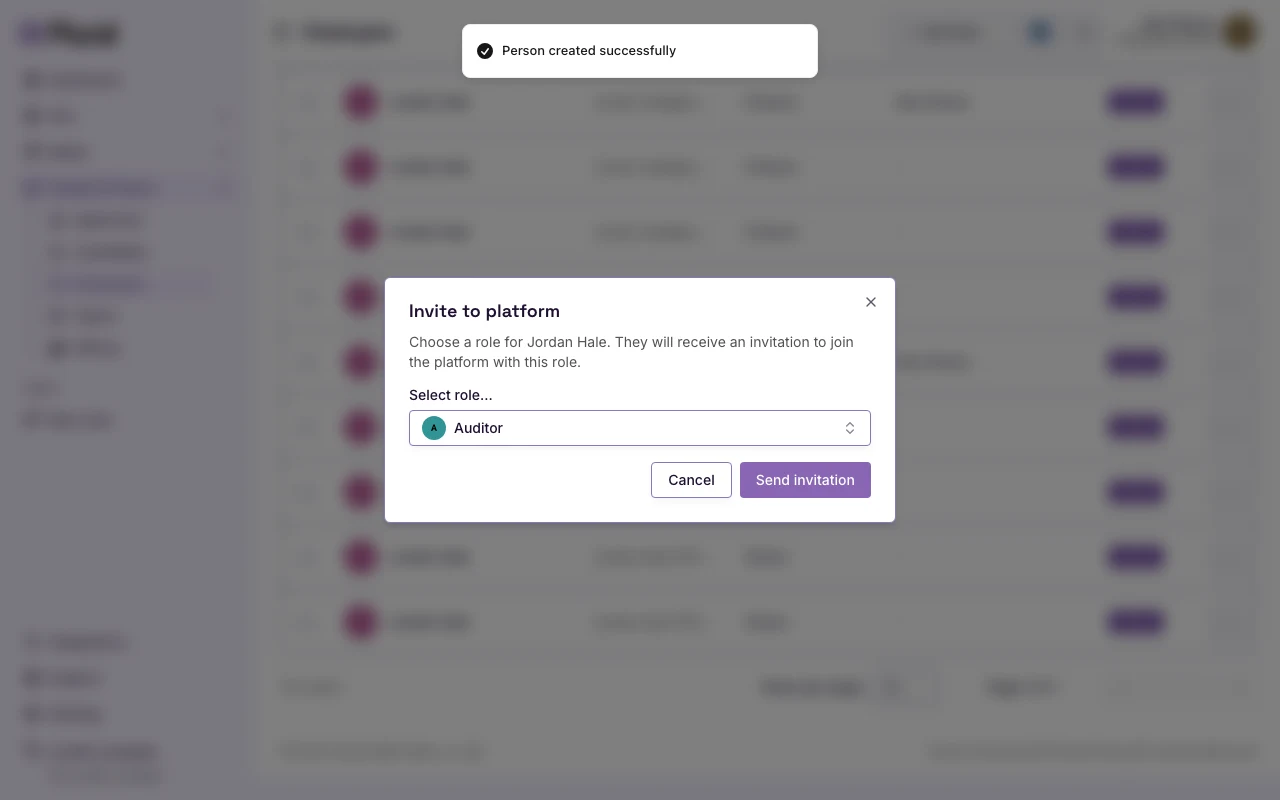
- In Select role…, select the role.
- Select Send invitation.
A success message says Invitation sent successfully.
You can also invite more than one person. Select the rows. Then select Invite to Platform. Choose one role. Select Send invitation. People who already have a user account are not invited.
On a person page, the action label is Invite to Platform when the person has no user.
Link to a user
Use Link to User when a user account already exists and the person record is not linked.
- Open the Quick Actions menu for the person.
- Select Link to User.
The dialog title is Link to User. The dialog asks you to select a user account.
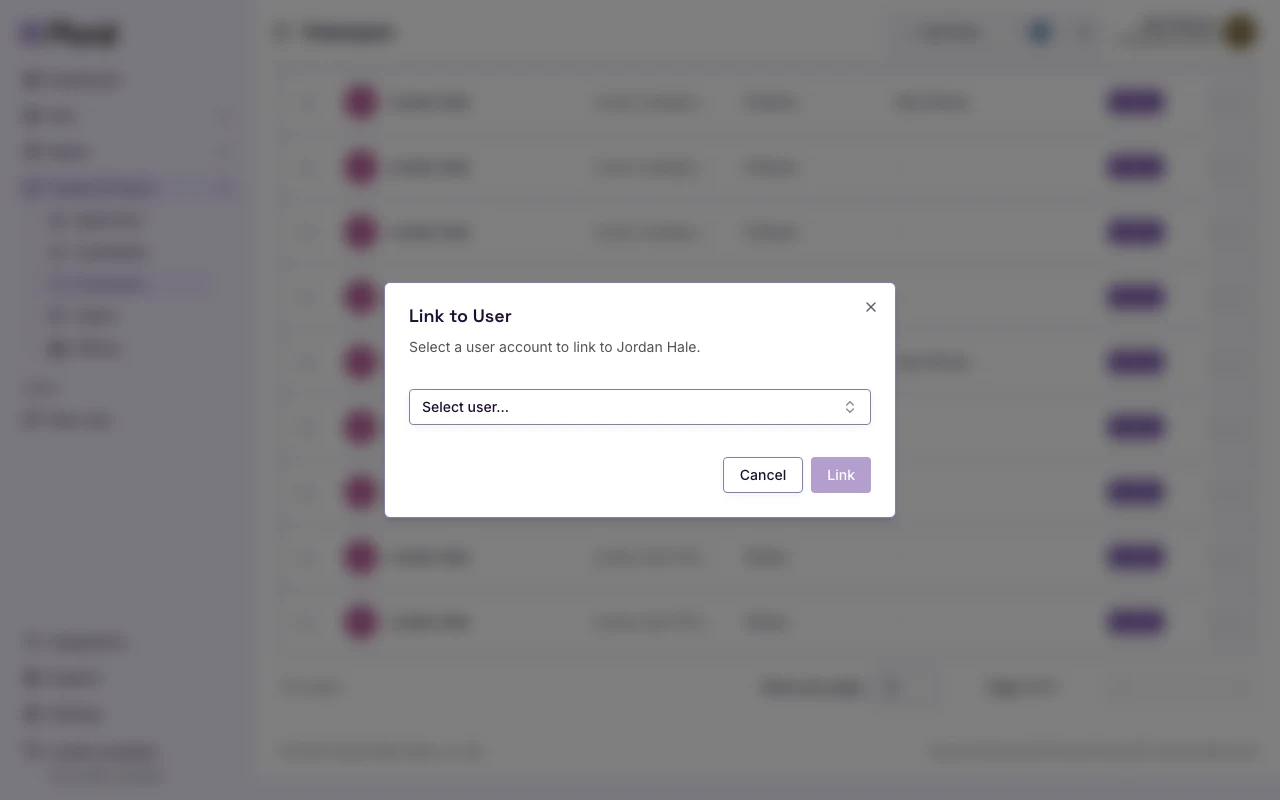
- In Select user…, select the account. Each option shows the user name and email.
- Select Link.
A success message says User linked successfully.
If no accounts are available, the list shows No users available.
The person page has a Platform Account card. If the person is not linked, the card says This person is not linked to a platform account. After you link, the card shows the user name, email, sign-in method, passkey status, and MFA status.