
Assigning evaluations
Assign an evaluation to a person, choose the evaluator, and attach a template and cycle.
You assign an evaluation when you choose a Template, the person who is evaluated, and the evaluator. You can also attach a Cycle.
Before you start
- You must be signed in.
- These plans include this feature: Retain, Hire + Retain, and Enterprise.
- These roles can assign an evaluation: Owner and Administrator.
- A Hiring Manager, Office Administrator, and Employee cannot select New Evaluation.
- You must have at least one Active template.
- You must have at least one person to evaluate. This example uses Jordan Hale.
- Owner and Administrator can select the Evaluator. The list groups people as Administrators, Managers, and Peers.
View Evaluations
- Open Retain, then open Evaluations.
- Select All Evaluations.
New Evaluation
- Select New Evaluation.
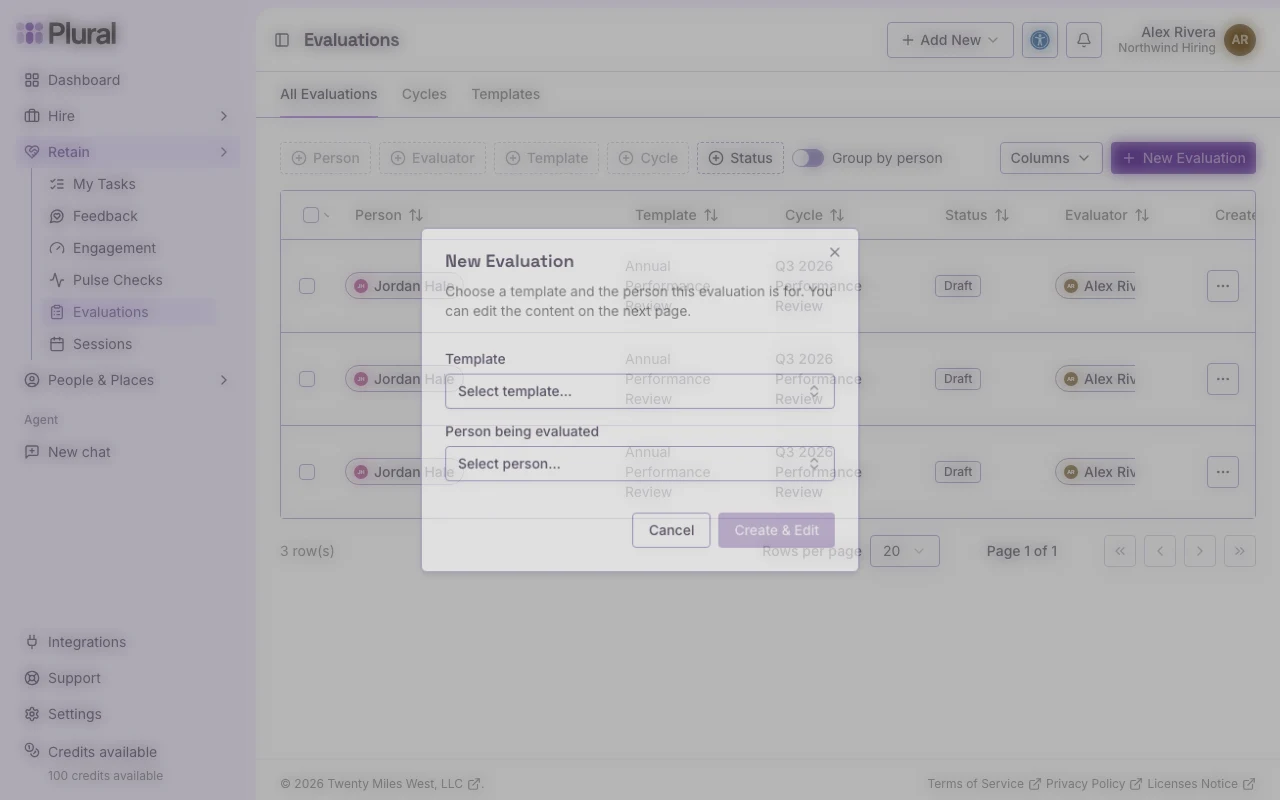
The dialog title is New Evaluation.
- In Template, select the template. This example uses Annual Performance Review. If the cycle has only one template, this field does not appear.
- In Person being evaluated, select the person. This example uses Jordan Hale.
- In Evaluator, select the person who writes the review. This field appears after you select the person being evaluated.
- In Cycle, select a cycle if you want to attach one. This field is optional. The placeholder is Optional — select a cycle. This example uses Q3 2026 Performance Review.
- Select Create & Edit.
Select Cancel to close the dialog.
The form requires a template and a person. If you can select an evaluator, you must select one. If a field is empty, the dialog shows Please select a template and person or Please select an evaluator.
Cycle
You can also assign a review from an active cycle.
- Open Cycles.
- Select the cycle title.
- Select Actions, then select Add evaluation. The New Evaluation dialog opens with the cycle already set.
- Select Start Review on a row in Reviews in this cycle if the review is not started and you can start it.
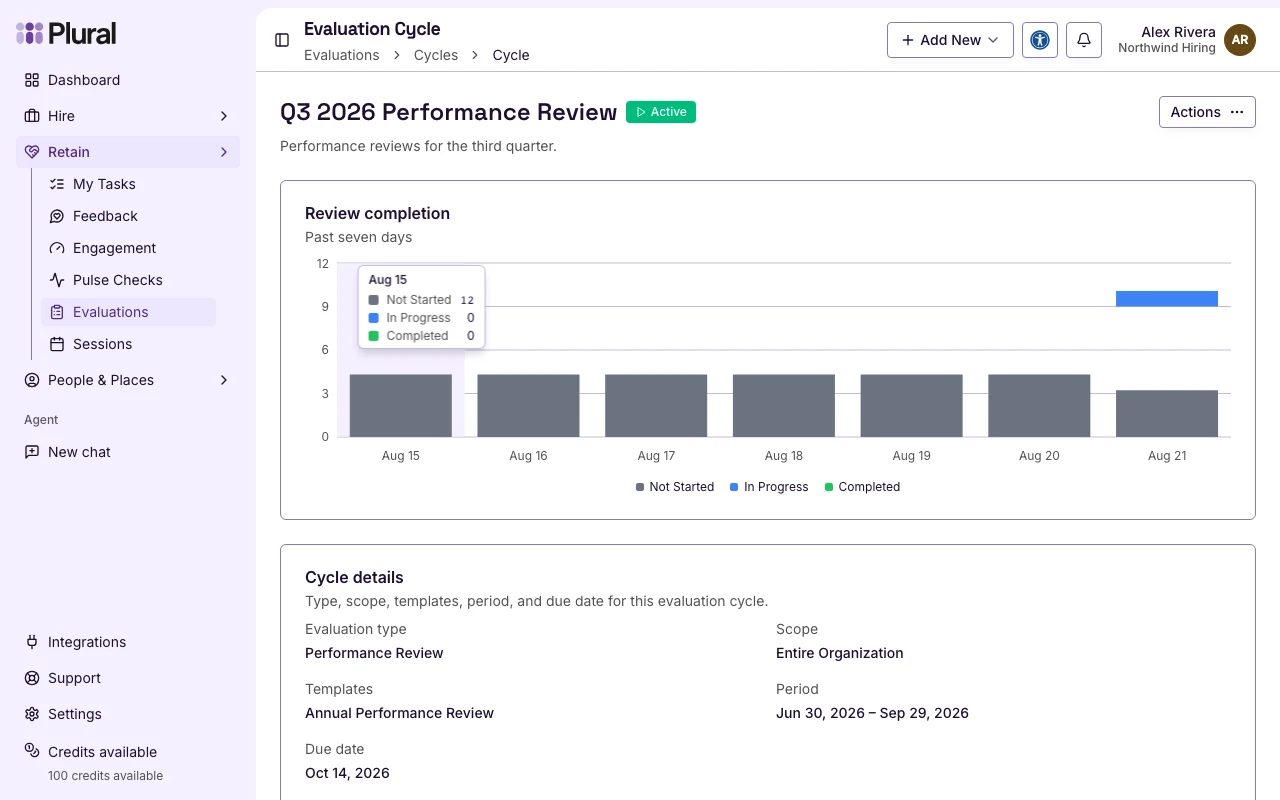
Reviews in this cycle columns are Employee, Review type, Reviewer, Status, and Complete.
If a review already exists and is not complete, select Continue Review. If the review is complete, select View Review.