
Templates
Create an evaluation template with a name, type, and active setting.
A Template is a reusable review form. You select a template when you assign an evaluation.
Before you start
- You must be signed in.
- These plans include this feature: Retain, Hire + Retain, and Enterprise.
- These roles can create a Template: Owner and Administrator.
- A Hiring Manager, Office Administrator, and Employee cannot open Templates.
View Templates
- Open Retain, then open Evaluations.
- Select Templates.
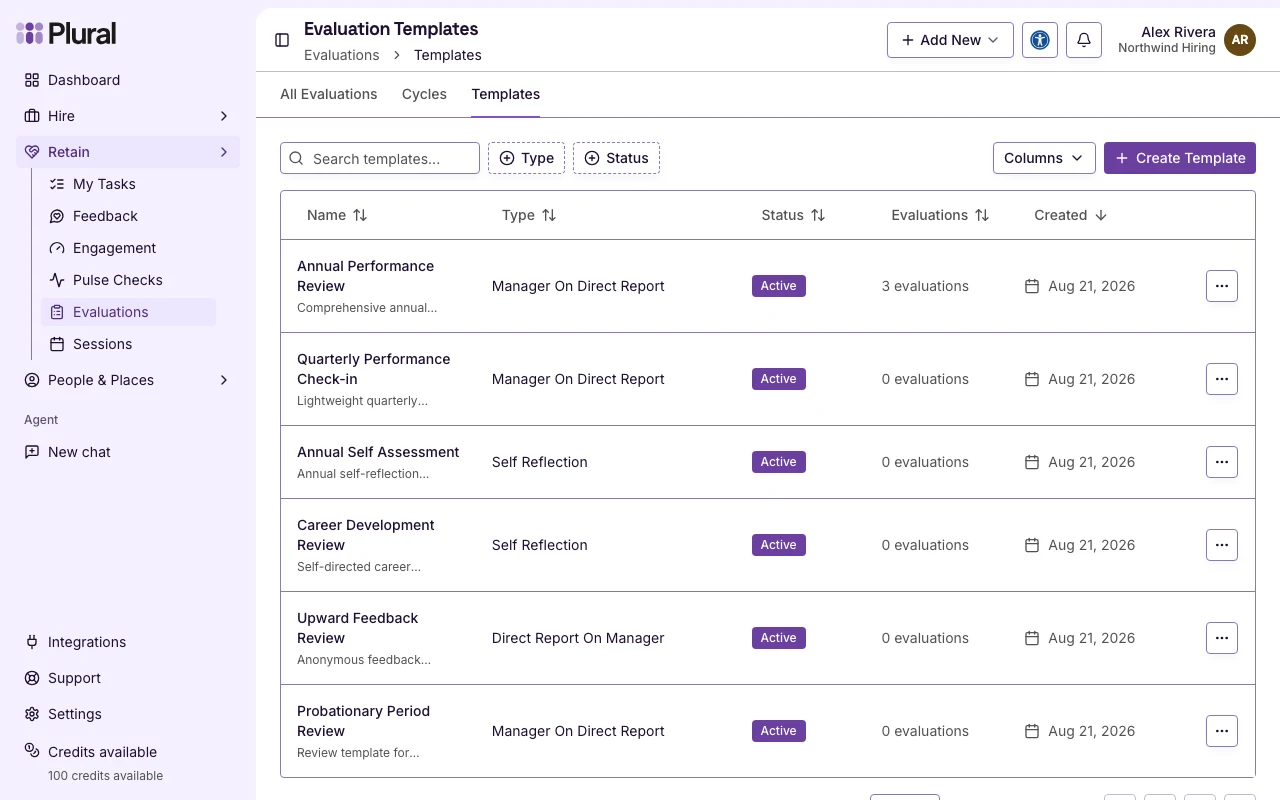
The page title is Evaluation Templates. The table columns are Name, Type, Status, and Evaluations.
Status values:
- Active — you can use the template in a new evaluation or a new cycle.
- Inactive — you cannot use the template in a new evaluation or a new cycle.
- Select Create Template.
Template details
The page title is Create Evaluation Template. The form title is Create Evaluation Template.
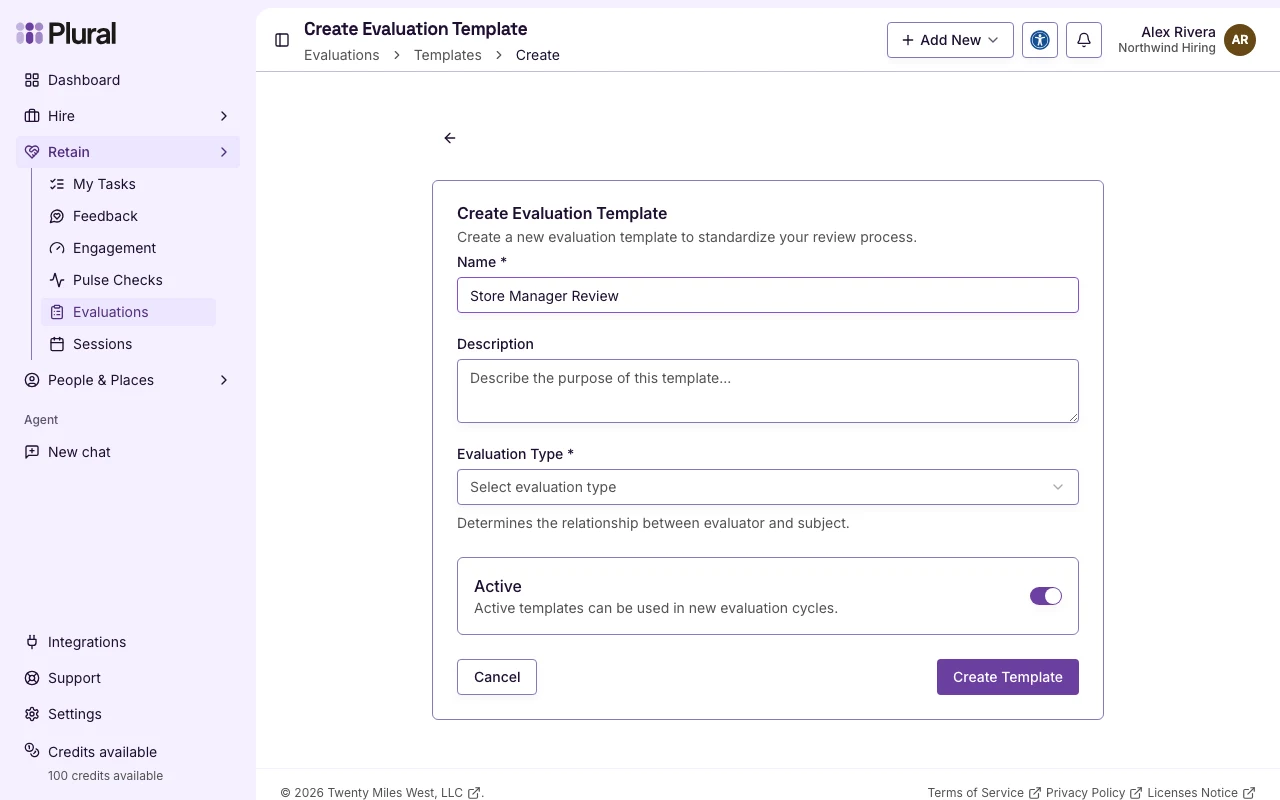
- In Name, type the template name. This example uses Annual Performance Review. The name can have up to 255 characters.
- In Description, type the purpose of the template. This field is optional.
- In Evaluation Type, select the relationship between the evaluator and the person.
Evaluation Type options:
- Manager on Direct Report — a manager writes a review of a direct report.
- Direct Report on Manager — a person writes a review of a manager.
- Self Reflection — a person writes a review of their own work.
- Keep Active on if you want to use the template now. Turn Active off if you want to save the template and use it later.
- Select Create Template.
Select Cancel to return to Evaluations.
A new organization can already have default templates, such as Annual Performance Review, Quarterly Performance Check-in, and Annual Self Assessment. You can edit those templates. You can also create a new template.