
Cycles
Create an evaluation cycle, set the period and who participates, then activate it.
A Cycle is a review period. You set the dates, the cycle type, and who participates. You can attach Templates to the cycle.
Before you start
- You must be signed in.
- These plans include this feature: Retain, Hire + Retain, and Enterprise.
- These roles can create a Cycle: Owner and Administrator.
- A Hiring Manager, Office Administrator, and Employee cannot open Cycles.
- Create a Template first if you want the cycle to use one. Templates are optional when you create the cycle.
View Cycles
- Open Retain, then open Evaluations.
- Select Cycles.
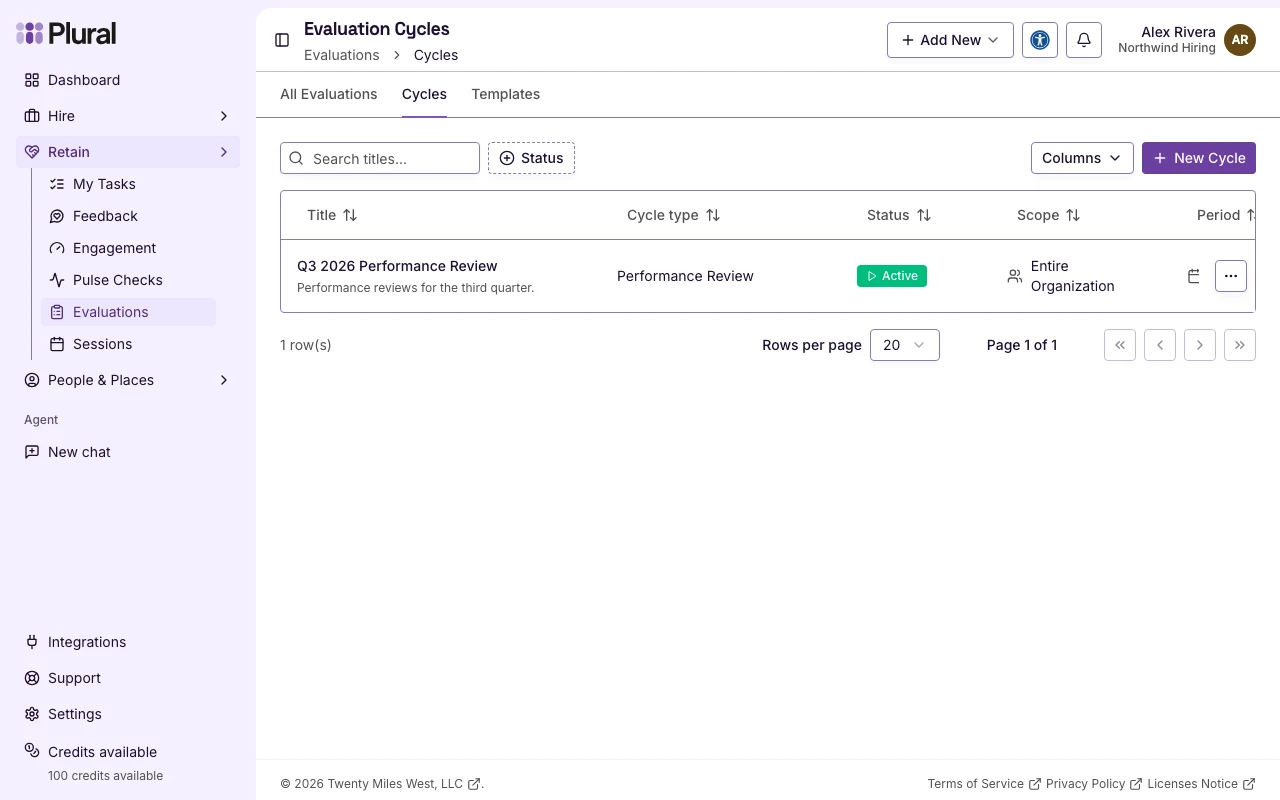
The page title is Evaluation Cycles. The table columns include Title, Cycle type, Status, and Scope.
Status values:
- Draft — the cycle is not open yet.
- Active — people can complete reviews in the cycle.
- Completed — the cycle is finished.
- Select New Cycle. If the list is empty, select Create Cycle.
Cycle details
The dialog title is Create Evaluation Cycle.
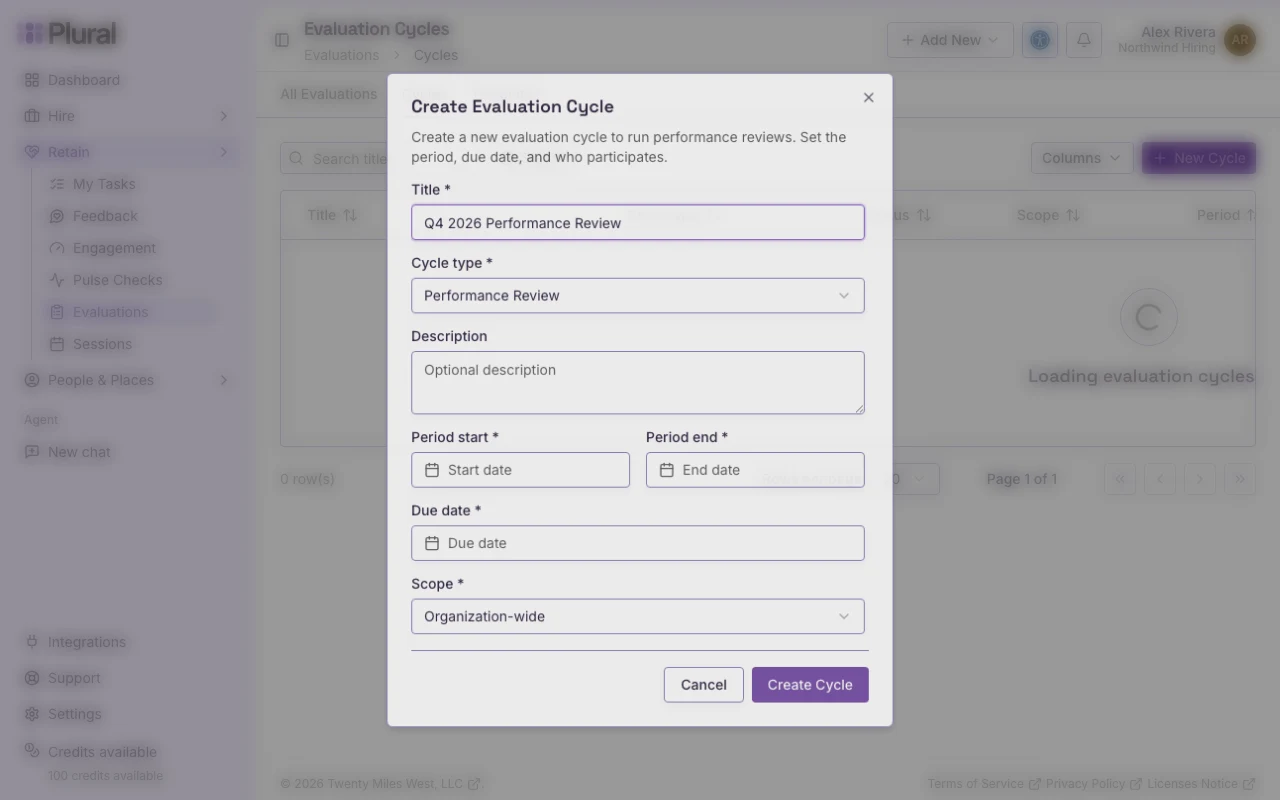
- In Title, type the cycle name. This example uses Q3 2026 Performance Review. The title can have up to 255 characters.
- In Cycle type, select the kind of review.
Cycle type options:
- Company Survey
- Performance Improvement Plan
- Performance Review
- Self Reflection
- Upward Feedback
- In Description, type a short note. This field is optional.
- In Period start, select the first day of the review period.
- In Period end, select the last day of the review period. The end date must be on or after the start date.
- In Due date, select the day when reviews are due.
- In Scope, select who participates.
Scope options:
- Organization-wide — the whole organization.
- Specific teams — only the teams you select. Then select Teams.
- Specific people — only the people you select. Then select Participants.
- In Templates, select one or more templates if you want the cycle to use them. This field is optional.
- Select Create Cycle.
Select Cancel to close the dialog.
View the cycle
- Select the cycle title in the list, or open the row menu and select View Details.
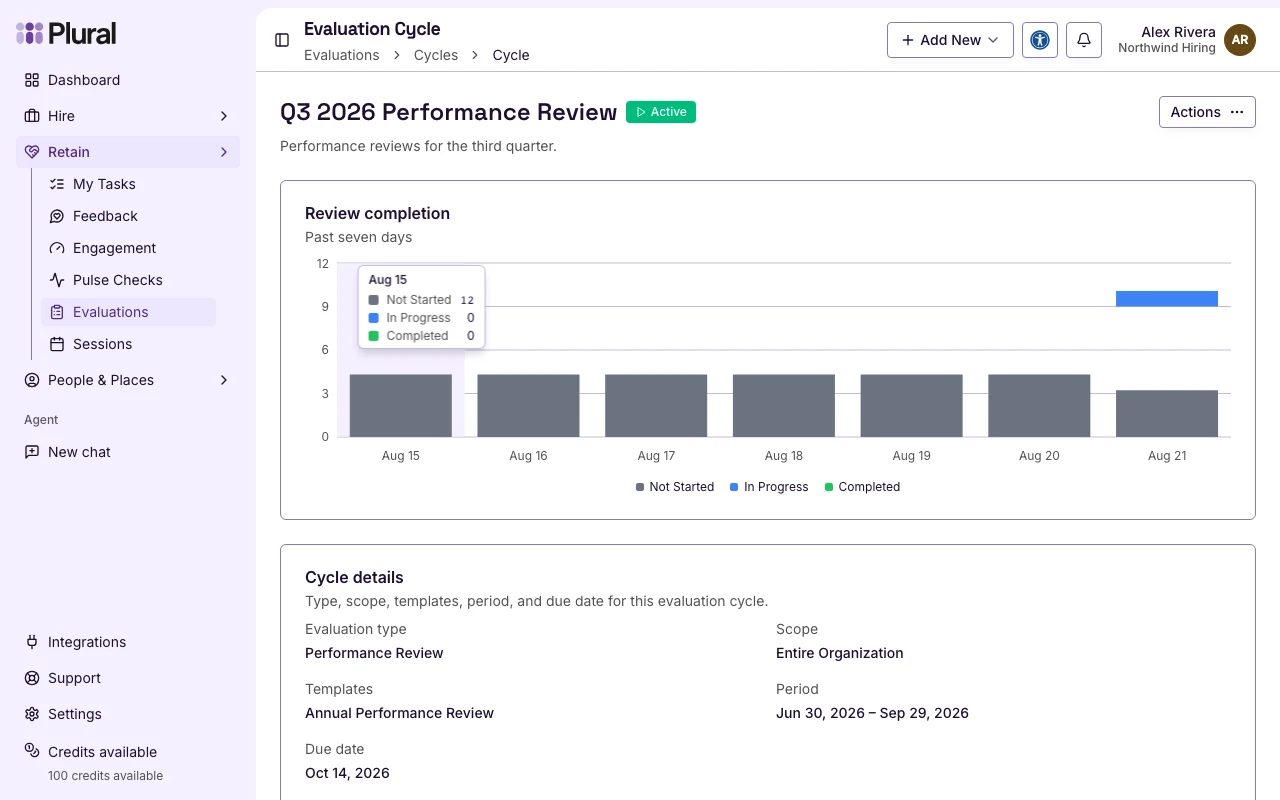
The page shows Cycle details and Reviews in this cycle.
Cycle details fields:
- Evaluation type — the cycle type you selected.
- Scope — who is in the cycle. An organization-wide cycle shows Entire Organization.
- Templates — the templates on the cycle, or No templates assigned.
- Period
- Due date
- Review progress
- Select Actions.
- Select Activate if the status is Draft. Confirm Activate Evaluation Cycle, then select Activate. The cycle notifies participants.
- Select Edit if you need to change the cycle.
- Select Export CSV to download the cycle data.
You cannot delete an Active cycle. You can delete a Draft cycle or a Completed cycle.