
Completing evaluations
Write the review, submit it, change the status, and complete the cycle.
You complete an evaluation when you write the review and select Submit. An owner or administrator can also change the status or complete the Cycle.
Before you start
- You must be signed in.
- These plans include this feature: Retain, Hire + Retain, and Enterprise.
- The assigned evaluator can write and submit the evaluation.
- These roles can also update evaluations they can see: Owner and Administrator.
- A Hiring Manager, Office Administrator, and Employee can complete evaluations assigned to them.
- You cannot edit a submitted evaluation.
View Evaluations
- Open Retain, then open Evaluations.
- Select All Evaluations.
- Open the row menu for the evaluation. Select Edit.
You can also open Continue Review from a cycle.
Evaluation content
The header shows the person and the template. Example: Evaluating Jordan Hale using Annual Performance Review.
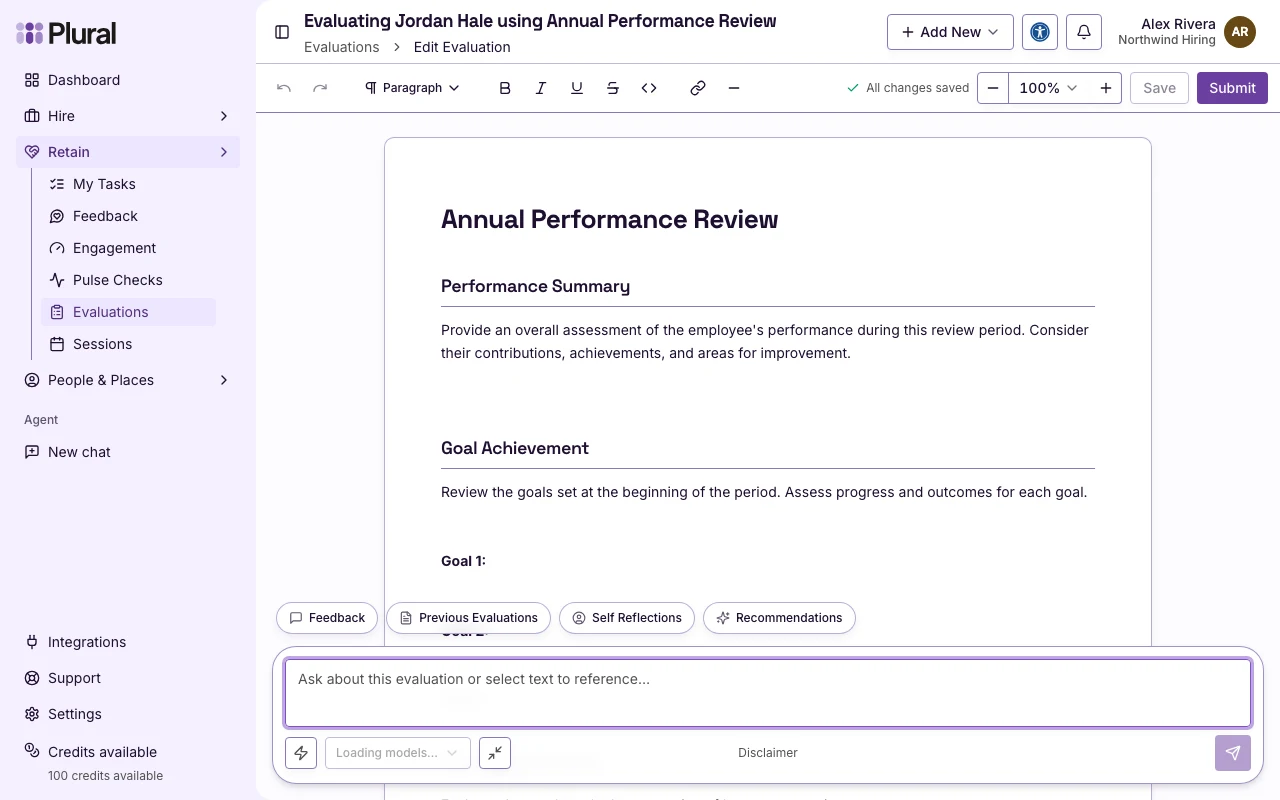
- Type the review in the document. The placeholder is Start writing your evaluation…
- Select Save to store a draft. The document also saves while you type.
- Select Change Template if you need a different template. The current text is replaced. Confirm Replace document and change template.
- Select Submit.
If the template type is Manager on Direct Report, and ratings are on for your organization, a dialog titled Submit evaluation opens.
- In Performance, select how well the person met expectations.
- In Potential, select how much growth potential the person shows.
- Select Submit evaluation.
A success message confirms the evaluation. You return to Evaluations. The status is Submitted.
After submit, the document is read-only. The placeholder is This evaluation has been submitted and can no longer be edited.
Status
Owner and administrator can set the status without the submit flow.
- On All Evaluations, open the row menu.
- Select Change status.
- In Status, select a value: Draft, In Progress, Submitted, Acknowledged, or Completed.
- Select Save.
You can also select more than one row, then select Change status.
Cycle
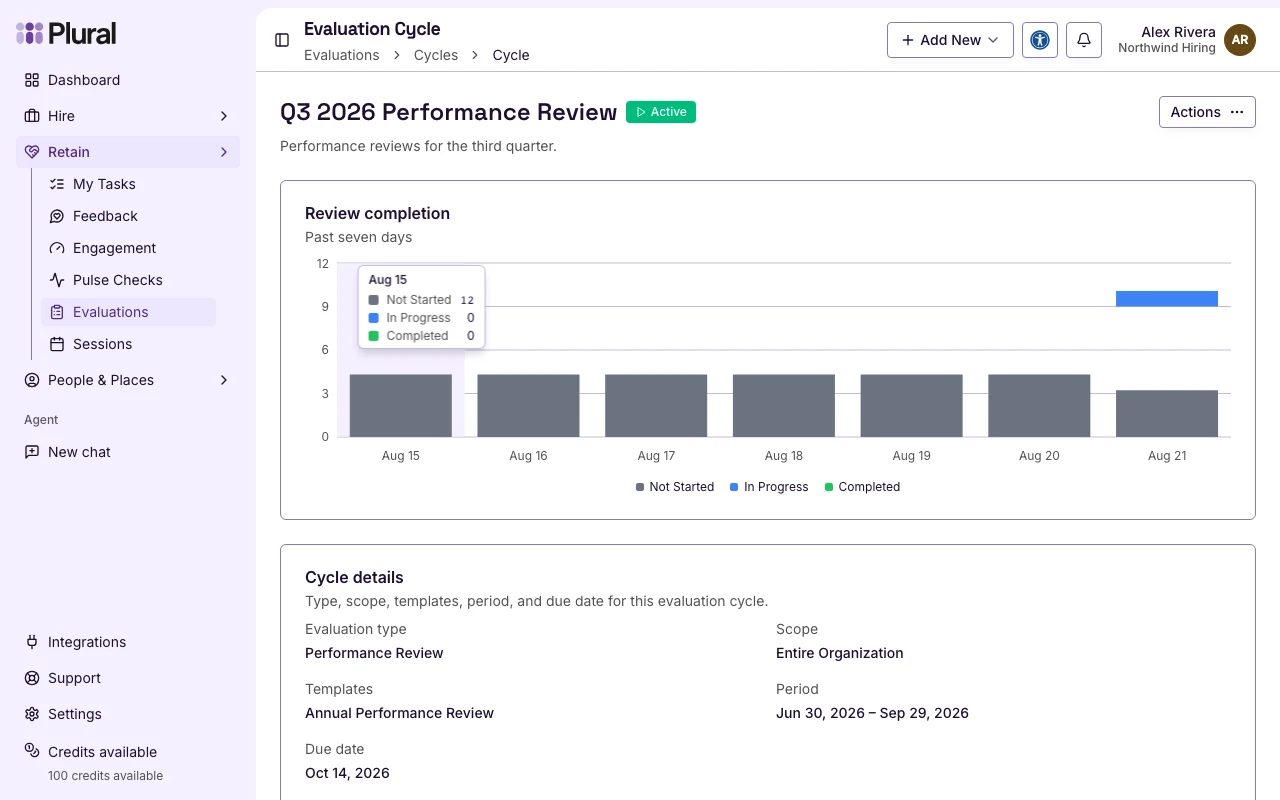
When reviews in an Active cycle are done, complete the cycle.
- Open Cycles.
- Select the cycle title, or open the row menu.
- Select Complete.
- Confirm Complete Evaluation Cycle, then select Complete.
This action finalizes the evaluations in the cycle. The cycle status is Completed.
Acknowledgement
The person who was evaluated can receive a request to acknowledge the review.
- Open the acknowledge page from the request.
- In Your full name, type the name.
- Select Acknowledge.
The status becomes Acknowledged.