
Viewing applicants
View the Applicants list, search for a person, and view a profile.
An Applicant is a person who applied for a Career. Applicants appear after they apply.
Before you start
- You must be signed in.
- These plans include this feature: Hire, Hire + Retain, and Enterprise.
- These roles can view Applicants: Owner, Administrator, Hiring Manager, and Office Administrator.
- You must be able to view people.
- If you are an Office Administrator, you see Applicants who applied for a Career or application that is tied to an office you administer.
- This page does not show Add Person. Applicants appear after they apply for an open Career.
- If the organization has no Career, the page can show Start accepting applications. Create a Career first.
View Applicants
- Open People & Places, then open Applicants.
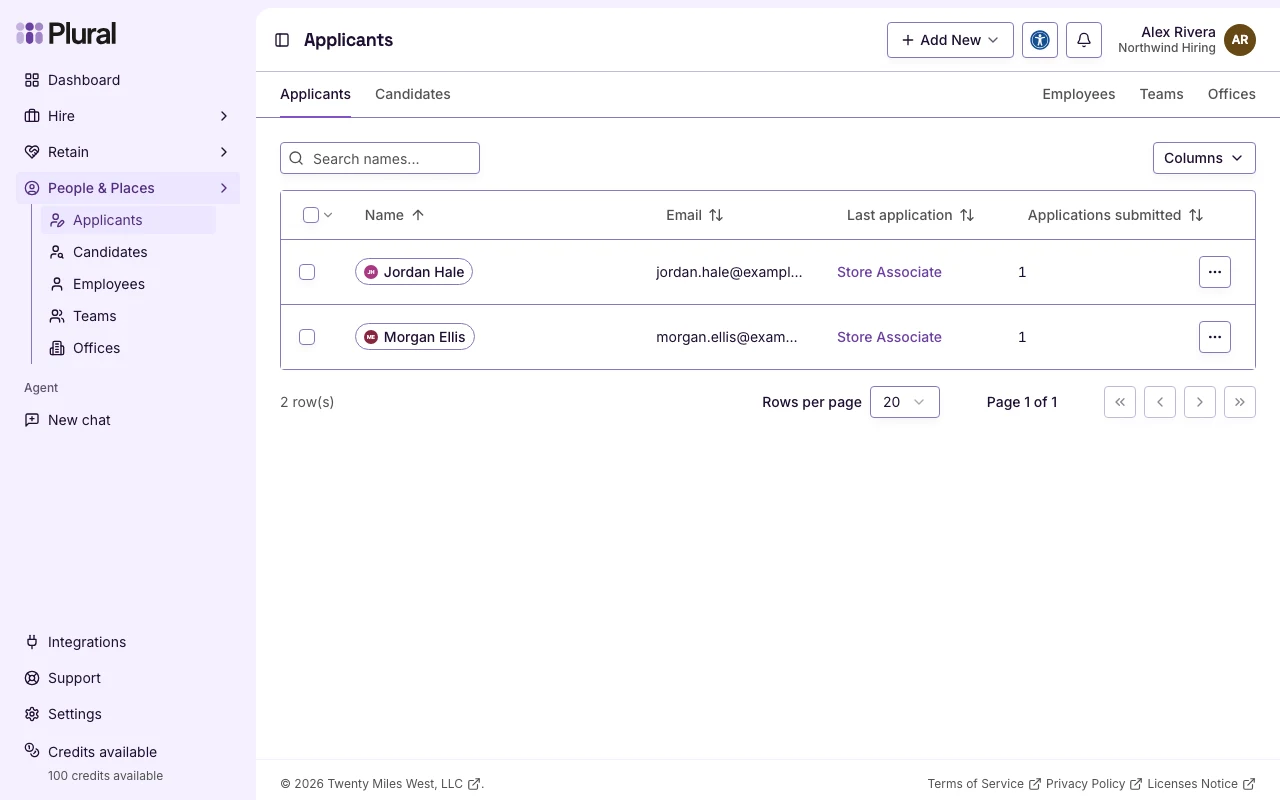
- The page title is Applicants.
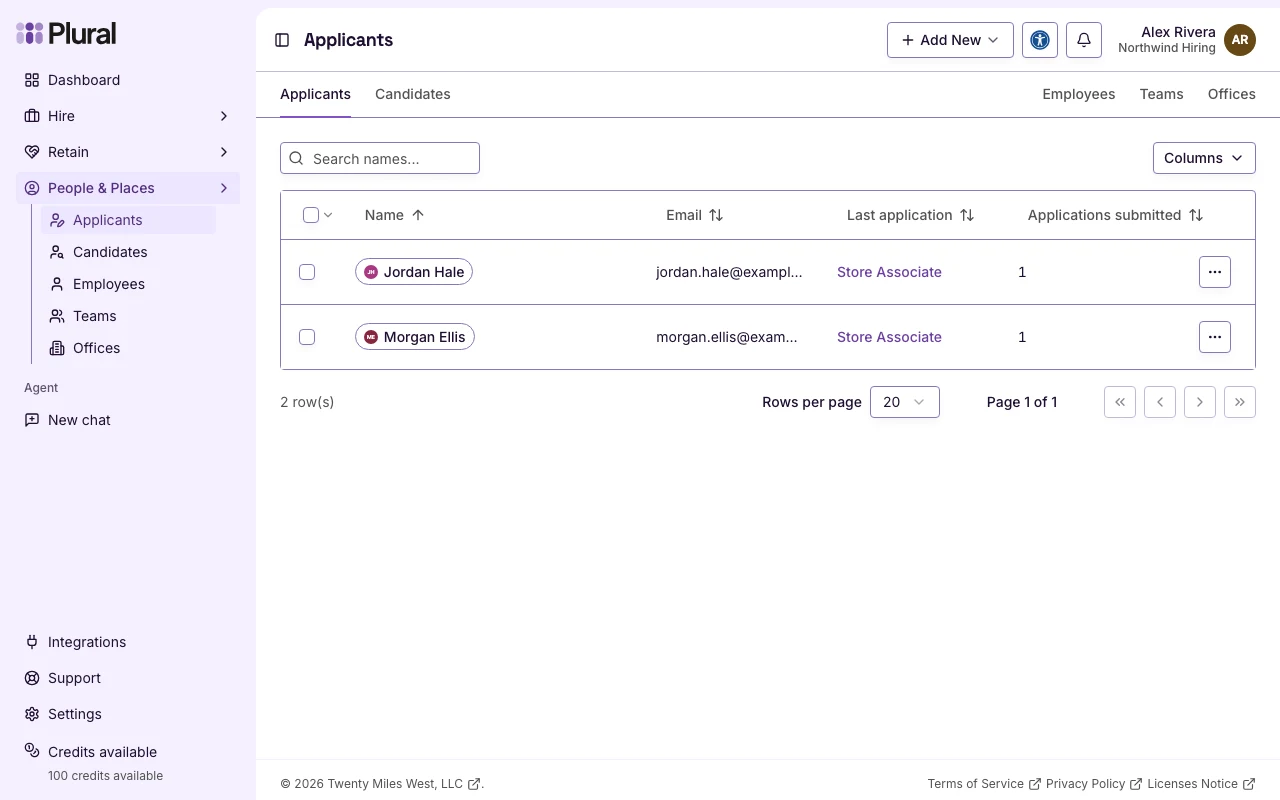
The table columns are Name, Email, Last application, and Applications submitted.
If the list is empty, the page shows No People Found. The text is: Applicants appear here after they apply to an open career.
Search
This list has a name search. It does not have a Status filter.
- In Name, type part of the person’s name. The field shows Search names…. This example uses Morgan.
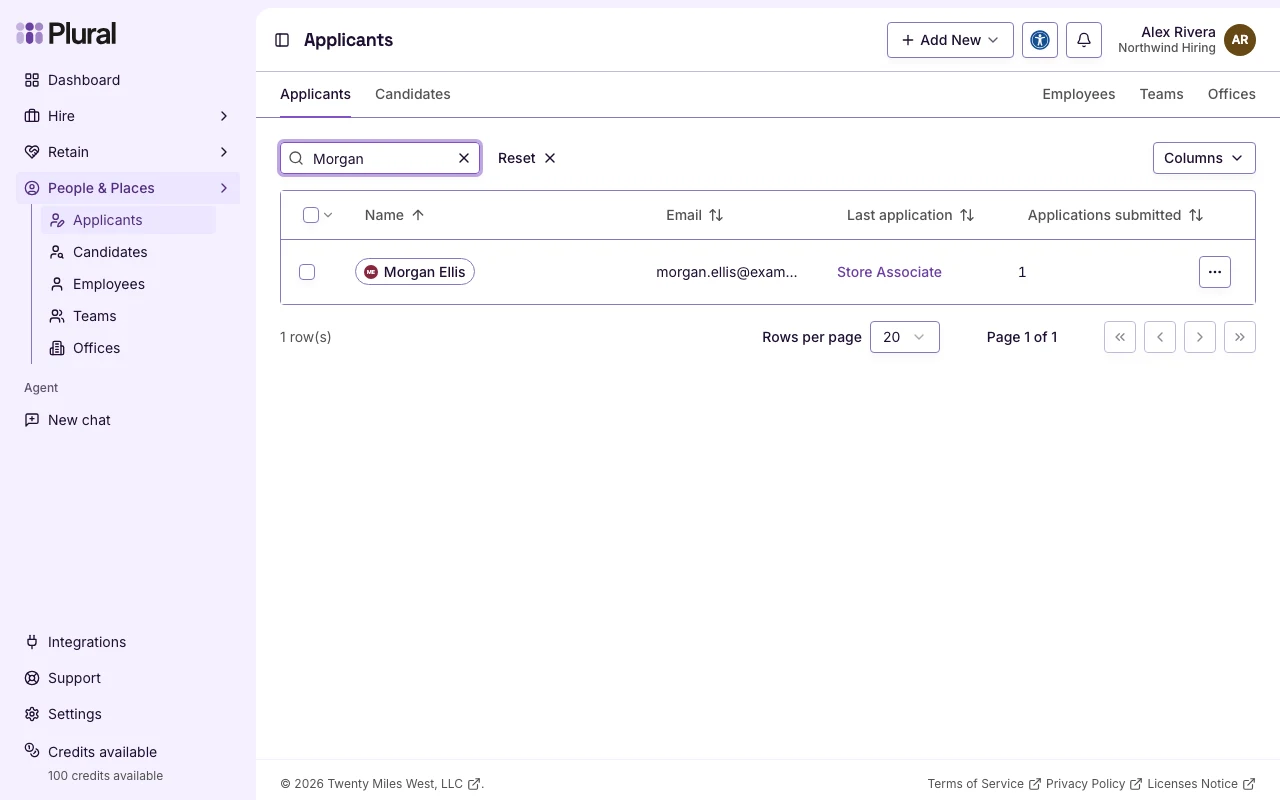
- Select Reset to clear the search.
You can also:
- Select Columns to show or hide columns.
- Select a column heading to sort Name, Email, or Applications submitted.
- Select the Career title in Last application to open that application.
- Open the row menu. The menu title is Quick Actions. Select View Details to open the profile. The menu can also show Edit, Invite to platform, Link to User, Link to external account, and Delete.
- Select one or more rows. Then select Add to Team, Invite to Platform, or Delete if your role allows those actions.
How an Applicant is different
People & Places has three people pages: Applicants, Candidates, and Employees.
Applicant. A person who applied for a Career. Applicants appear on Applicants. That table shows Last application and Applications submitted. That page does not show Add Person.
Candidate. A person you source. Candidates appear on Candidates. That page shows Add Person. If a Candidate later applies for a Career, the person stays a Candidate. The person does not move to Applicants.
Employee. A person who works in your organization. Employees appear on Employees. An Employee profile can include Evaluations and Sessions. An Applicant profile does not.
On Applicants, the page navigation shows Applicants and Candidates on the left. It shows Employees, Teams, and Offices on the right.
View a profile
This example uses Morgan Ellis.
- Select the name in the Name column.
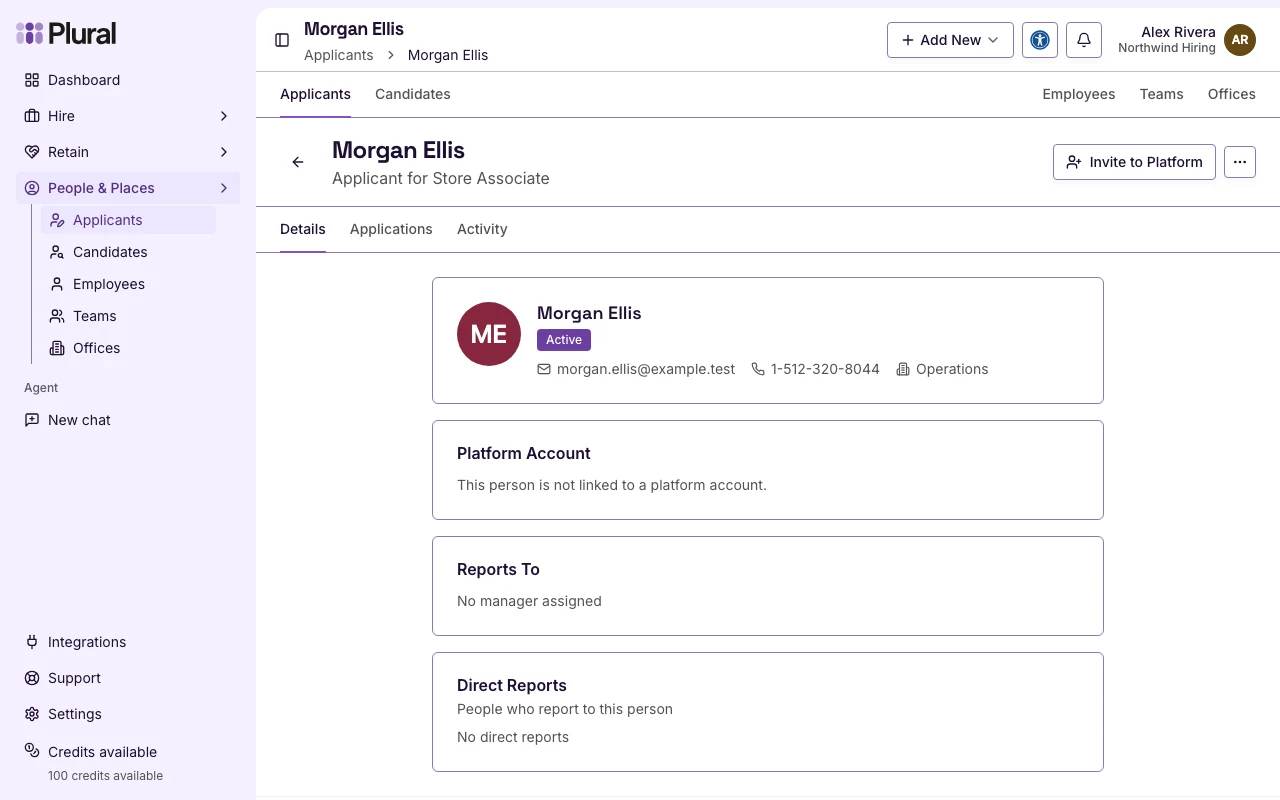
Or open the row menu. The menu title is Quick Actions. Select View Details.
The profile heading is the person’s name. The subtitle can show Applicant or Applicant for the Career. This example shows Applicant for Store Associate.
The profile navigation shows Details, Applications, and Activity. Details is the first page.
Select Invite to Platform if the person has no user account.