
Changing status
Move a hiring application to a new status, or reject or mark the person as hired.
Status shows where the person is in hiring. You can change status from the list or from the application.
Before you start
- You must be signed in.
- These plans include this feature: Hire, Hire + Retain, and Enterprise.
- These roles can change status: Owner, Administrator, Hiring Manager, and Office Administrator.
- If you are a Hiring Manager, you can change status for applications on Careers where you are the hiring manager.
- If you are an Office Administrator, you can change status for applications in offices that you administer.
Status values
- Draft — the application is not submitted.
- Submitted — the application is in the list for review.
- Shortlisted — the team selected the person for more review.
- Interviewing — the person is in interviews.
- Hired — you selected the person for the role.
- Rejected — you did not select the person.
- Withdrawn — the person left the process.
Hired, Rejected, and Withdrawn are end statuses. Reject Application and Mark Hired stay disabled after an end status.
List
- Open Hire, then open Applications.
- In Status for the row, select the new status.
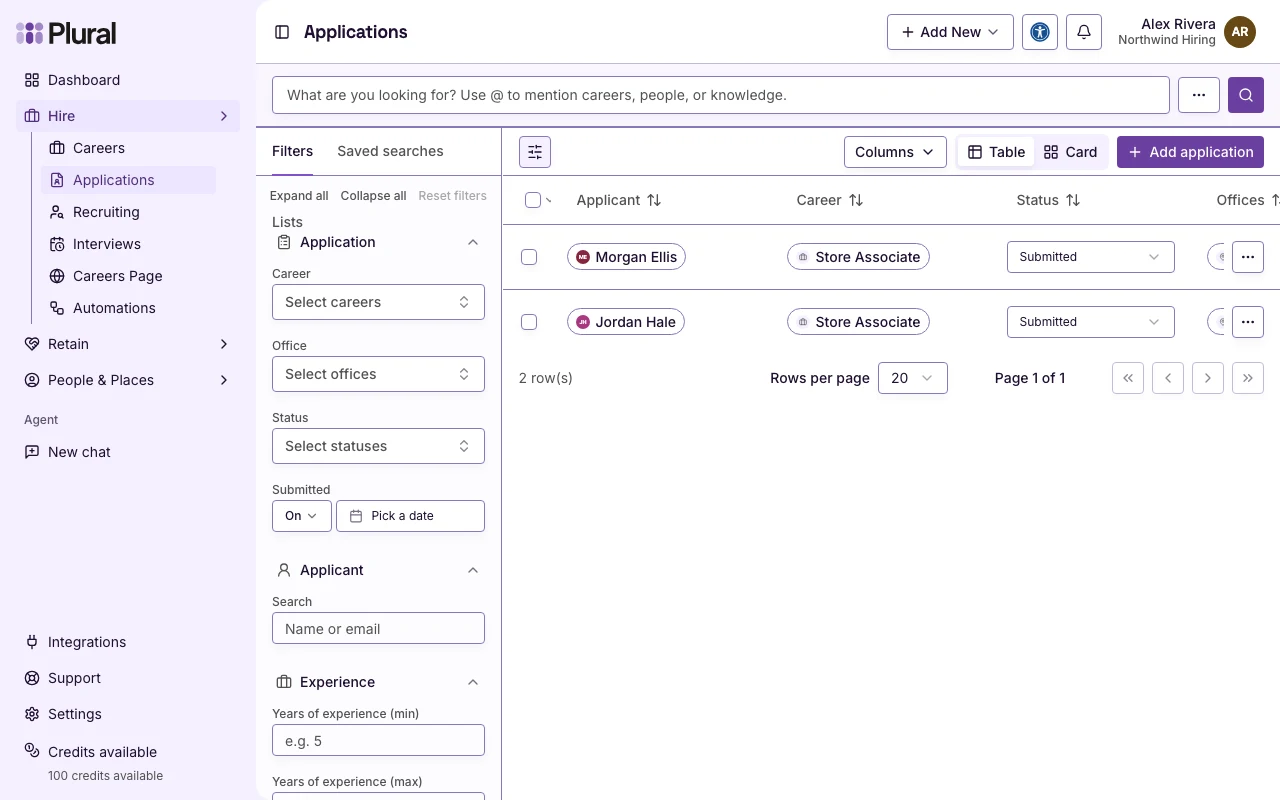
A success message confirms Status updated.
In Card view, open the card menu and select Move to column. Then select the status.
To change more than one row, select the rows. Select Change status. In Select status, select the status. Select Update status.
Application
- Open the application.
- In Application status, select the new status.
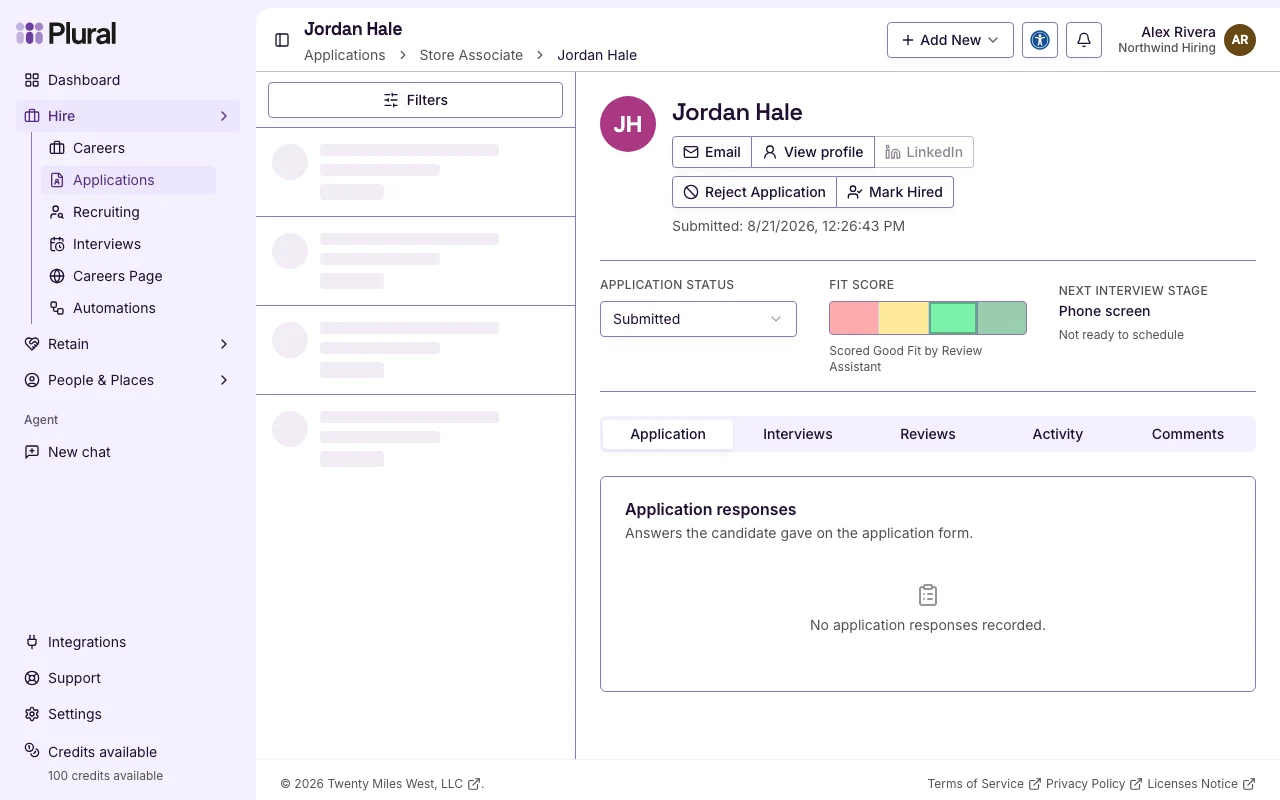
A success message confirms Application status updated.
Reject the application
- Open the application.
- Select Reject Application.
- Read Reject this application?
- Select Reject. Select Cancel if you do not want to reject.
A success message confirms Application rejected. The status changes to Rejected.
You can also reject from Edit application. Select Edit in the row menu. Then select Reject under Reject application.
Mark the person as hired
- Open the application.
- Select Mark Hired.
- Read Mark this candidate as hired?
- Select Reject all other applications for this career that have not been marked as Hired if you want the other applications to change to Rejected.
- Select Mark Hired. Select Cancel if you do not want to mark hired.
A success message confirms Application marked as hired. The status changes to Hired.