
Viewing applications
View the Applications list and open one hiring application to see answers, status, and the applicant.
Applications is the list of everyone who applied for your open roles. Use it to see who applied, read their answers, and take action on each application.
Before you start
- You must be signed in.
- These plans include this feature: Hire, Hire + Retain, and Enterprise.
- These roles can view Applications: Owner, Administrator, Hiring Manager, and Office Administrator.
- If you are a Hiring Manager, you see applications for Careers where you are the hiring manager.
- If you are an Office Administrator, you see applications for offices that you administer.
View Applications
- Open Hire, then open Applications.
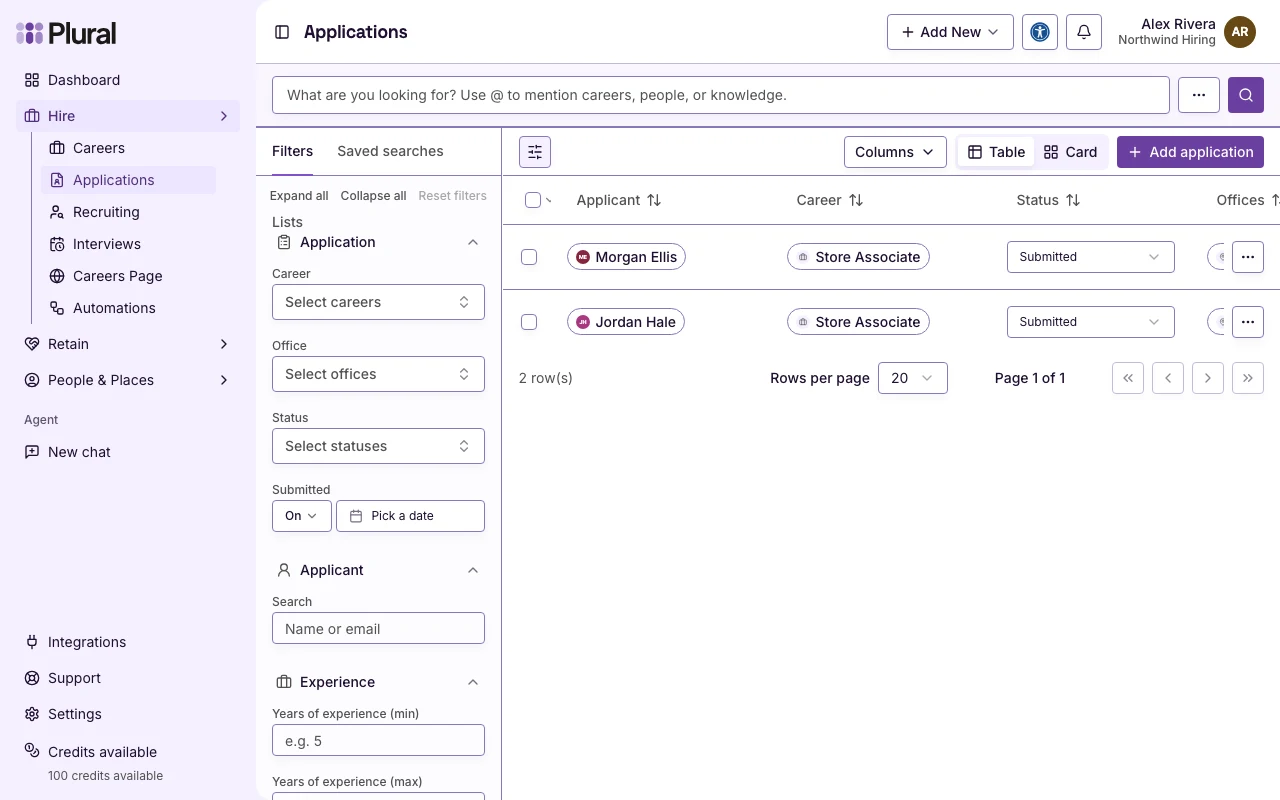
The page title is Applications.
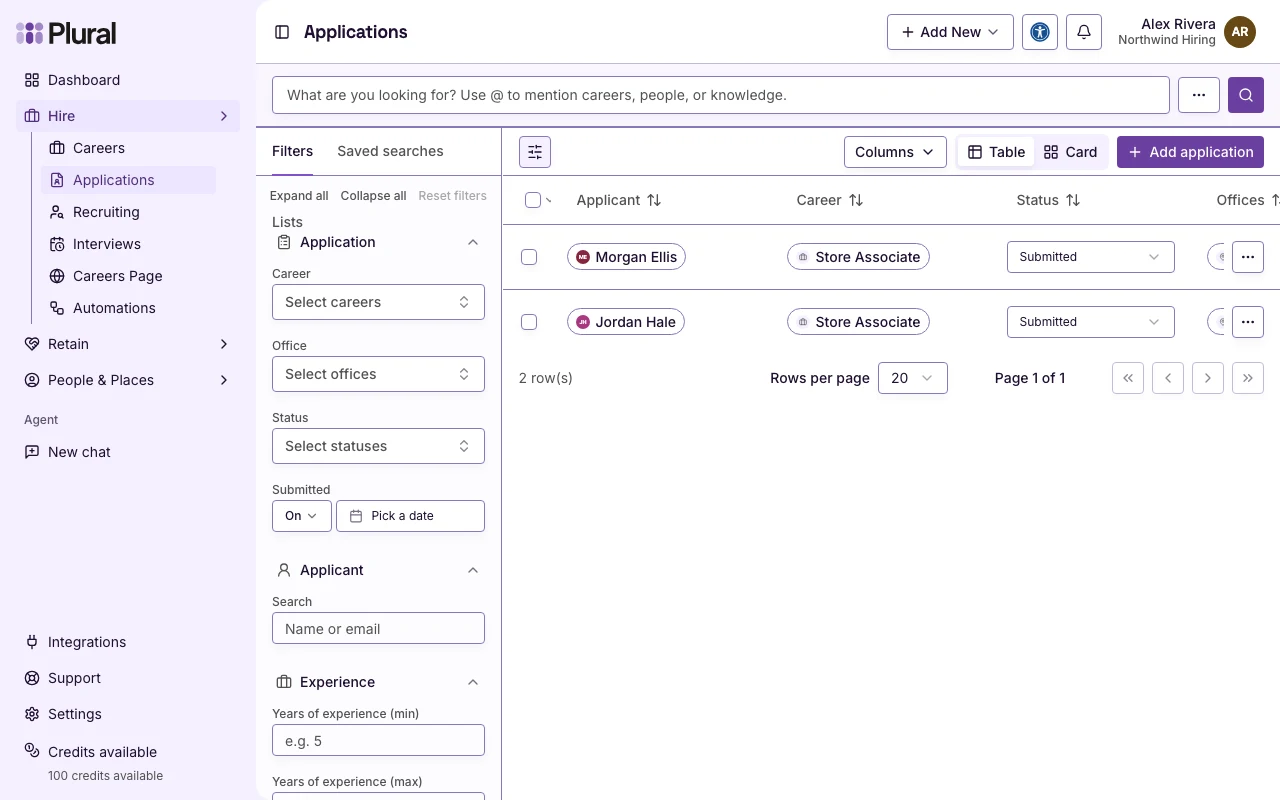
- Select Table to see rows. Select Card to see columns by status.
- Use Filters when you want to narrow the list. Filter by role, office, status, or submission date in the Application group, or by Name or email in the Applicant group.
This example uses Northwind Hiring. Jordan Hale applied for Store Associate at Raleigh Office.
Each row shows an applicant, a Career, a status, and a review score when one is set.
View an application
- Find the applicant in the table. This example uses Jordan Hale.
- Select Open menu on that row. The menu title is Actions. The menu includes View Details, Edit, Add to List, and Delete.
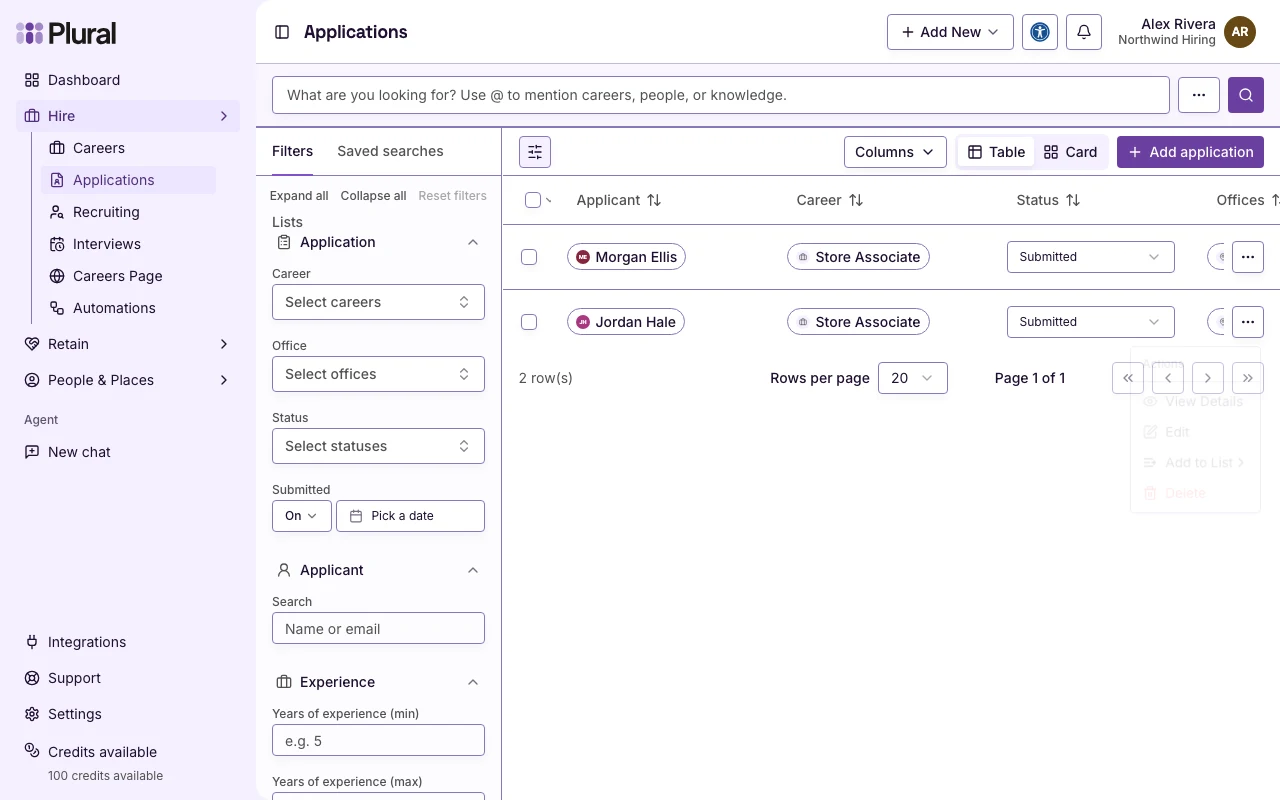
- Select View Details.
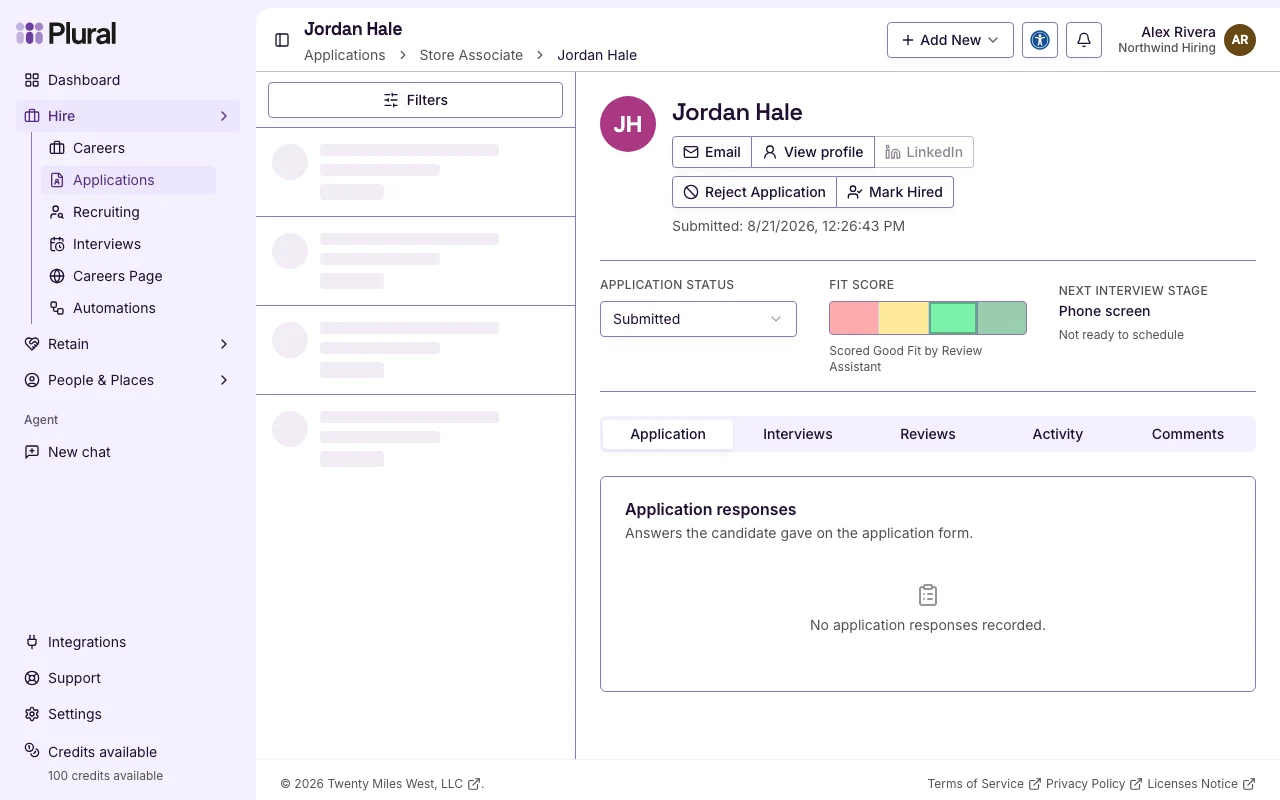
The heading is the applicant name. The page shows Email, View profile, Reject Application, and Mark Hired.
The page also shows Application status and Fit score. If a next interview exists, Next interview stage shows the stage name. This example shows Phone screen and Not ready to schedule.
The tabs are Application, Interviews, Reviews, Activity, and Comments.
Application shows the résumé when one is on file, then Application responses. If there are no answers, the page shows No application responses recorded.
If Show résumé previews is off, the résumé area shows Résumé previews are turned off. You can still download the file. Change this in Résumés.
Other ways to view the application
- If the row has a résumé, select Preview application. Then select Open full application.
- In Card view, select View application on the card.