
How to view recovery codes
View, hide, and regenerate 2FA recovery codes if you lose your authenticator device.
Recovery codes let you sign in if you lose your authenticator device. Each code works one time.
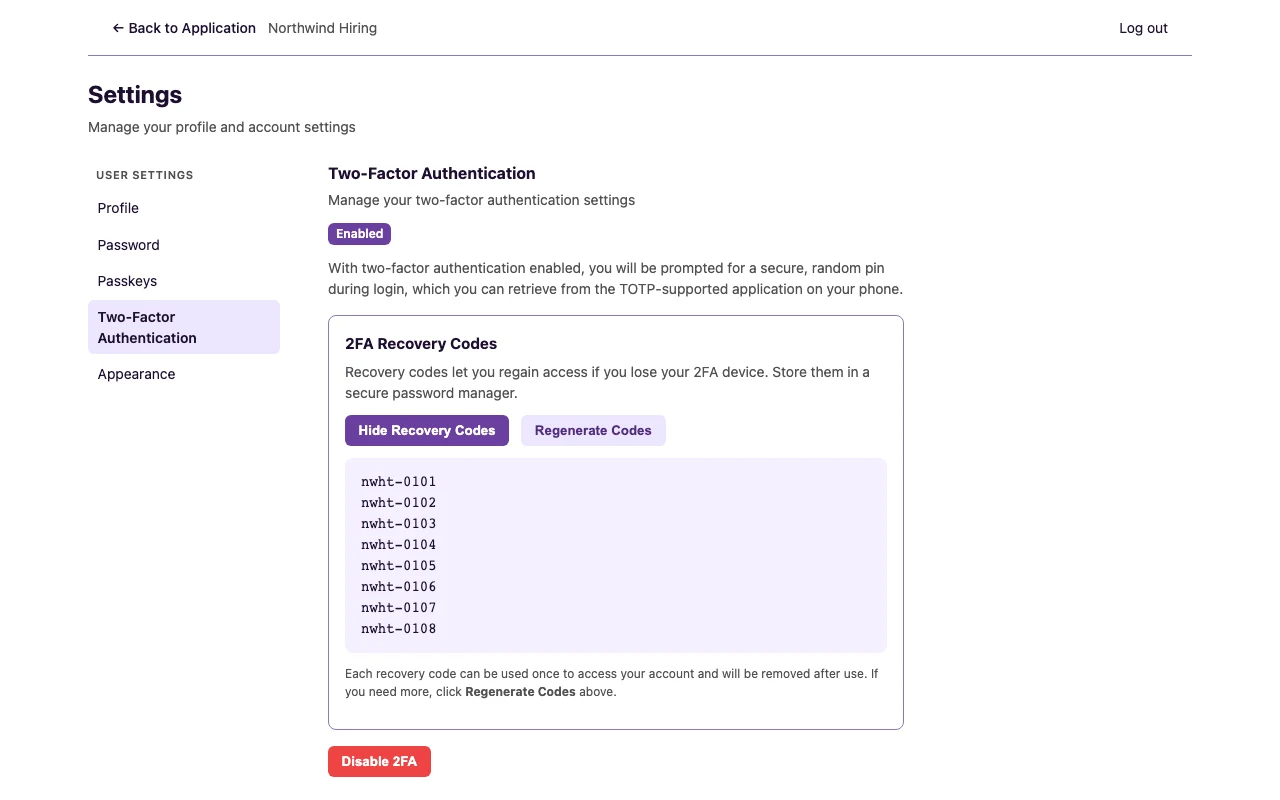
Plural names this card 2FA Recovery Codes.
Before you start
- You must be signed in.
- 2FA must show Enabled. If the badge shows Disabled, enable 2FA first. See How to enable two-factor authentication.
- Store the codes in a password manager. Do not share them.
View 2FA Recovery Codes
- Open Settings.
- Under User settings, select Two-Factor Authentication.
The page title is Two-Factor Authentication. The badge shows Enabled. The card title is 2FA Recovery Codes. The text below the title is Recovery codes let you regain access if you lose your 2FA device. Store them in a secure password manager.
View the codes
- Select View Recovery Codes.
- Copy each code to a password manager.
- Select Hide Recovery Codes when you finish.
The list name is Recovery codes.
Regenerate codes
Use new codes when you lose the old list, or when you already used some of the codes.
- Select View Recovery Codes if the codes are hidden.
- Select Regenerate Codes.
The old codes stop working. Store the new list.
The text under the list says each recovery code can be used once. If you need more, select Regenerate Codes.
Recovery code sign-in
On the Two-Factor Authentication sign-in page:
- Select use a recovery code.
- In Enter recovery code, type one unused code.
- Select Continue.
The page title is Recovery Code. The text below the title is Please enter one of your emergency recovery codes.
To return to the pin, select use an authentication code.
After you finish
You have a stored list of recovery codes. Keep the list private. Use a code only when you cannot open your authenticator app.