
Results
View a Pulse Check and review Summary, Analysis, Responses, and Recipients.
Results show scores, response rate, and each person’s answers. Pulse Checks are not anonymous.
Before you start
- You must be signed in.
- These plans include this feature: Retain, Hire + Retain, and Enterprise.
- These roles can view Pulse Check results: Owner and Administrator.
View Pulse Checks
- Open Retain, then open Pulse Checks.
- Select the Pulse Check title. You can also open the row menu and select View.
The results page title is the Pulse Check name. The tabs are Summary, Analysis, Responses, and Recipients.
Summary
Summary is the first tab. Use it for the overall score and participation.
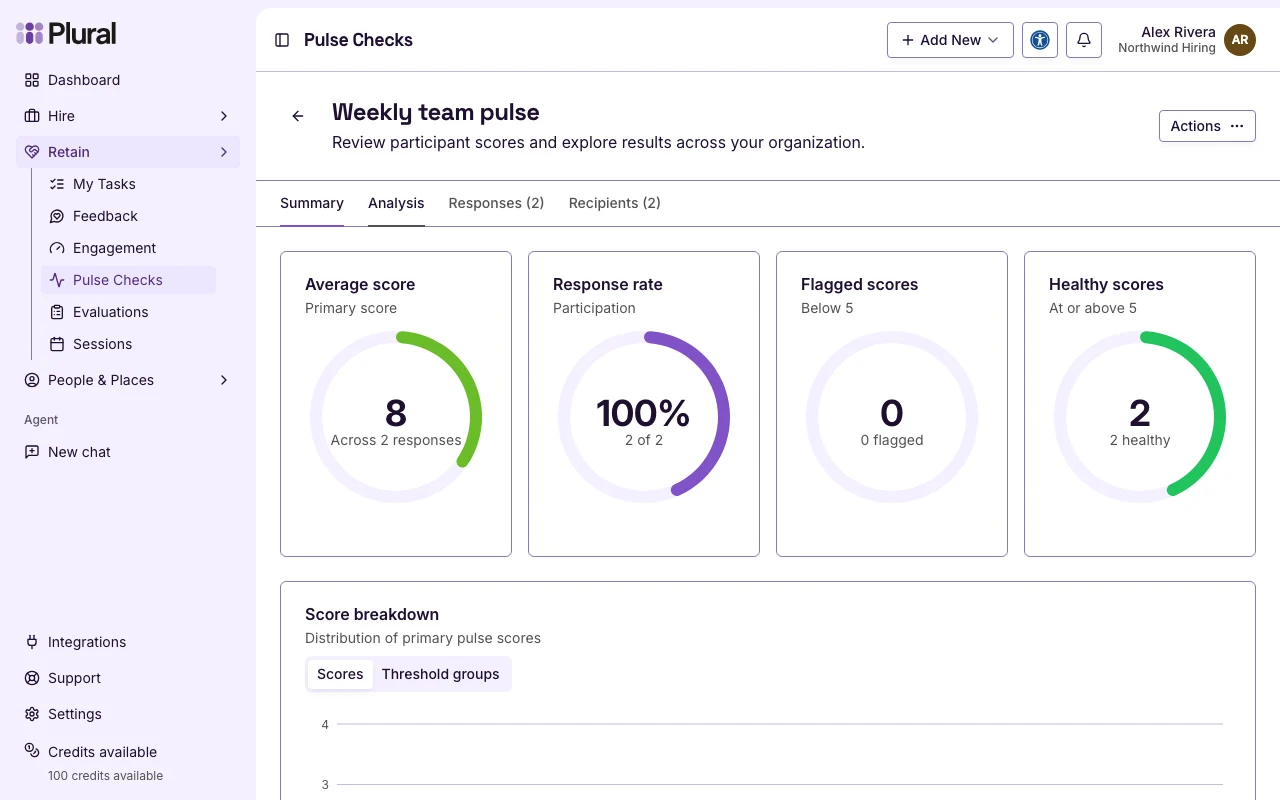
The page shows:
- Average score — the primary score across responses.
- Response rate — completed responses compared with the total recipients.
- Flagged scores — responses under the Flag scores below value.
- Healthy scores — responses at or above that value.
- Score breakdown — how primary scores are distributed.
If the Pulse Check is recurring, a trend chart can appear under the breakdown.
Select Actions for View, Edit, Update status, Send Reminder, or Delete. Send Reminder is disabled when every recipient has responded.
Analysis
- Select Analysis.
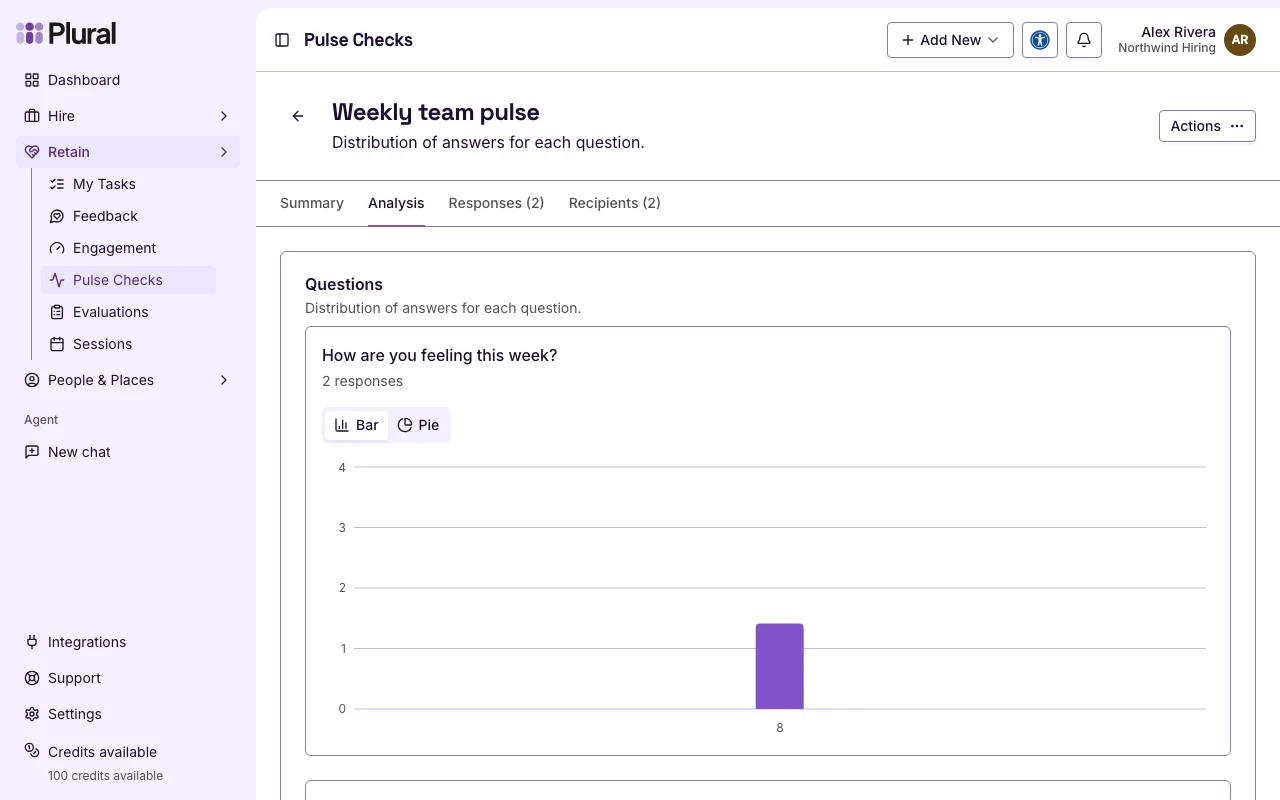
The page shows a chart for each question. If no one has responded, the page shows: Question-level charts will appear after responses are collected.
Responses
- Select Responses.
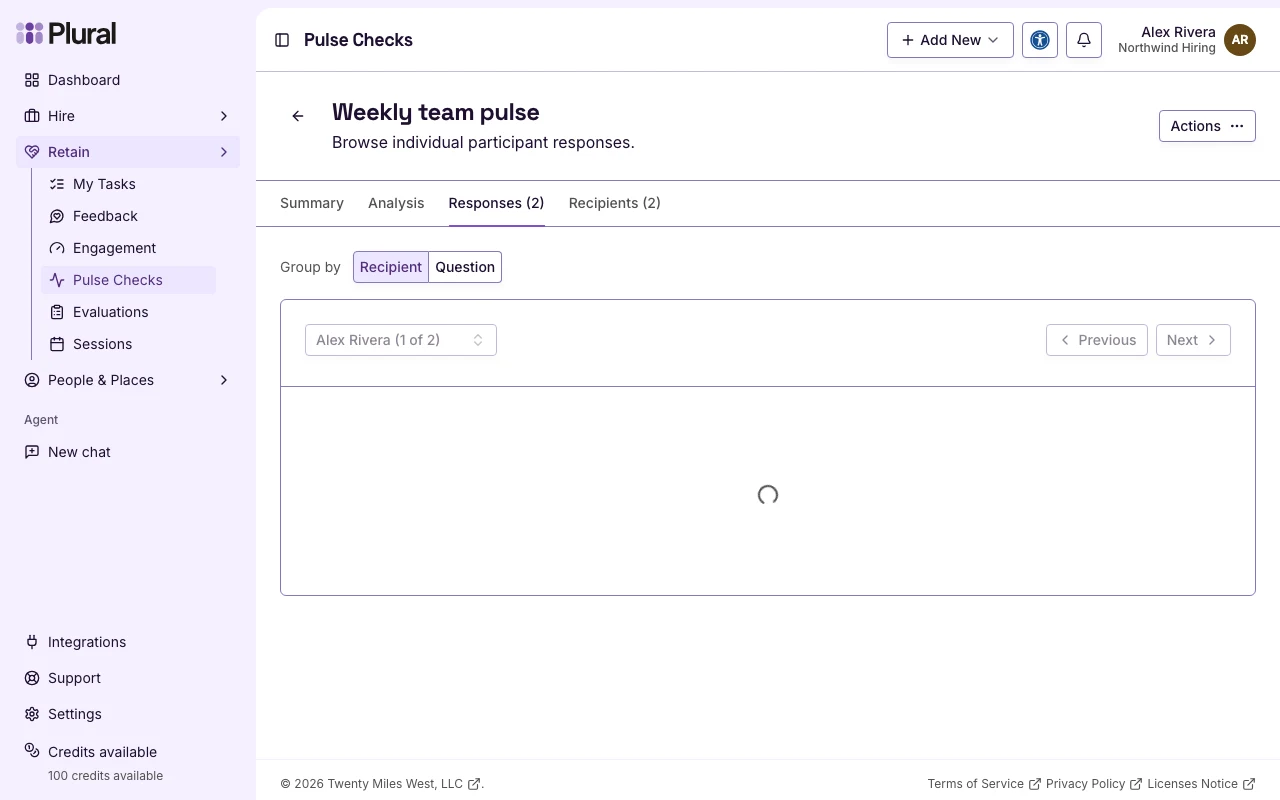
- In Group by, select Recipient or Question.
- Move to the next person or the next question.
Recipient shows one person’s answers. Question shows every answer for one question.
Recipients
- Select Recipients.
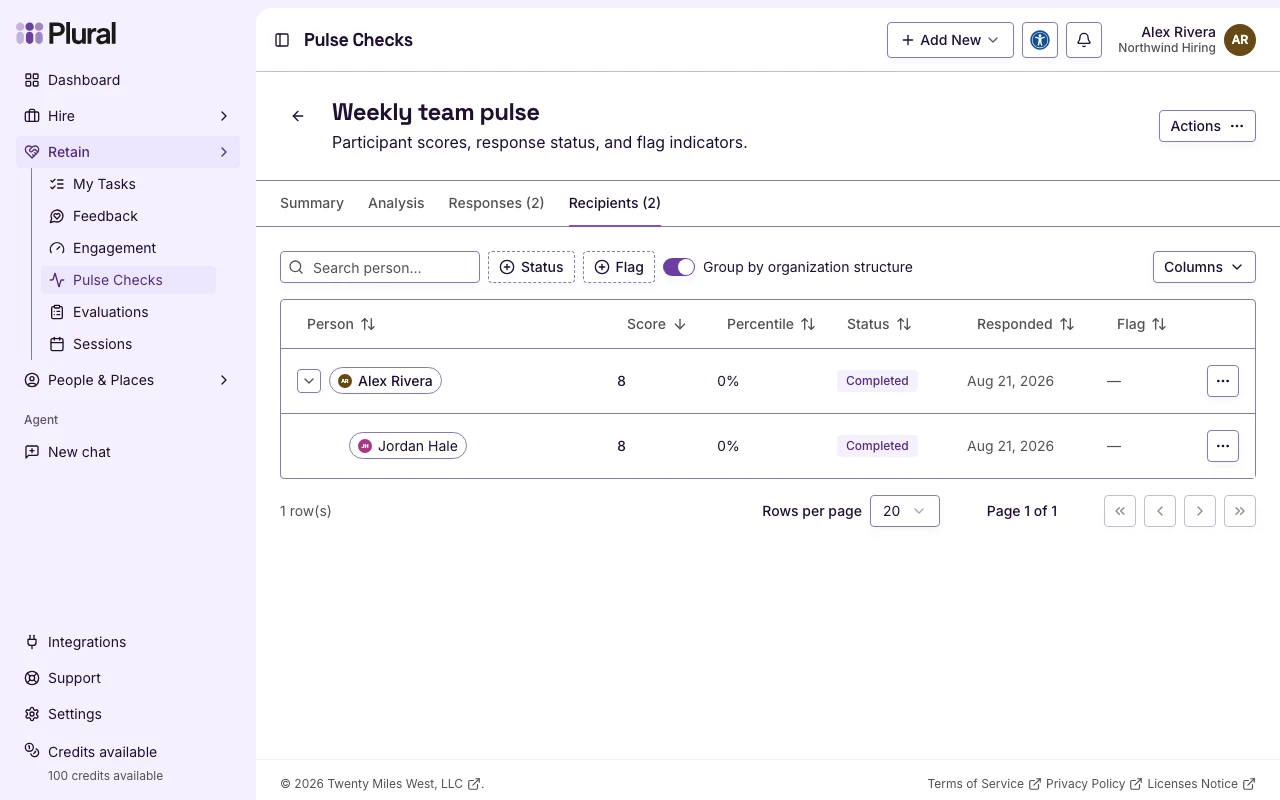
The table columns are Person, Score, Percentile, Status, Responded, and Flag.
Status values:
- Pending — the person has not submitted a response.
- Completed — the person submitted a response.
Open the row menu for a recipient to:
- View response — for a completed response.
- Send Reminder — for a pending recipient.
- Copy Personalized Link — copy the respond URL for that person.
- Delete response — remove a completed response. The person then appears as pending.