
Responding
Respond to a Pulse Check from a message or from My Tasks, answer the questions, and submit your response.
When you receive a Pulse Check, you answer a short form. Your scores help your organization see who needs support.
Before you start
- These plans include this feature: Retain, Hire + Retain, and Enterprise.
- People who receive the Pulse Check can respond. You do not need an organization role if you use the link.
- You need the Pulse Check link from an email, a text message, or My Tasks.
- If you are signed in, you can open the Pulse Check from Retain, then My Tasks.
- You can respond only while the Pulse Check is open. If the link expired, ask the sender for a new link.
From a message
- Open the email or text message for the Pulse Check.
- Open the link in the message.
The respond page shows the Pulse Check title. If the sender wrote a description, you see that text under the title.
From My Tasks
Use this path when you are signed in.
- Open Retain, then open My Tasks.
- Select Personal Tasks.
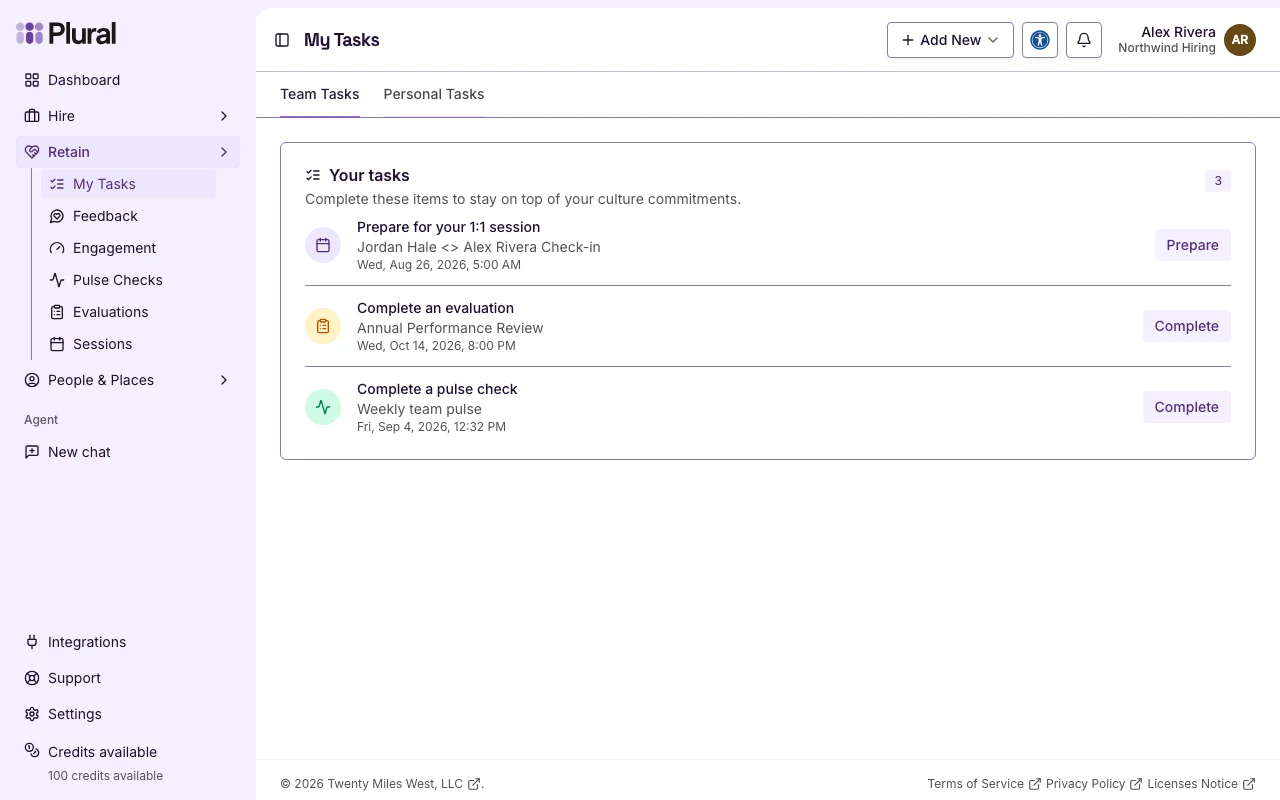
- In Your tasks, find Complete a pulse check. The Pulse Check title is under that heading.
- Select Complete.
Questions
The respond page shows each question on one card.
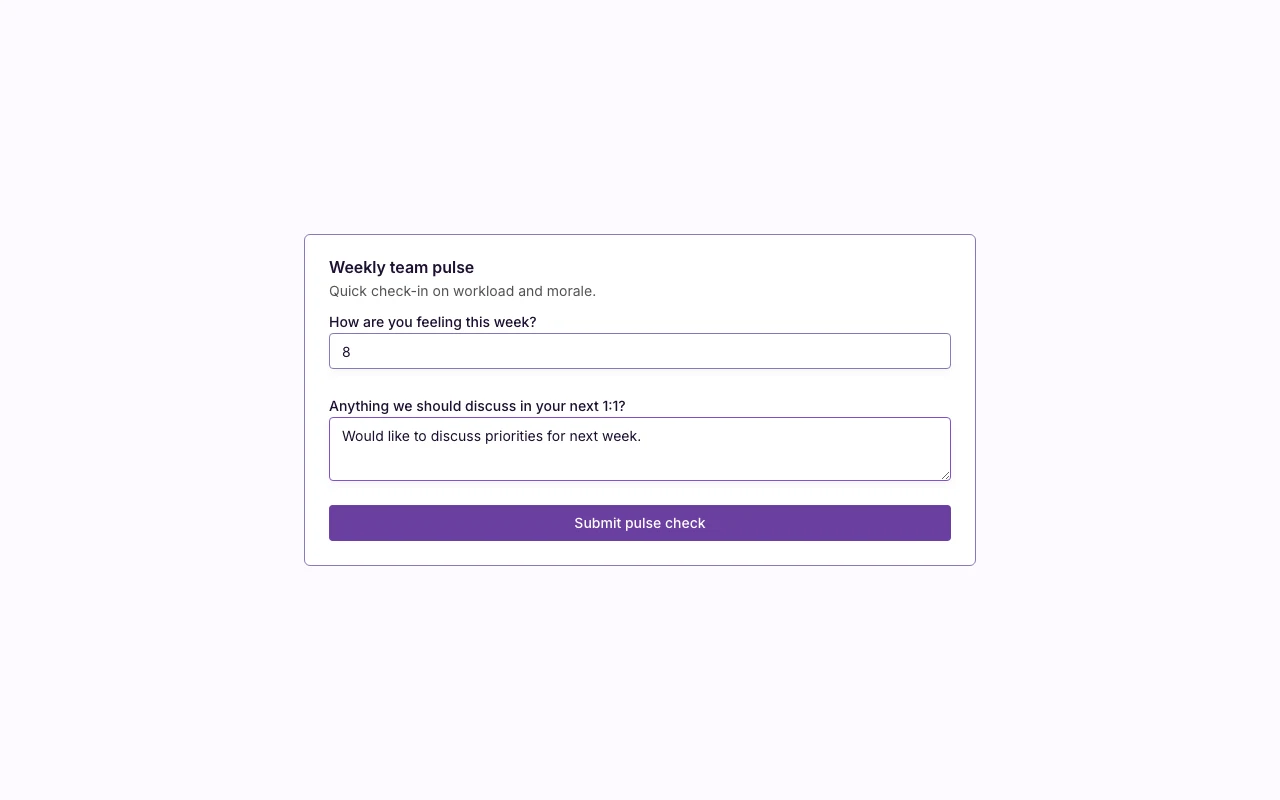
- Answer every required question. A number question is a score. Type a number in the range that the question uses. The usual range is 1 to 10.
- Answer optional questions if you have more to add. This example uses Anything we should discuss in your next 1:1?
- Select Submit pulse check.