
Survey results
View a survey and review the Summary, Analysis, Responses, and Recipients tabs.
Engagement results are anonymous. You see totals and scores. You do not see who gave each answer.
Before you start
- You must be signed in.
- These plans include this feature: Retain, Hire + Retain, and Enterprise.
- These roles can view engagement survey results: Owner and Administrator.
- You need an engagement survey. See Creating surveys.
- Charts fill after people respond. See Sending surveys.
View Engagement
- Open Retain, then open Engagement.
- Select the survey title.
The page title is the survey name. The description is Aggregate, anonymous results.
The tabs are Summary, Analysis, Responses, and Recipients.
If no one has responded, Summary shows No responses yet. Select Share survey to send the survey.
Summary
Select Summary.
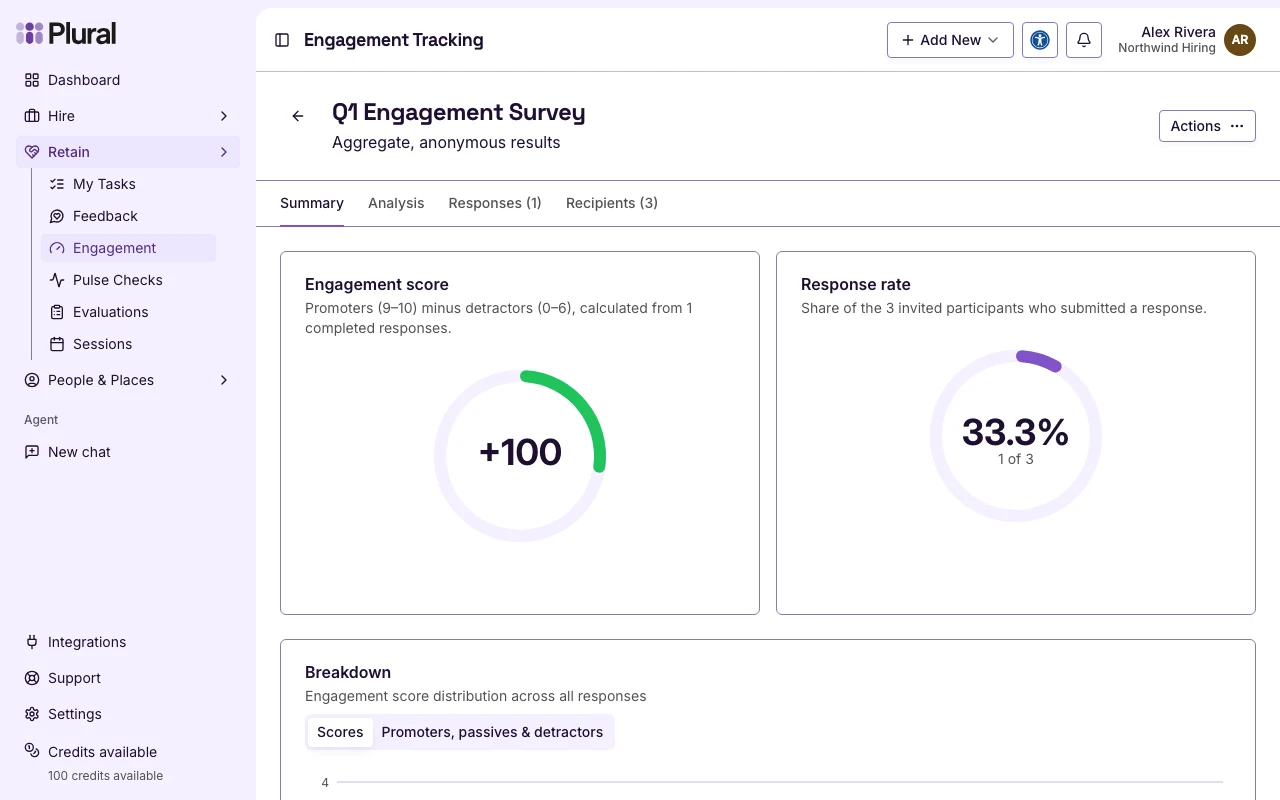
Engagement score uses completed responses. Promoters are scores 9 to 10. Detractors are scores 0 to 6. The score is promoters minus detractors.
Response rate is the share of invited people who submitted a response. The subtitle shows completed responses of the total invited people.
Breakdown shows how scores are distributed.
Analysis
Select Analysis.
The description is Distribution of answers for each question.
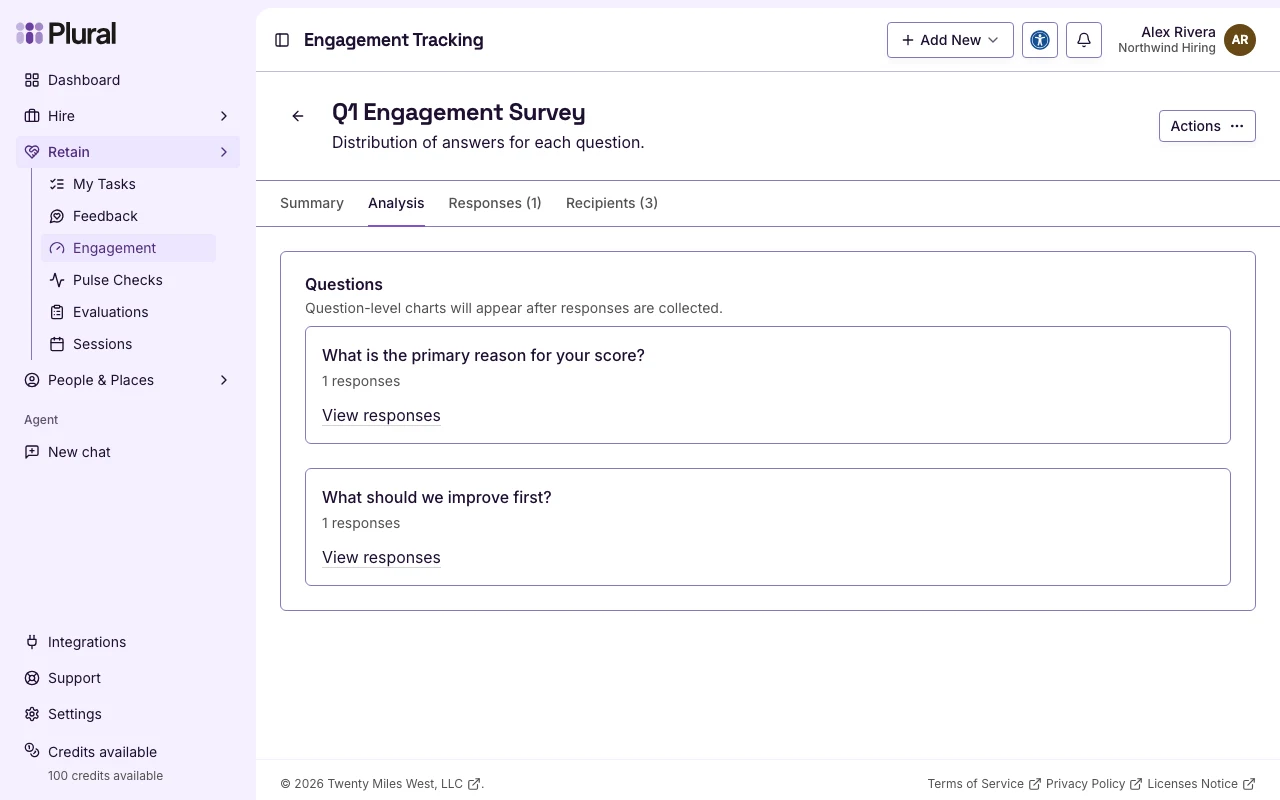
The score breakdown stays on Summary. Analysis shows the follow-up question and any extra questions.
If no one has responded, the page shows No responses yet. Question charts appear after responses arrive.
Responses
Select Responses.
The count is in the tab label. Example: Responses (1).
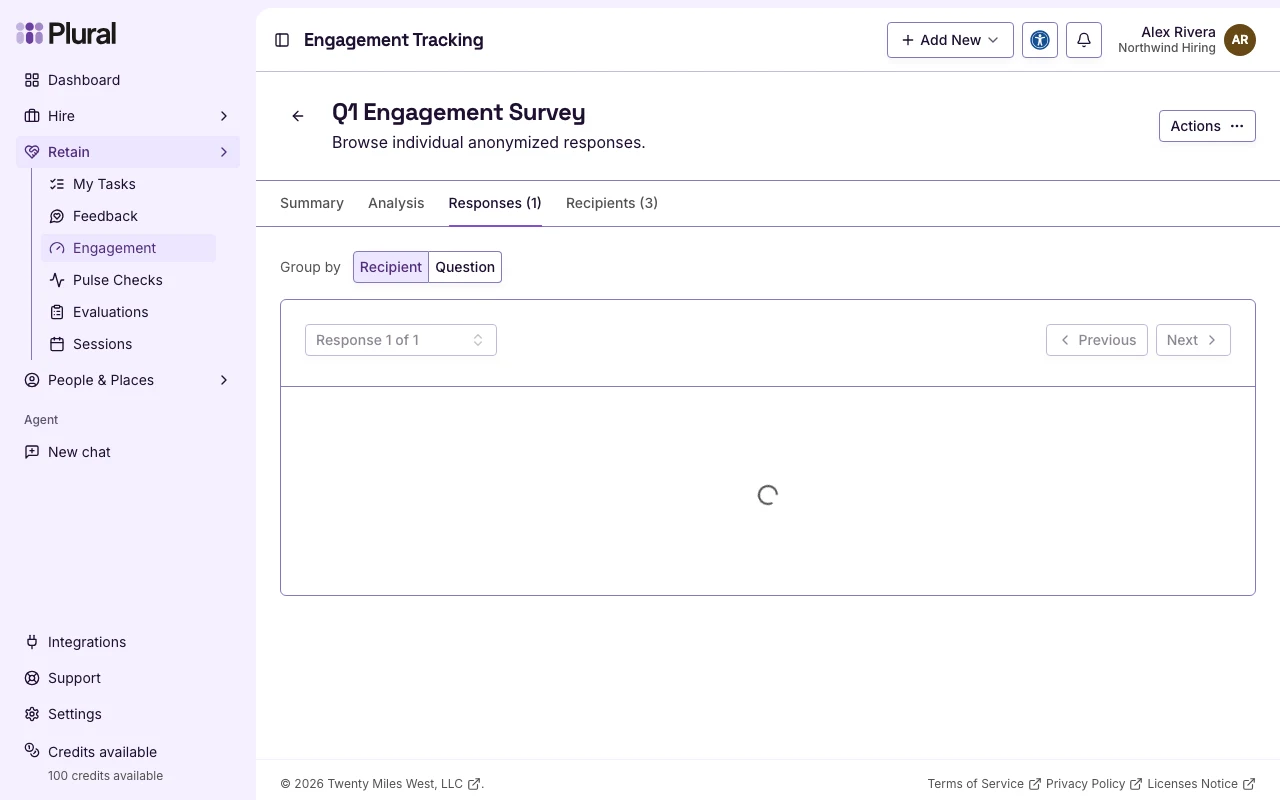
- In Group by, select Recipient to move through one response at a time. The label is Response 1 of 1 when one response exists.
- Select Question to see all answers for one question.
The names stay anonymous. The labels are Response 1, Response 2, and the next numbers.
Recipients
Select Recipients.
The description is People invited to respond to this survey.
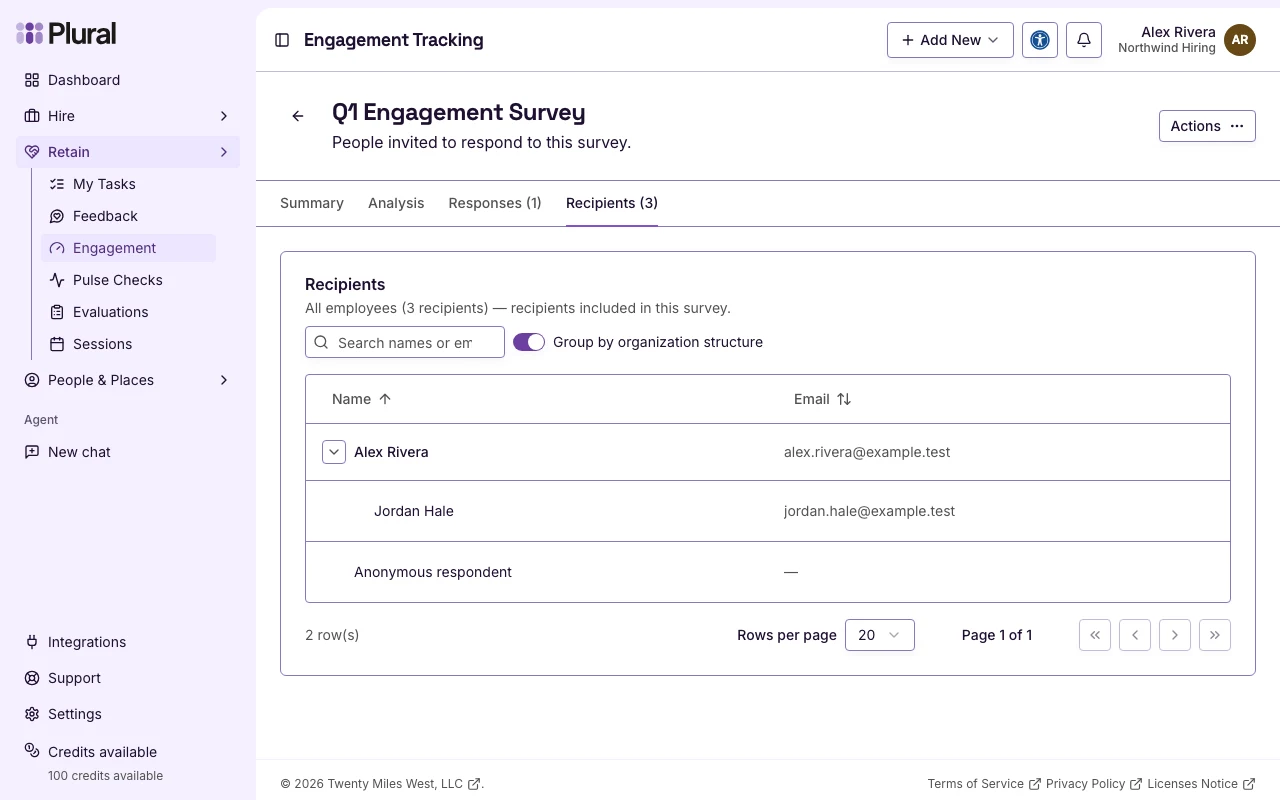
The table shows Name and Email. Use Search names or emails… to find a person.
If the audience is not ready, the page shows No recipients yet.
Actions
On the survey page, select Actions.
- Edit — change a survey that is still Scheduled.
- Present — open a slide view of the score, response rate, and breakdown.
- Download report — save a report file.
- Share survey — notify recipients or copy the public link.
- Send Reminder — notify people who have not responded.
- Delete — remove the survey.
From the Engagement Tracking list, select the row menu, then select View Details.
Survey status on the list can be Scheduled, Collecting Responses, Paused, or Finished.