
Sending surveys
Share a survey with recipients, copy the public link, and submit a response.
After you schedule an engagement survey, you send it. People respond from a link. They do not need to sign in.
Before you start
- These plans include this feature: Retain, Hire + Retain, and Enterprise.
- To send a survey, you must be signed in. These roles can send an engagement survey: Owner and Administrator.
- The survey must already exist. See Creating surveys.
- Notify all recipients is available when the survey is open for responses. If the start date is in the future, the dialog shows: Notifications are unavailable until this survey is open for responses.
- To respond, you need the survey link, or you need a task on My Tasks. People who receive the survey can respond.
View Engagement
- Open Retain, then open Engagement.
- Select the survey title.
The page title is the survey name. The description is Aggregate, anonymous results.
Share
- Select Actions.
- Select Share survey.
The dialog title is Share survey.
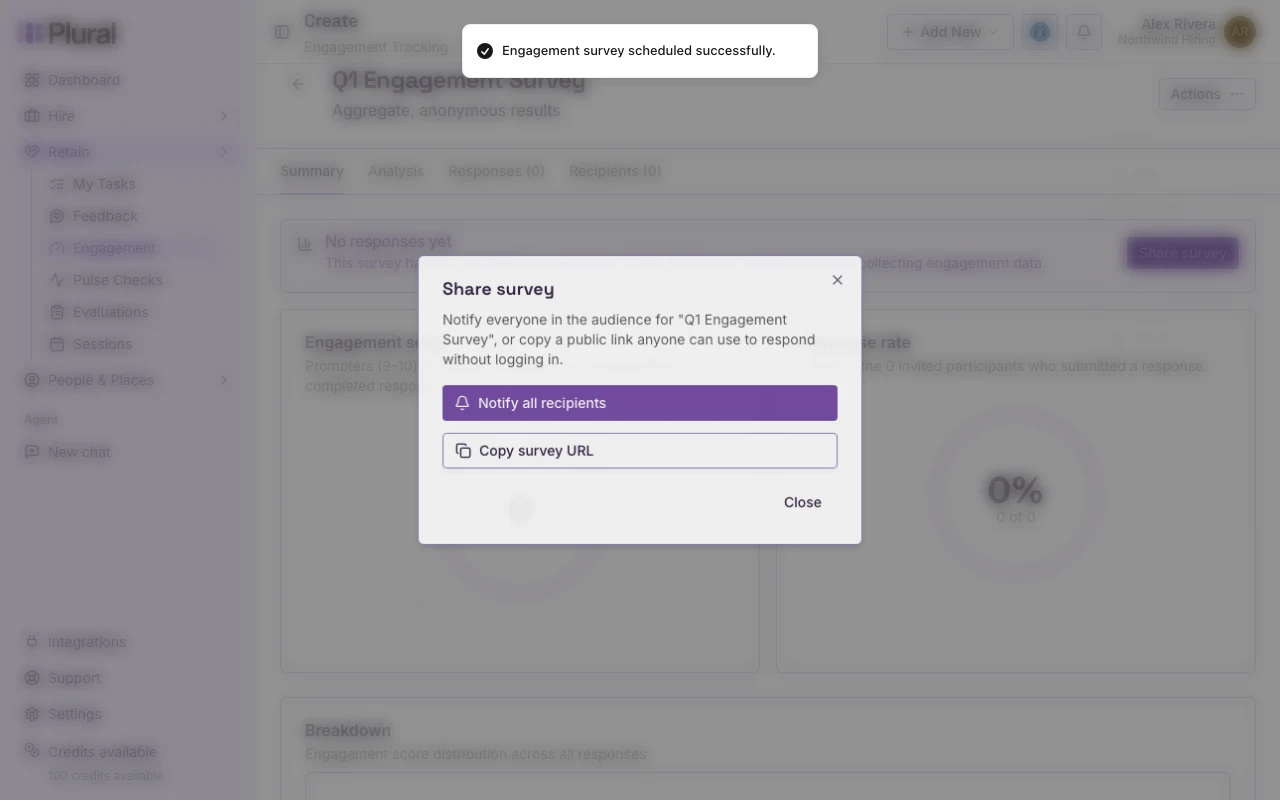
- Select Notify all recipients to send the survey to the audience you chose.
- Select Copy survey URL if you want a public link. Anyone with the link can respond. They do not log in.
- Select Close.
A success message confirms the notifications. Example: Sent 3 notification(s).
If no one is in the audience, the page shows: No recipients to notify.
You can also select Share survey from the No responses yet alert on the Summary tab.
Reminder
Use a reminder after people already received the first notification.
- Select Actions.
- Select Send Reminder.
- Confirm Send reminder?
- Select Send Reminder.
The reminder goes to people who have not responded. If everyone has responded, Send Reminder is not available.
Respond from a link
Open the survey URL from the email, the text message, or Copy survey URL.
The page shows the survey title and the questions.
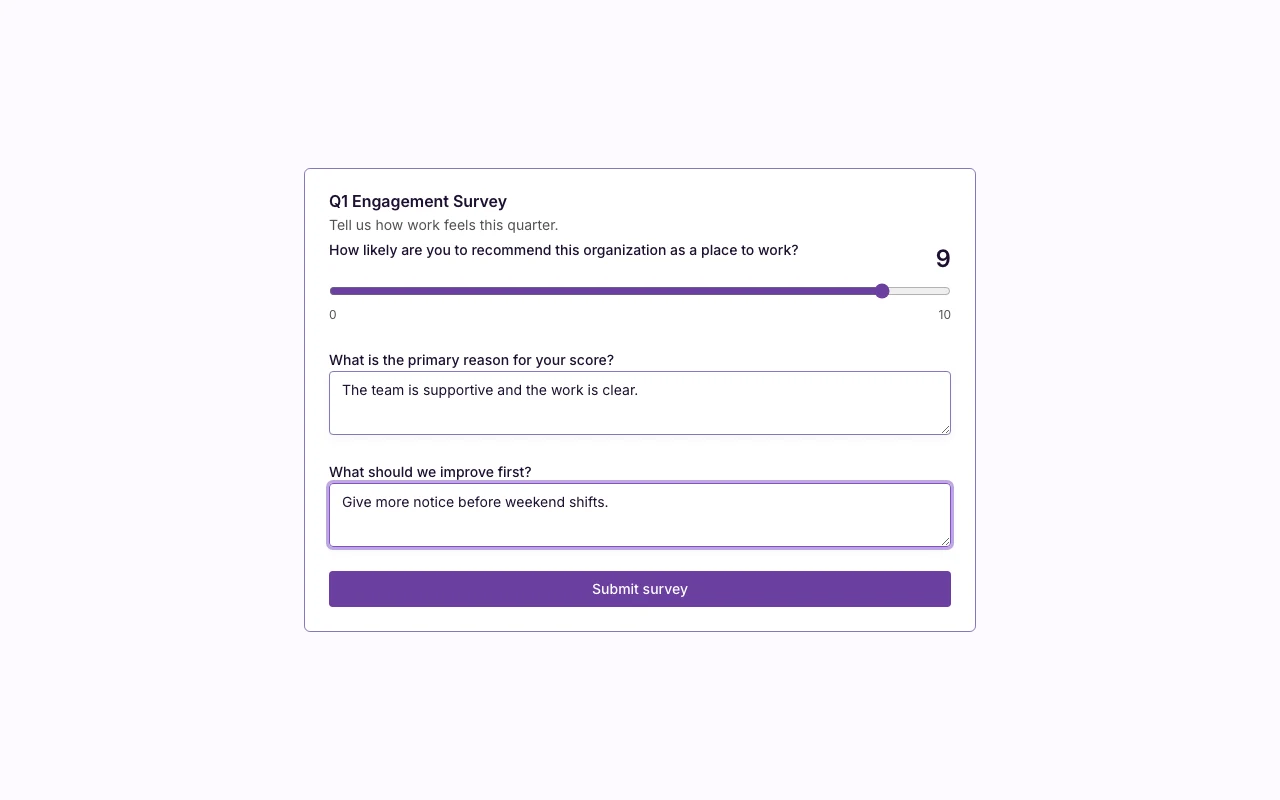
- Move the score control. Choose a number from 0 to 10.
- In the follow-up field, type why you chose that score. This field is optional unless the sender marked it required.
- Answer any extra questions.
- Select Submit survey.
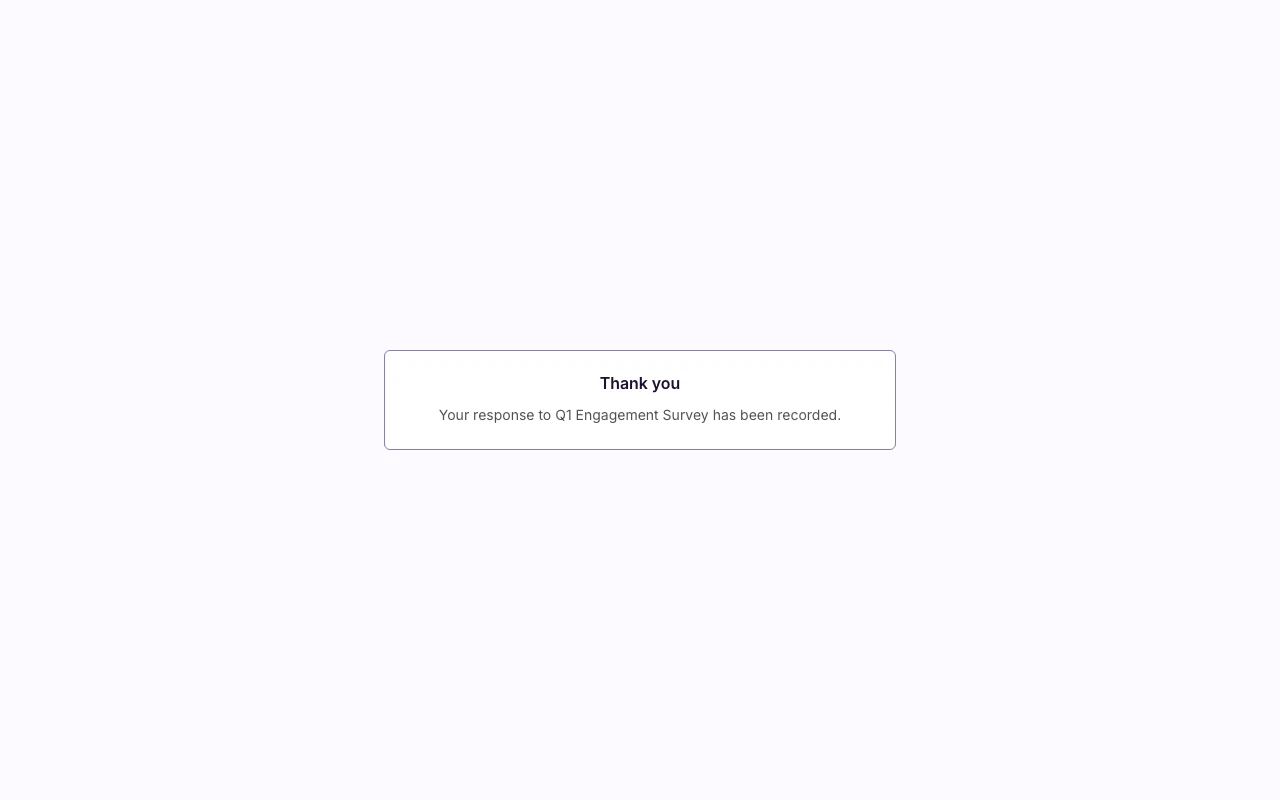
You see Thank you. The page says your response has been recorded.
Respond from My Tasks
If you are an employee and you are signed in:
- Open Retain, then open My Tasks.
- Find the task titled Respond to an engagement survey.
- Select Respond.
- Complete the form. Then select Submit survey.