
Searching candidates
Search the talent network, filter results, and get contact information.
Recruiting finds people in the talent network. You describe the role, skills, or experience. Plural shows matching candidates. You can get contact information with organization credits.
Before you start
- You must be signed in.
- These plans include this feature: Hire, Hire + Retain, and Enterprise.
- These roles can search Recruiting: Owner, Administrator, Hiring Manager, and Office Administrator.
- These roles can get contact information: Owner, Administrator, Hiring Manager, and Office Administrator.
- Search and Get Contact Information use organization credits. The sidebar shows Credits available when a balance is set.
- If you do not have search permission, the page shows: You do not have permission to search candidates.
View Recruiting
- Open Hire, then open Recruiting.
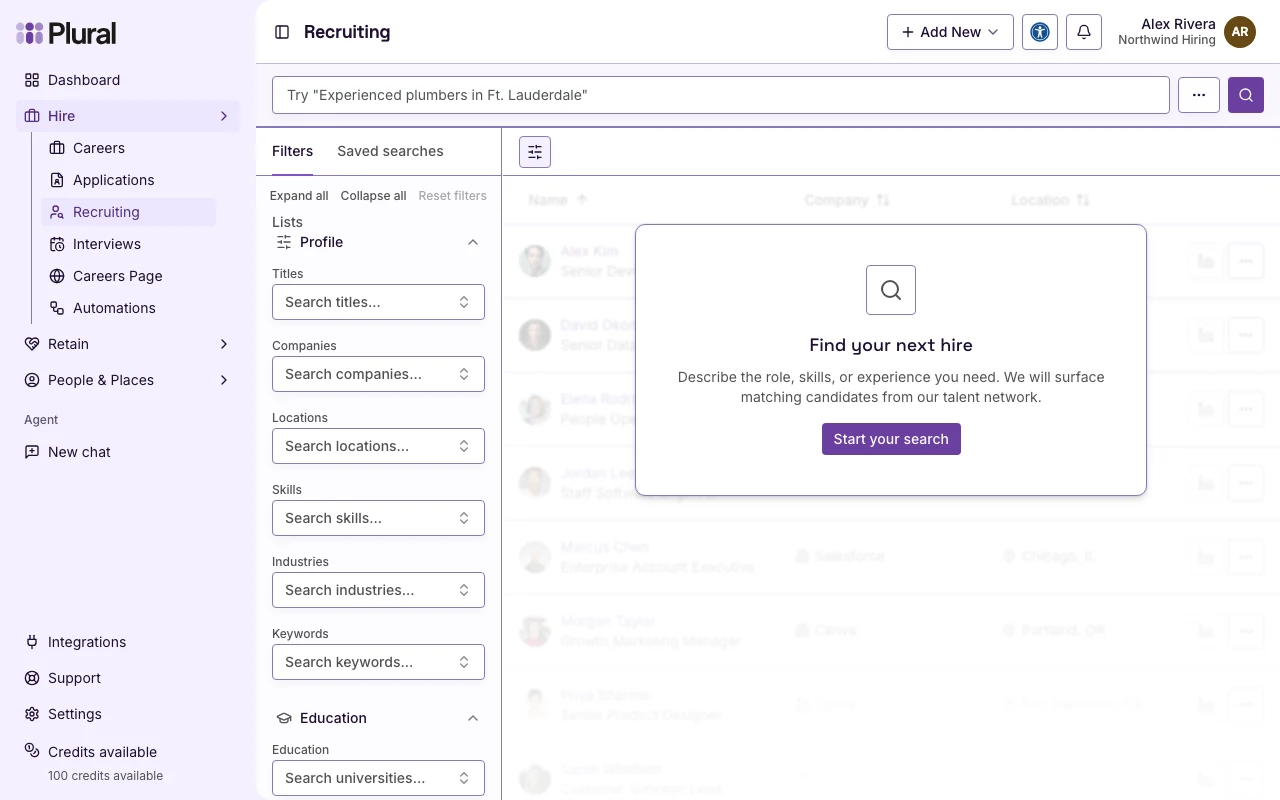
The page title is Recruiting. The first screen is Find your next hire.
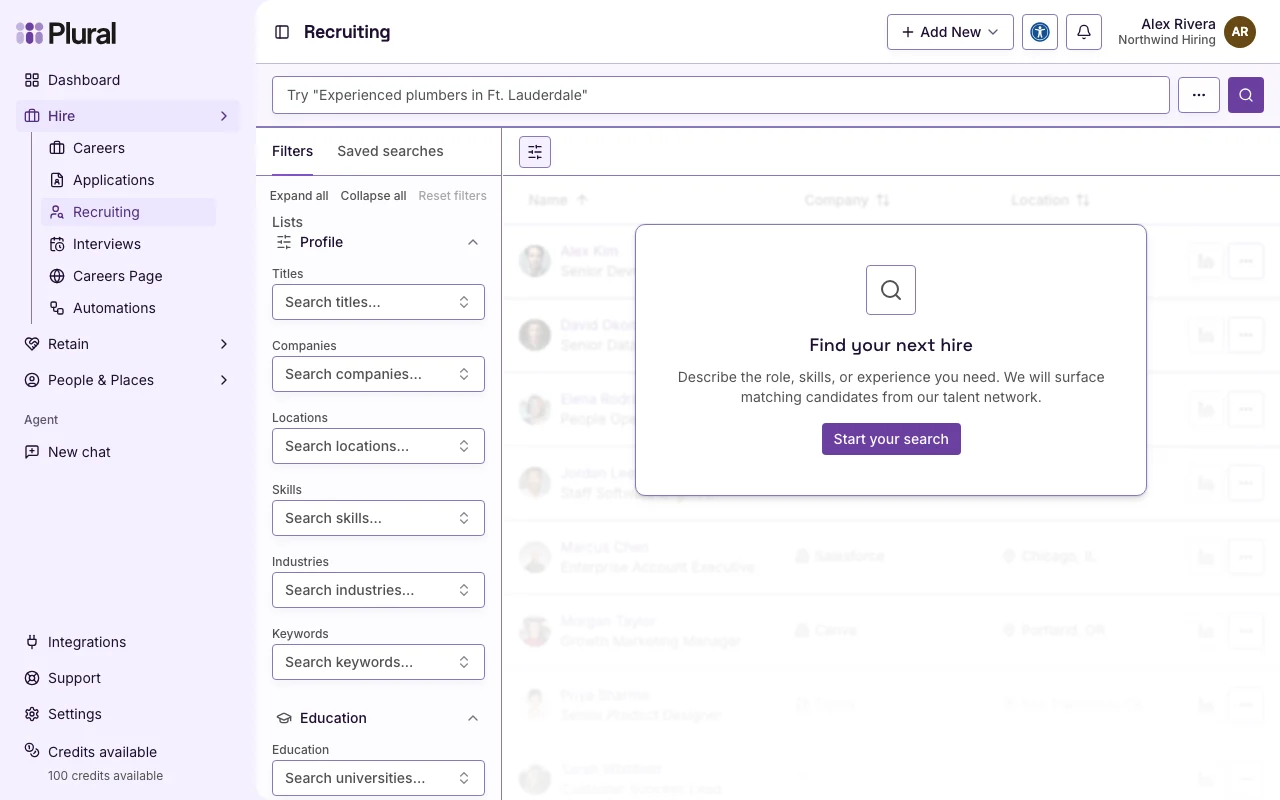
- Select Start your search.
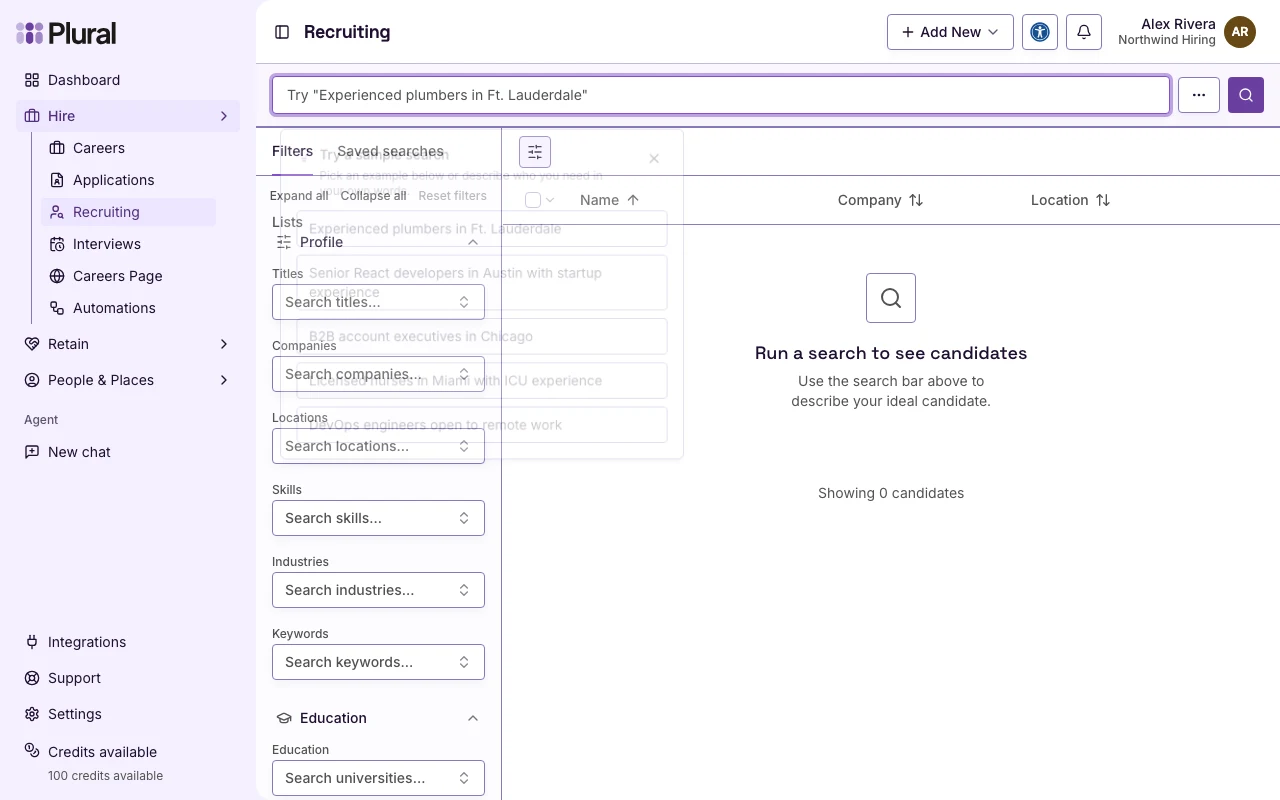
The search bar gets focus. Try a sample search opens below the bar.
Search
The search bar placeholder is Try “Experienced plumbers in Ft. Lauderdale”.
- Type a short description of the person you need. Example:
Store associates in Raleigh. - Select Search.
You can select a sample instead of typing. Sample searches include:
- Experienced plumbers in Ft. Lauderdale
- Senior React developers in Austin with startup experience
- B2B account executives in Chicago
- Licensed nurses in Miami with ICU experience
- DevOps engineers open to remote work
While Plural searches, the page shows Searching candidates….
If you have no credits, the page shows Add credits to keep searching. Select Buy credits if you can purchase. Select View billing to open billing. If you cannot purchase, the page shows: Ask an organization admin with billing access to purchase credits for your team.
If no people match, the page shows No candidates match your search.
If you did not run a search, the page shows Run a search to see candidates.
Credits
The sidebar shows Credits available and the balance, for example 100 credits available.
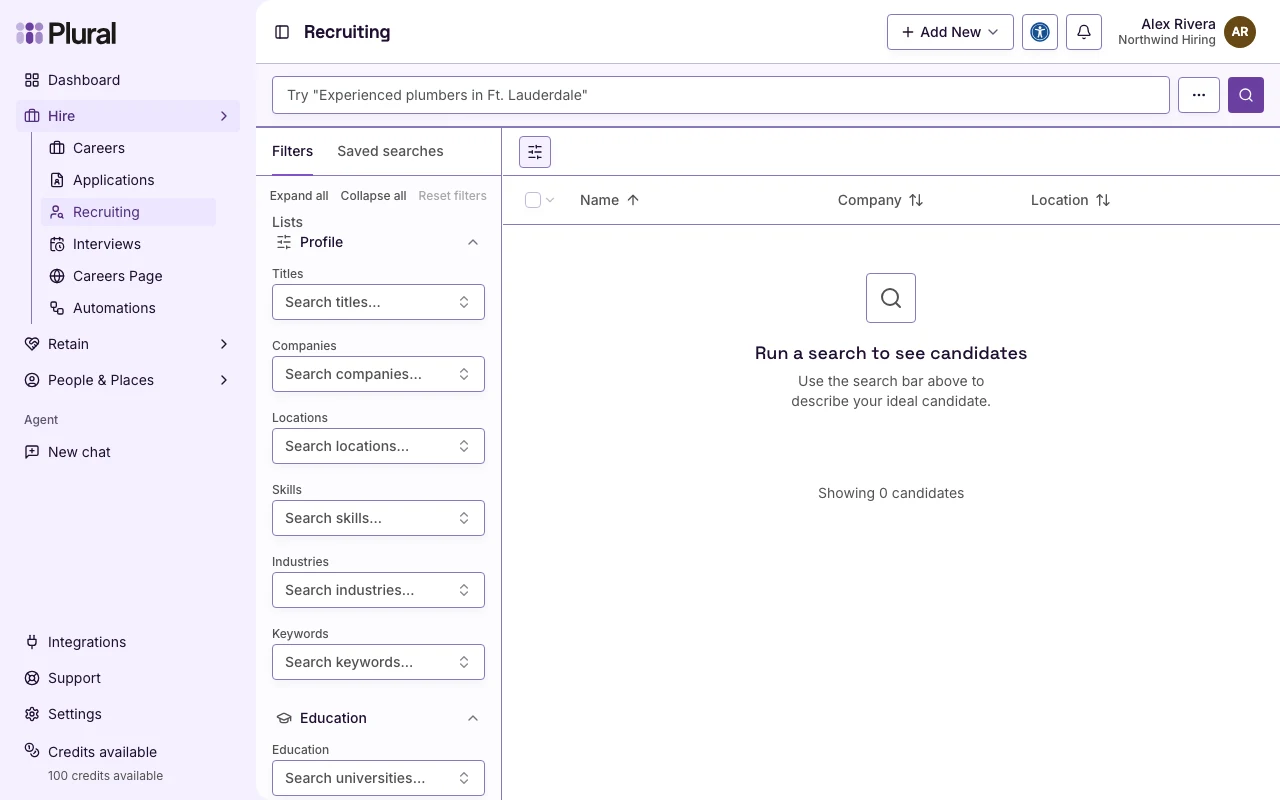
- Select Credits available if you need more credits.
- If the Buy credits dialog opens, select a package. Then select Continue to checkout.
- If the dialog does not open, Plural opens organization billing.
Buy credits tells you: Credits power AI features and recruiting search across your organization.
Filters
The left panel has three tabs: Filters, Saved searches, and Lists.
- Select Filters.
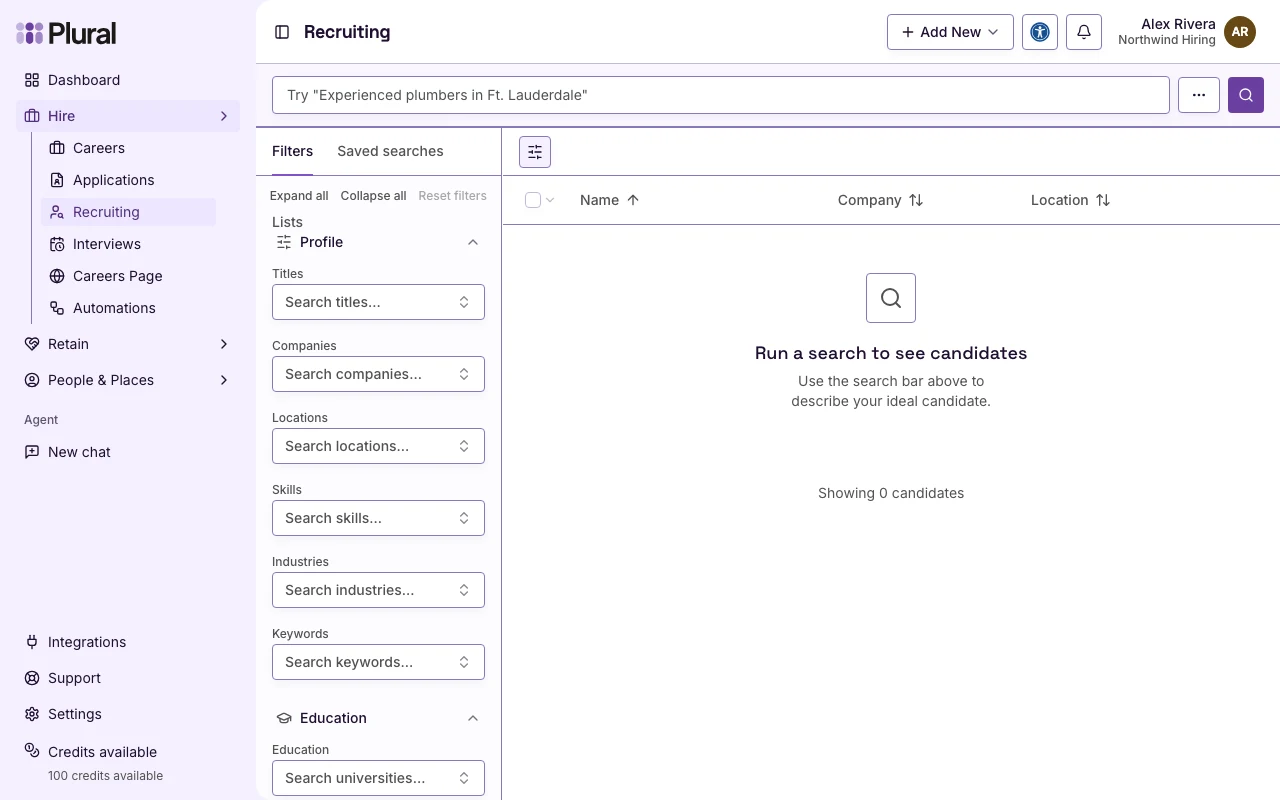
- Select Expand all to show every filter group. Select Collapse all to hide the groups.
- Set the filters you need.
- Select Reset filters to clear the search and the filters.
Profile filters:
- Titles
- Companies
- Locations
- Skills
- Industries
- Keywords
Education filters:
- Education — universities
- Highest education level — Bachelor, Master, MBA, Doctor, Postdoc
- Specialization categories
Experience filters:
- Min years
- Max years
On a result row, select a company to add it to Companies. Select a location to add it to Locations.
Candidate
Results show Name, Company, and Location. Before a search, the footer shows Showing 0 candidates. After a search, the footer can show Showing 25 of 100 candidates. Select Load more to see more rows.
- Select the name to open the preview. Or open Open actions, then select Preview Profile.
- Review Experience, About, and Education.
- Select Previous or Next to move through the results.
- Select View LinkedIn to open the LinkedIn profile.
About can show a summary, Skills, Email, and Phone.
If the preview has no summary, it shows No summary available. If it has no jobs, it shows No experience available. If it has no schools, it shows No education available.
Contact information
Contact information uses credits. The preview shows the cost. Example: Costs 10 credits. The default cost is 10 credits for one person.
- Open the candidate preview.
- Select Get Contact Information.
The preview then shows Email and Phone when those values exist. You can select Email candidate or Call candidate.
From the row, open Open actions. Then select Get Contact Information. After a successful retrieve, that action shows Contact info retrieved.
To get contact information for more than one person:
- Select each candidate.
- Select Bulk Actions.
- Select Get Contact Information.
- Confirm Get contact information? The dialog shows the candidate count and the total credit cost.
- Select Get Contact Information. Select Cancel to close the dialog.
If you do not have enough credits, the page shows Add credits to get contact information or You need more credits.
Saved searches
Saved searches stores the search text and the filters. It does not store people. To store people, use a list. See Managing lists.
- Select Saved searches.
- Select Save new search.
- In Search name, type a name. Example:
Senior engineers in NYC. - Select Save. Select Cancel to close the dialog.
To open a saved search later, select it under Open saved search. Select Reset filters to clear the loaded search.