
Managing lists
Save candidates to a list, open a list, and add people as career prospects.
A list stores people you find in Recruiting. You create a list from search results. You open the list later from the Lists tab.
Career prospects attach people to a Career. A career prospect list is not the same as a saved search. A saved search stores the query. A list stores people.
Before you start
- You must be signed in.
- These plans include this feature: Hire, Hire + Retain, and Enterprise.
- These roles can create lists and add people: Owner, Administrator, Hiring Manager, and Office Administrator.
- You must be able to search. Lists start from search results.
- If you have no lists, My lists shows: No lists yet. Add candidates from search results.
View Lists
- Open Hire, then open Recruiting.
- Select Lists.
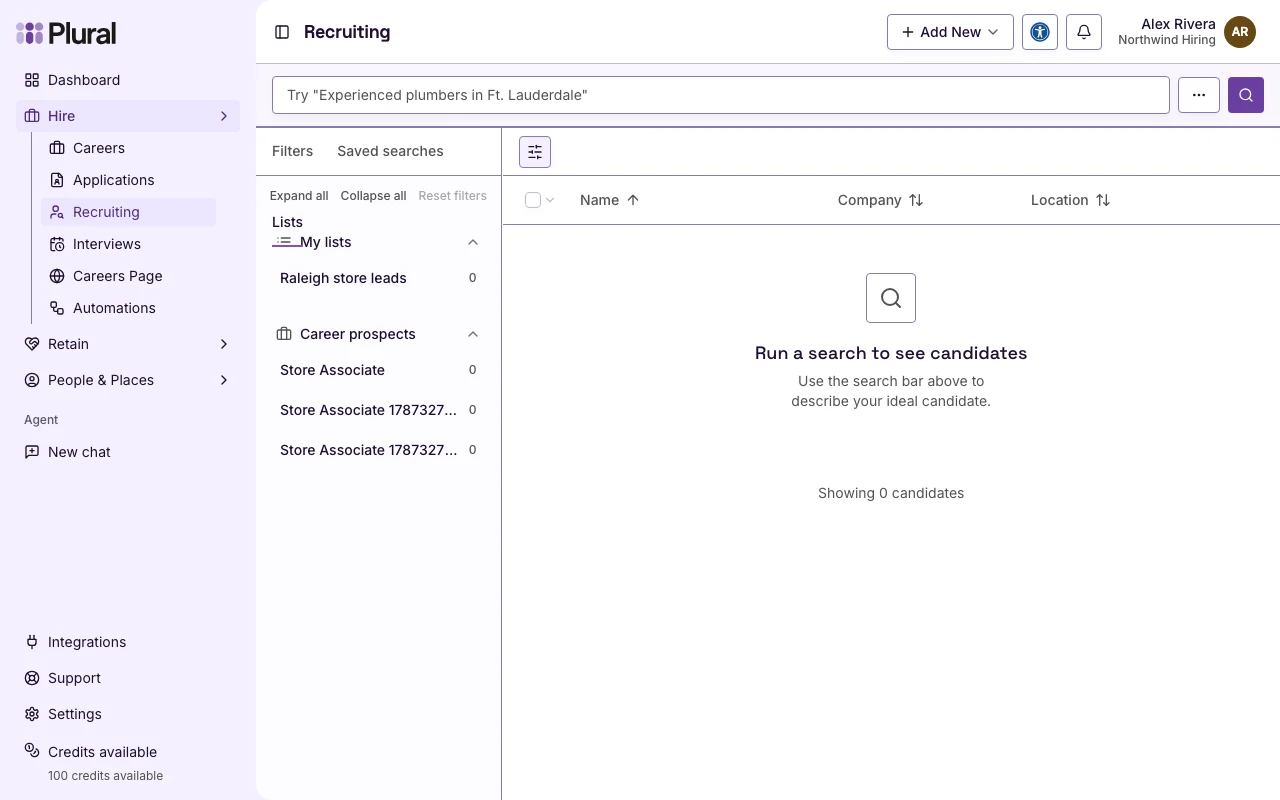
The Lists tab has two groups:
- My lists — lists you create
- Career prospects — people you attach to a Career
Select Expand all to show both groups. Select Collapse all to hide them. Select Reset filters to return to search.
Create a list
You create a list from a candidate. There is no create button on the Lists tab.
- Run a search. See Searching candidates.
- Select the candidate name to open the preview. Or open Open actions.
- Select Add to List.
- Select Create New List.
- In List name, type a name. Example:
Raleigh store leads. The placeholder is e.g. Strong frontend candidates. - Select Create. Select Cancel to close the dialog.
The dialog title is Create New List. The description is Give this list a name so you can find it later.
If you already have a list, select the list name under Add to List. If you have no lists, the menu shows No lists yet.
Add more than one person
- Select each candidate.
- Select Bulk Actions.
- Select Add to List.
- In Select a list, select the list. Or select Create New List and enter a List name.
- Select Add. Select Cancel to close the dialog.
The dialog title is Add to List. The description shows how many candidates you selected.
View a list
- Select Lists.
- Under My lists, select the list name.
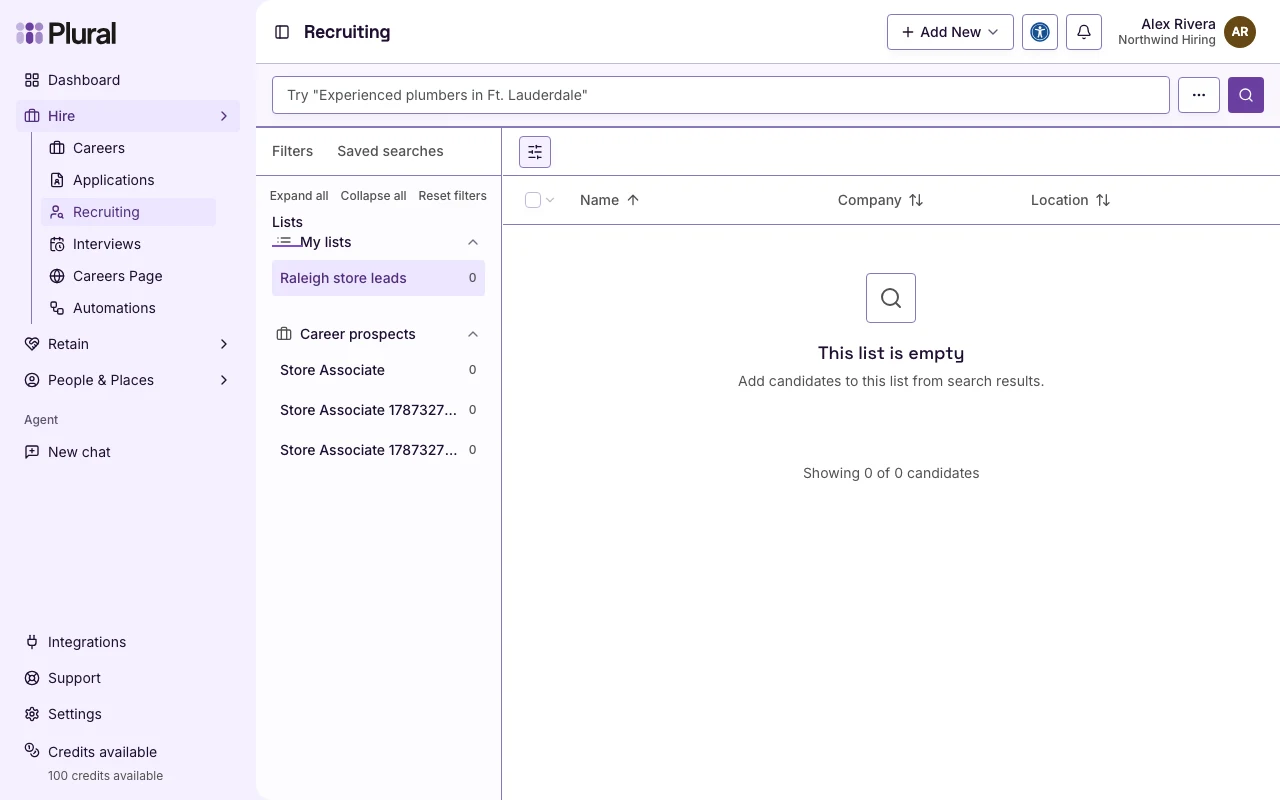
The table shows the people on the list. The count next to the list name is the number of people.
If the list has no people, the page shows This list is empty. The description is Add candidates to this list from search results. The footer shows Showing 0 of 0 candidates.
Remove a person from a list
- Open the list.
- Select the candidate name. Or open Open actions.
- Select Remove from list.
To remove more than one person:
- Select each candidate.
- Select Bulk Actions.
- Select Remove from List.
Add a career prospect
A career prospect is a candidate you attach to a Career. The Career must already exist.
- Open the candidate preview. Or open Open actions.
- Select Add as Career Prospect.
- Select the Career.
If you have no Careers, the menu shows No careers available.
To add more than one person:
- Select each candidate.
- Select Bulk Actions.
- Select Add as Prospect.
- In Select a career, select the Career.
- Select Add.
The bulk dialog title is Add as Prospect.
To open those people later:
- Select Lists.
- Under Career prospects, select the Career.
If the Career has no prospects, the page shows No prospects for this career.
To remove a prospect, open the Career under Career prospects. Then select Remove as prospect. The bulk action is Remove as Prospect.