
Viewing interviews
View Interviews to see scheduled interviews, switch views, and view an interview.
Interviews is the list of scheduled interviews across your Careers.
Before you start
- You must be signed in.
- These plans include this feature: Hire, Hire + Retain, and Enterprise.
- These roles can view Interviews: Owner, Administrator, Hiring Manager, and Office Administrator.
- If you are a Hiring Manager, you see interviews for Careers where you are the hiring manager.
- If you are an Office Administrator, you see interviews for offices that you administer.
View Interviews
- Open Hire, then open Interviews.
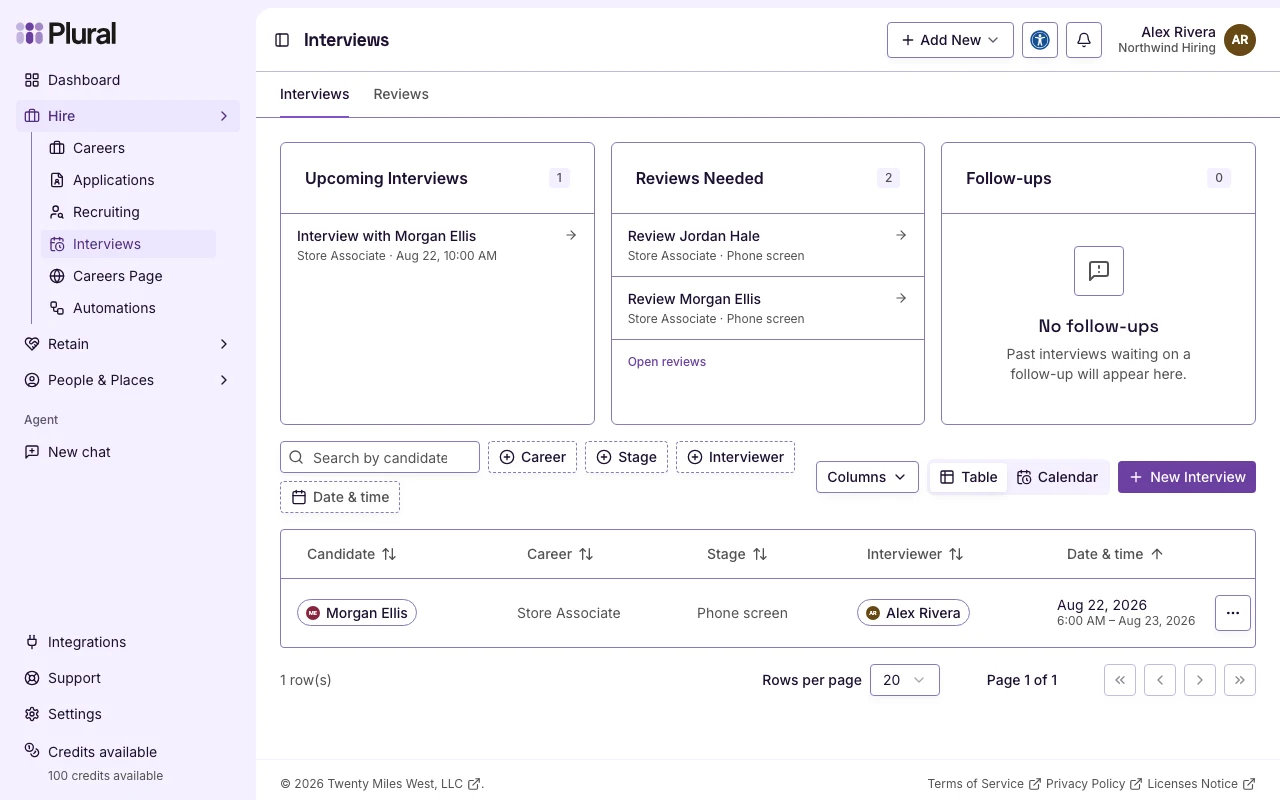
The page title is Interviews. The page has two tabs: Interviews and Reviews.
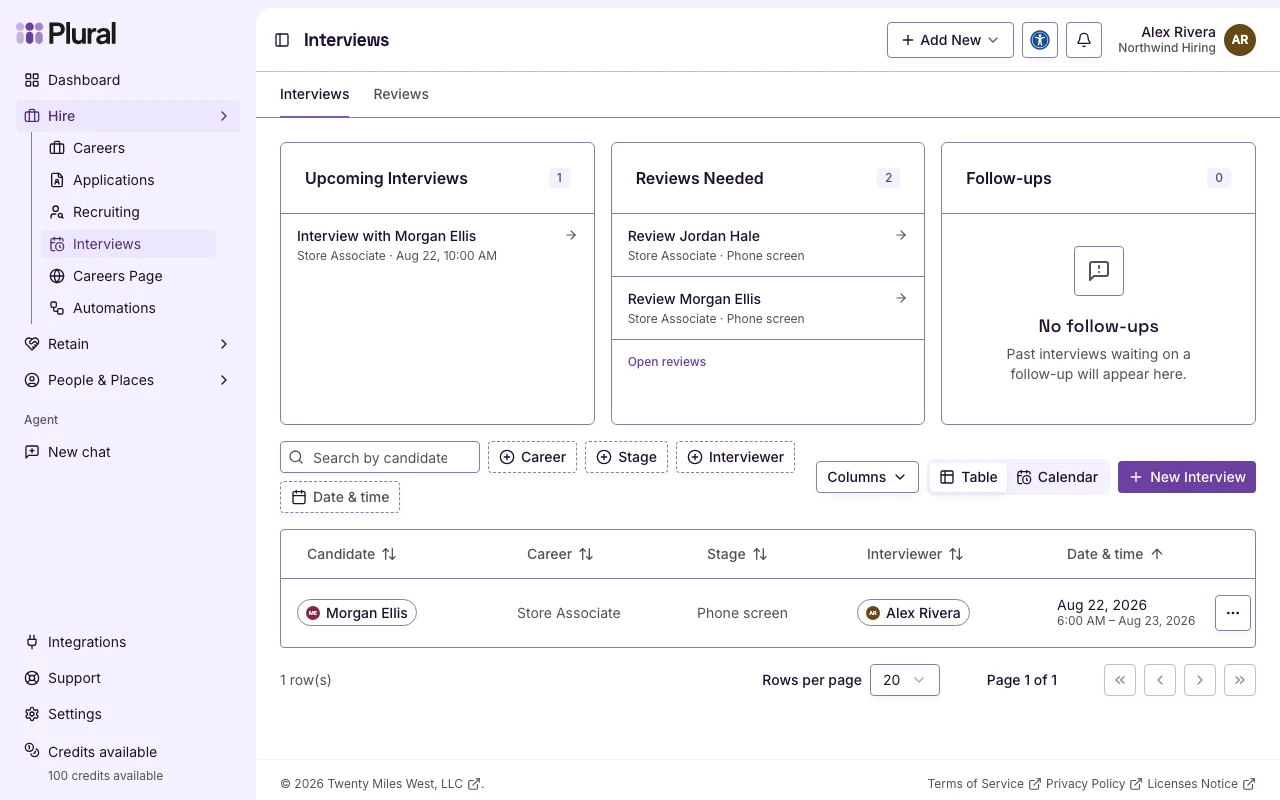
- Select Table to see rows. Select Calendar to see days.
- Use the filters if you need a smaller list. The table can filter by Candidate, Career, Stage, Interviewer, and Date & time.
This example uses Northwind Hiring. Morgan Ellis has a Phone screen for Store Associate. The interviewer is Alex Rivera.
The cards above the table show Upcoming Interviews, Reviews Needed, and Follow-ups. If a card is empty, you see No upcoming interviews, No reviews needed, or No follow-ups.
On Reviews Needed, select Open reviews to open the Reviews tab.
View an interview
- In the row, select Interview actions.
- Select Manage interview.
The dialog title is Manage interview. You can reschedule, change the interviewer, or open the application.
Select Open Calendar Invite if the row has a calendar link.
If the table is empty, you see No interviews scheduled yet. Interviews appear after someone books a time, or after you select New Interview.