
Invite members
Invite a person to your organization, choose a role, and send the invitation.
A member is a person who belongs to your organization. You invite the person with an email address. You choose a role. The person receives an email and joins the organization.
Before you start
- You must be signed in.
- These plans include this feature: Hire, Retain, Hire + Retain, and Enterprise.
- These roles can invite a member: Owner, Administrator, Hiring Manager, and Office Administrator.
- Owner and Administrator use Settings, then Organization, then Members.
- A Hiring Manager and Office Administrator can invite during onboarding. The page title is Invite your team members. The invitation form is the same.
- You can invite a person as Administrator, Auditor, Hiring Manager, Office Administrator, or Employee. You cannot invite a person as Owner.
- The default role is Employee.
- You cannot send an invitation to your own email address. The form shows: You cannot send an invitation to yourself.
- If the person is already a member, the form shows: This user is already a member of the organization.
View Members
- Open Settings.
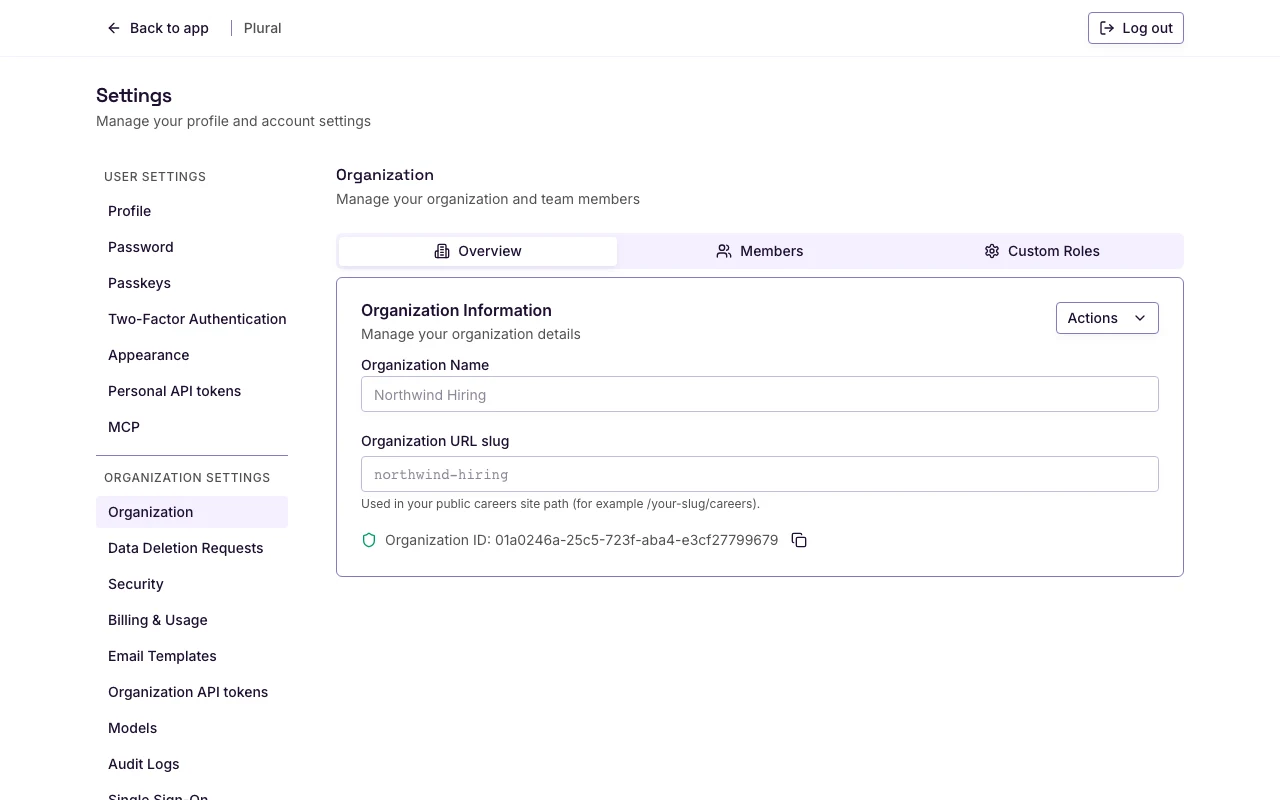
- Open Organization.
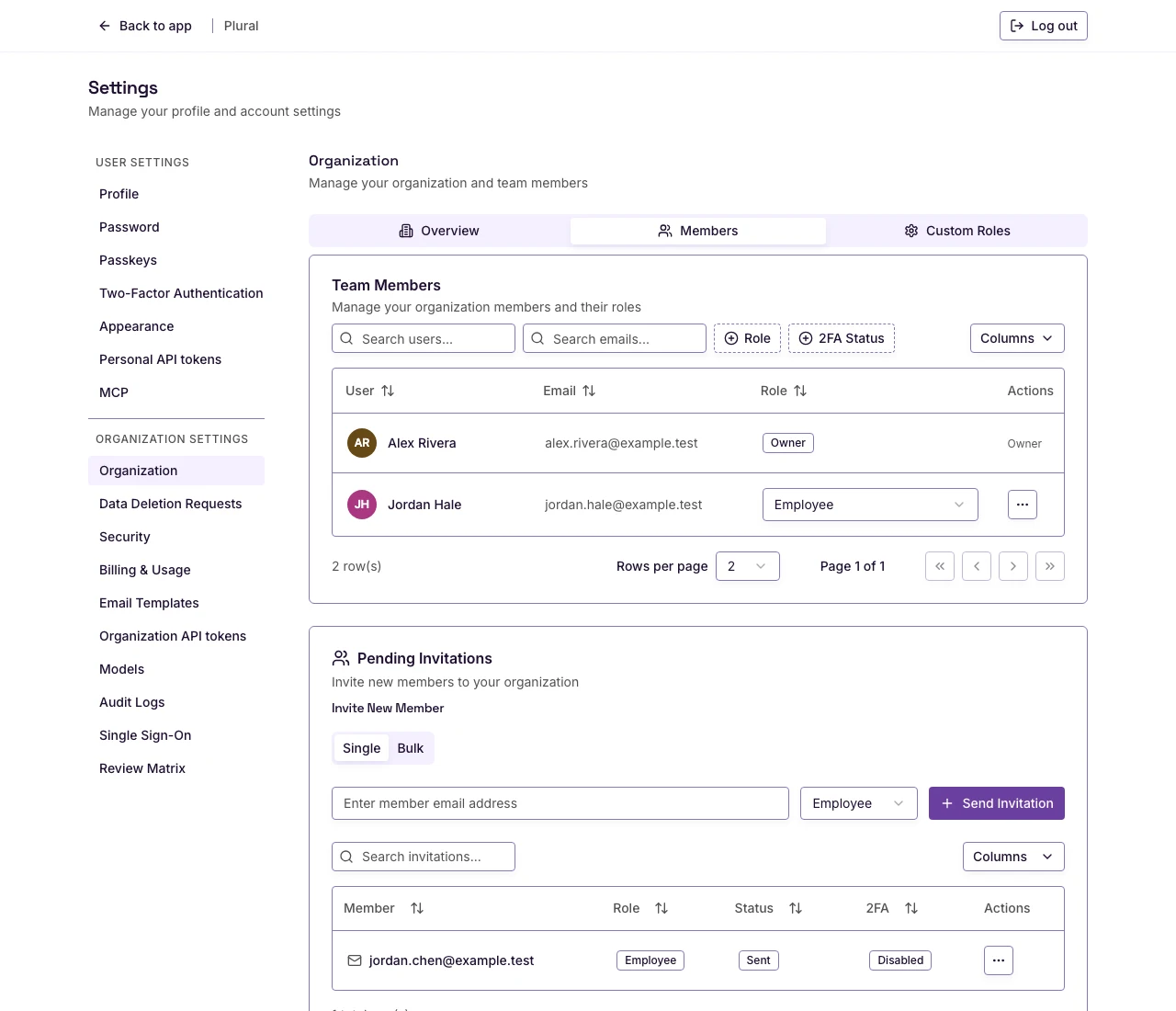
- Select Members.
The page title is Organization. The description is Manage your organization and team members.
The Members tab has two cards: Team Members and Pending Invitations. The page can show a Custom Roles tab. This section does not cover custom roles.
Invite one person
The Pending Invitations card title is Invite New Member when you can invite.
- Keep Single selected.
- In the email field, type the email address. The placeholder is Enter member email address. This example uses
jordan.chen@example.test. - In the role list, select a role. The default is Employee.
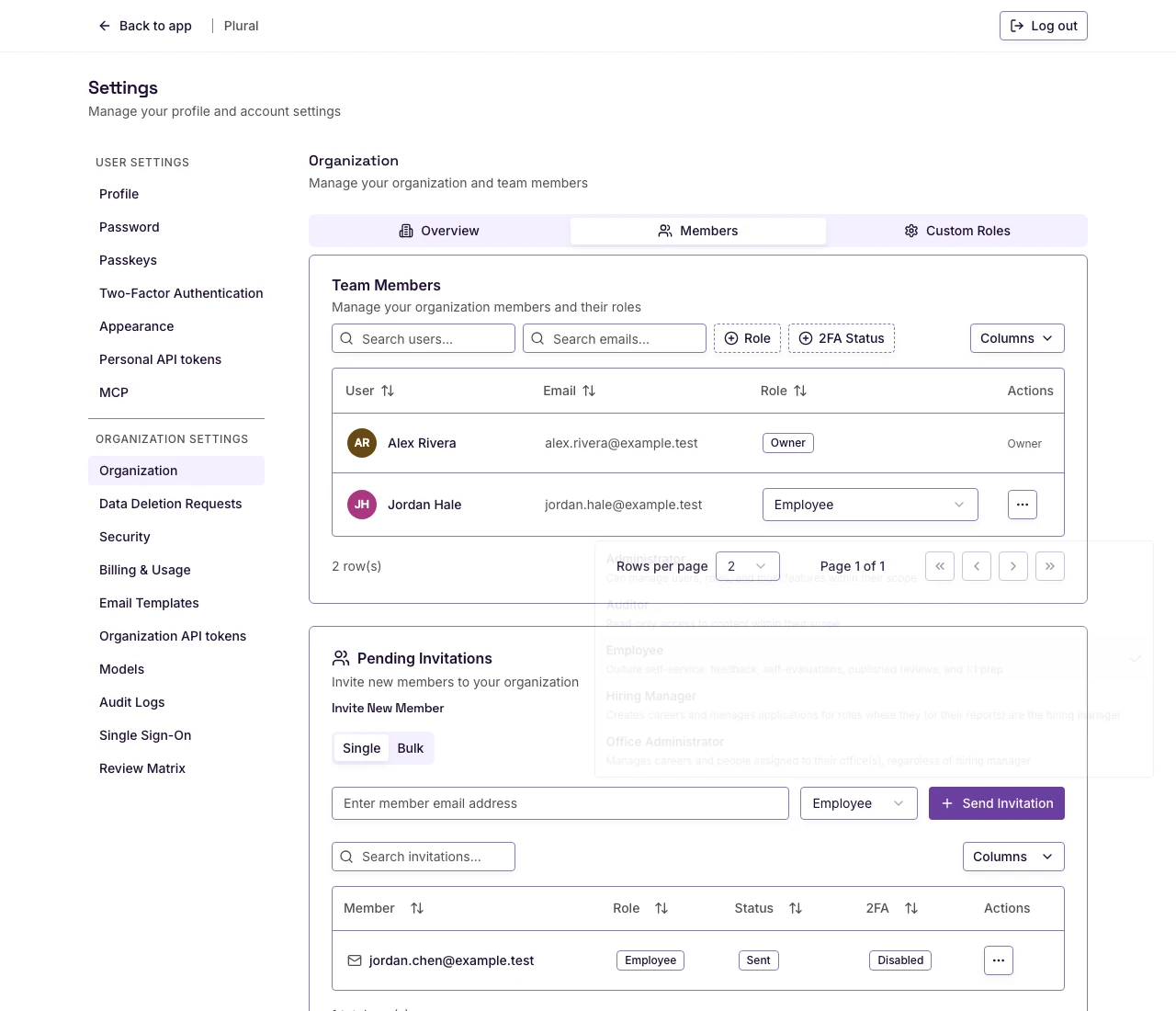
- Select Send Invitation.
A success message shows Invitation sent to the email address. The invitation appears in Pending Invitations.
If the email has no @ or domain, the form shows: Please enter a valid email address.
If the email is empty, the form shows: Email is required.
If the email is already in Pending Invitations, the form shows: This email has already been invited.
Roles
Select one role for each invitation.
- Administrator — full access to the organization.
- Auditor — read-only access to the organization.
- Hiring Manager — creates Careers and manages applications for roles where that person is the hiring manager.
- Office Administrator — full access to Careers and employees for the offices that person administers.
- Employee — views and shares feedback, completes evaluations, and prepares for 1:1 meetings.
Owner has full access to the organization. You cannot select Owner in this list.
Invite more than one person
Use Bulk when you have a list of email addresses. Every person in the list receives the same role.
- Select Bulk.
- In the text area, paste the email addresses. Separate them with a comma, a semicolon, or a new line. The placeholder is Paste emails (comma, semicolon, or newline separated).
- In the role list, select a role. The default is Employee.
- Select Invite all.
The page shows how many addresses are valid. Example: 2 valid email(s) found.
If no address is valid, the form shows: Paste at least one valid email address.
After a successful send, a message shows how many invitations were sent, skipped, or invalid.