
Resend invitations
Resend a pending invitation, or remove an invitation that you do not need.
A pending invitation waits until the person accepts. You can send the email again. You can also remove the invitation.
Before you start
- You must be signed in.
- These plans include this feature: Hire, Retain, Hire + Retain, and Enterprise.
- These roles can resend or remove an invitation: Owner and Administrator.
- You open Settings, then Organization, then Members.
- The invitation must be in Pending Invitations. Status is pending or sent.
- You cannot resend an invitation after the person accepts.
- If the invitation expired, the status is Expired. You can remove it.
View Pending Invitations
- Open Settings.
- Open Organization.
- Select Members.
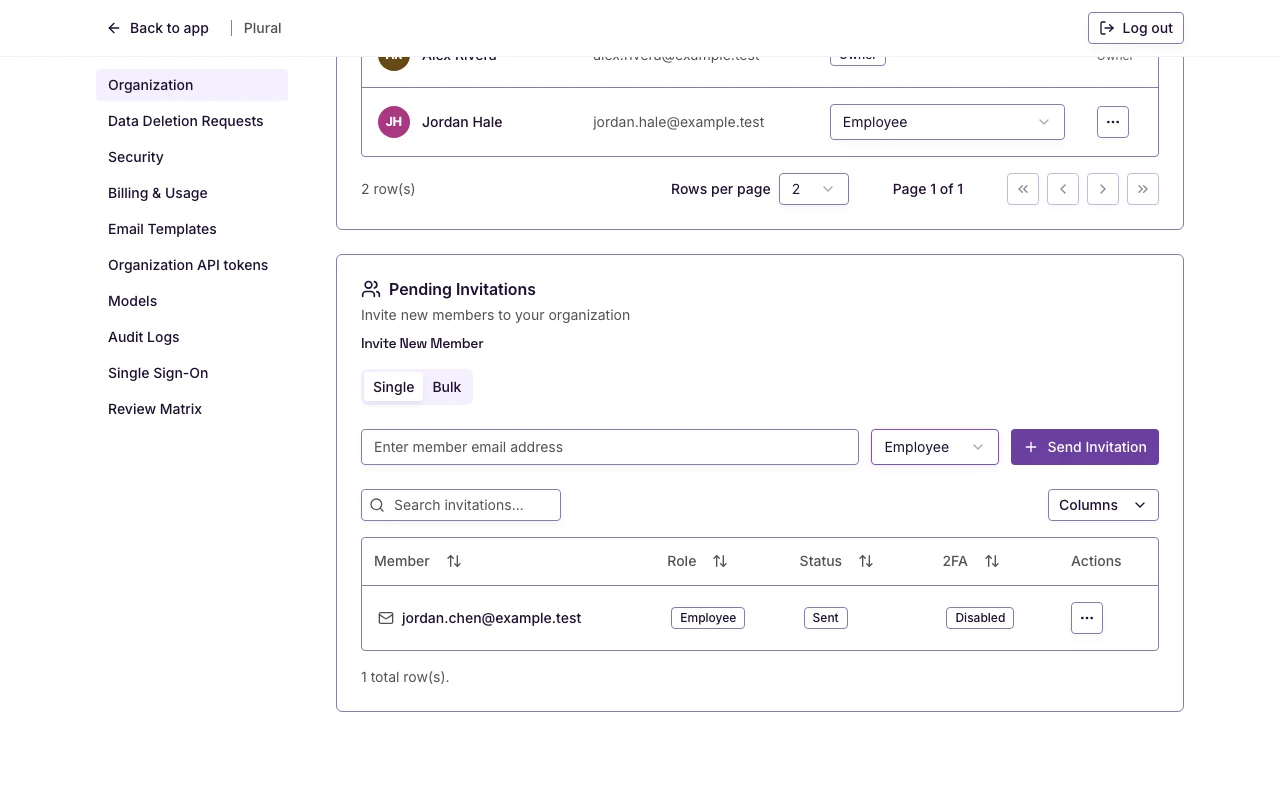
- Scroll to Pending Invitations.
The card title is Pending Invitations. The description is Invite new members to your organization when you can invite.
If there are no invitations, the card shows No pending invitations.
The table columns are Member, Role, Status, 2FA, and Actions.
Type in Search invitations… to find a row.
Resend an invitation
- In the Actions column, select Open menu.
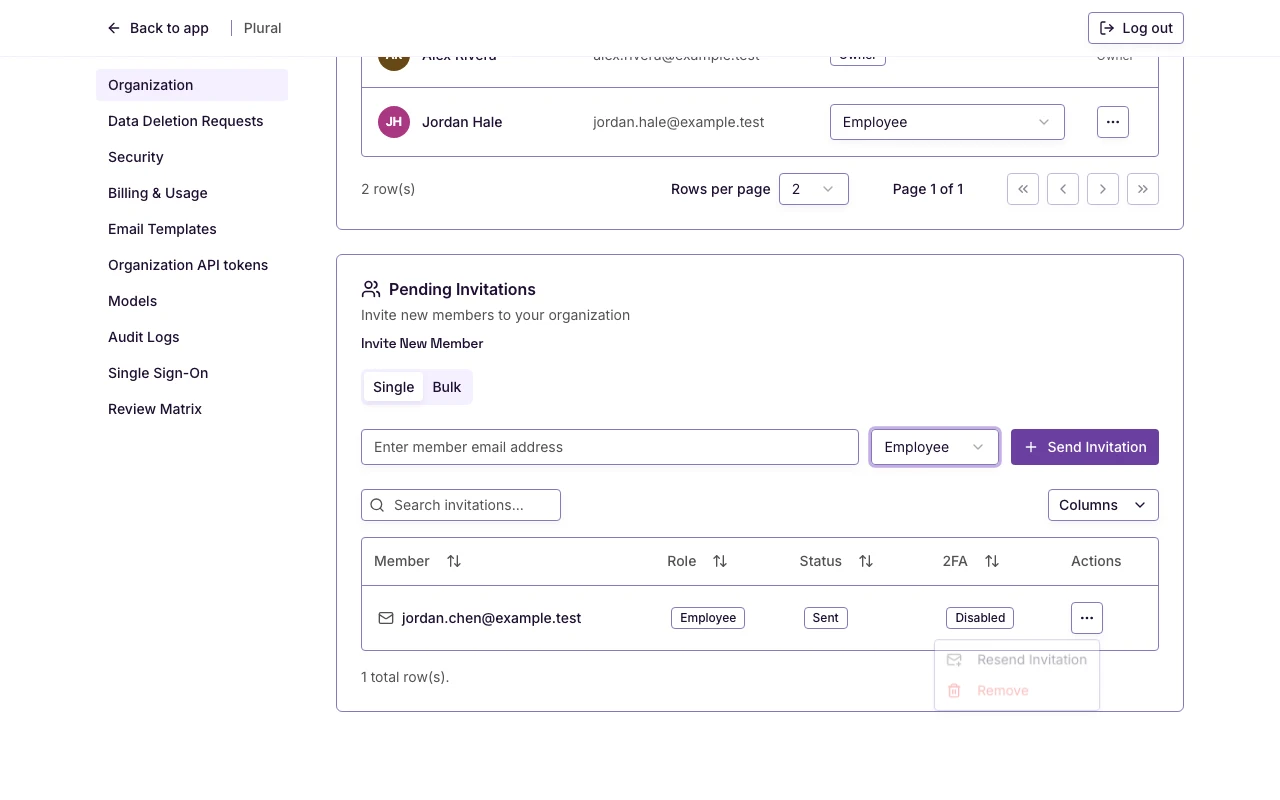
- Select Resend Invitation.
A success message shows Invitation resent successfully. The person receives the email again.
Remove an invitation
- In the Actions column, select Open menu.
- Select Remove.
The dialog title is Remove Invitation. The dialog asks if you want to remove the invitation for that email. The dialog says this action cannot be undone.
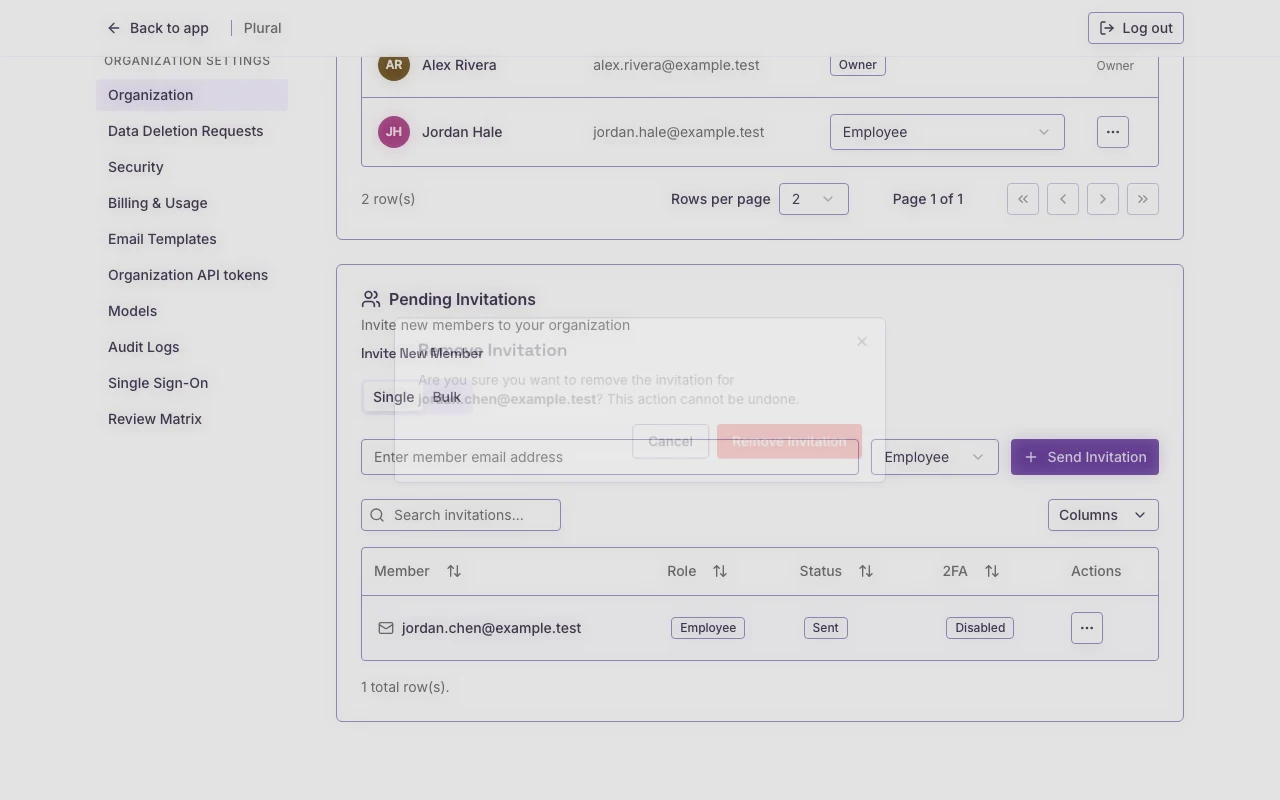
- Select Remove Invitation to confirm. Select Cancel to keep the invitation.
A success message shows Invitation removed successfully. The row leaves the table.
The person cannot use the old invitation link after you remove it.