
Change roles
Change the role for a person who already belongs to your organization.
A role sets what a member can do. You change the role in Team Members. The change applies when you select the new role.
Before you start
- You must be signed in.
- These plans include this feature: Hire, Retain, Hire + Retain, and Enterprise.
- These roles can change a member role: Owner and Administrator.
- You use Settings, then Organization, then Members.
- You cannot change the role for the Owner. The Role column shows Owner with no list.
- You can assign Administrator, Auditor, Hiring Manager, Office Administrator, and Employee. You cannot assign Owner from this page.
View Team Members
- Open Settings.
- Open Organization.
- Select Members.
The Team Members card description is Manage your organization members and their roles.
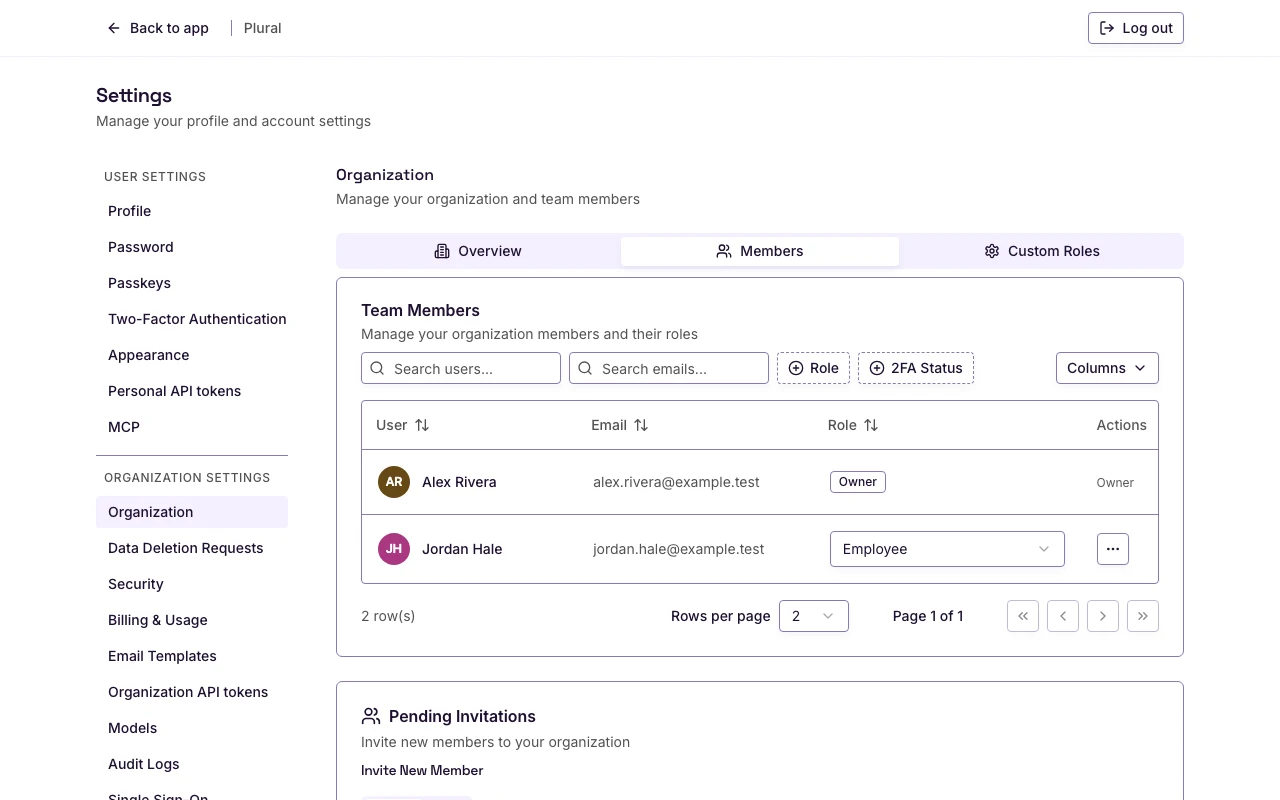
The table columns are User, Email, Role, and Actions. Select Columns if you want to show 2FA Status.
Role
- Find the member in Team Members.
- In the Role column, open the role list.
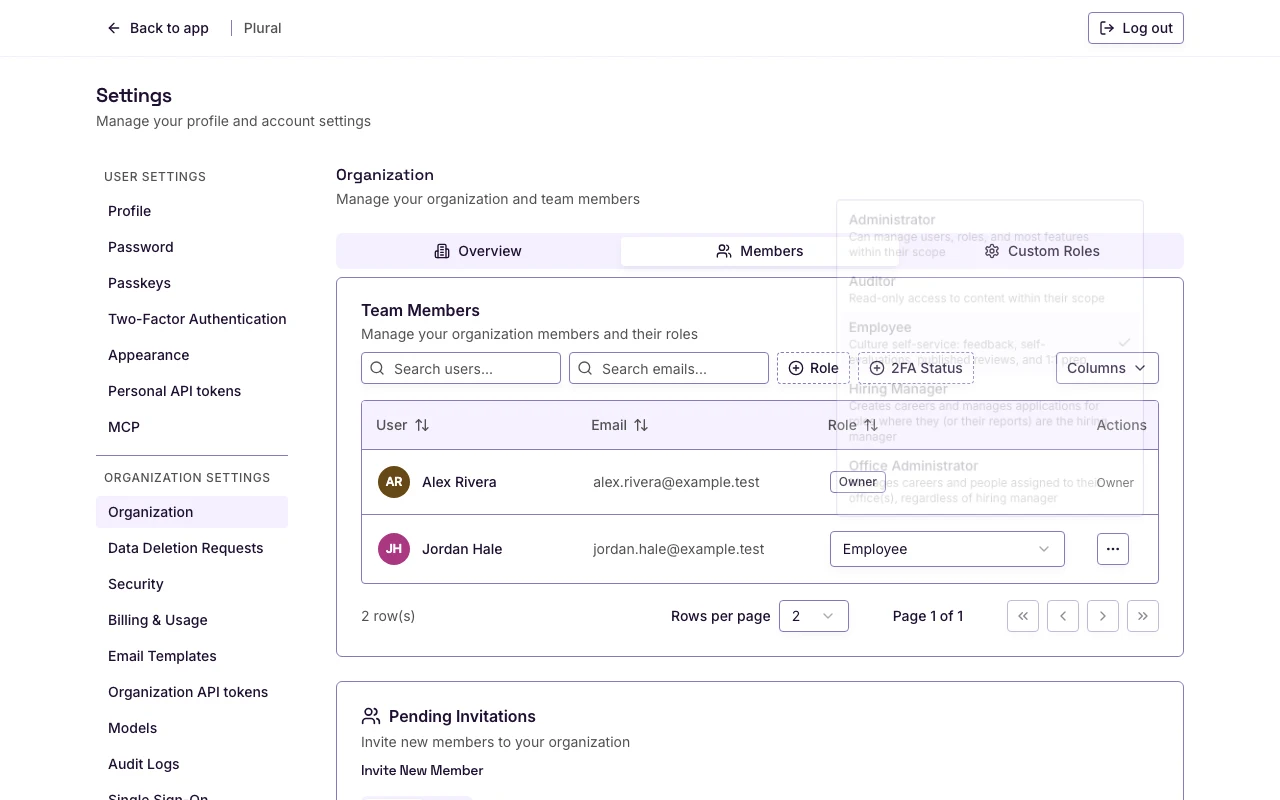
- Select the new role.
The control shows Changing… while Plural saves. Then the Role column shows the new role.
Roles you can assign
- Administrator — full access to the organization.
- Auditor — read-only access to the organization.
- Hiring Manager — creates Careers and manages applications for roles where that person is the hiring manager.
- Office Administrator — full access to Careers and employees for the offices that person administers.
- Employee — views and shares feedback, completes evaluations, and prepares for 1:1 meetings.
If you cannot assign a role, the form shows: You can only assign roles with fewer permissions than your own in this organization.