
Managing subscriptions
Choose a billing period and start checkout or the billing portal.
The Subscriptions tab shows the current plan and the plan cards. You start checkout from a card. If you already have a paid subscription, a card opens the billing portal.
Before you start
- You must be signed in.
- These plans include this feature: Hire, Retain, Hire + Retain, and Enterprise.
- These roles can manage a subscription: Owner and Administrator.
- If a partner manages the organization, the page shows Settings managed by partner. You cannot change the plan on this page.
- If an account manager assigned the plan, you do not see the plan cards. See Account manager plan below.
View Subscriptions
- Open Settings, then open Billing & Usage.
- Select Subscriptions if that tab is not already open.
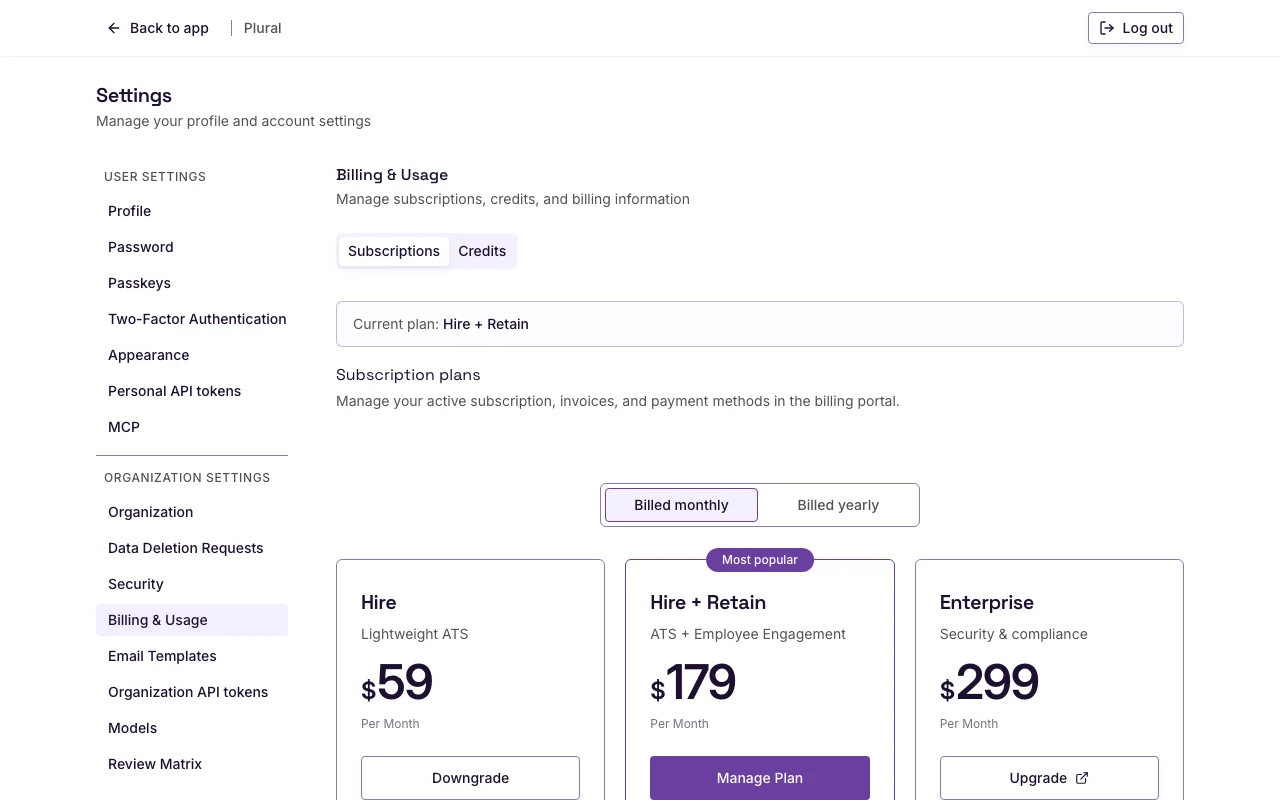
Read Current plan. Then read the Subscription plans heading.
If you have a paid subscription, the help text is Manage your active subscription, invoices, and payment methods in the billing portal.
If you do not have a paid subscription, the help text is Choose a plan and start checkout when you are ready to upgrade.
Billing period
The Billing period control has two options:
- Billed monthly
- Billed yearly
- Select Billed monthly or Billed yearly.
- Read the price on each card. The card shows the price for the period you selected.
Do not copy a price from this article. Use the price on the page.
Plan
The cards that appear on the page are the catalog plans. Typical names are Hire, Hire + Retain, and Enterprise. Hire + Retain can show Most popular.
Each card shows the plan name, the price for the selected period, and the features on that plan.
The button on a card uses one of these labels:
- Select Plan — you do not have a paid subscription, or the current plan is No plan.
- Manage Plan — this card is your current paid plan.
- Upgrade — this card is a higher plan than your current paid plan.
- Downgrade — this card is a lower plan than your current paid plan.
On Enterprise, the button opens a demo page in a new tab. The label can still be Select Plan, Upgrade, Downgrade, or Manage Plan.
- Read the features on the card you want.
- Select the button on that card.
If checkout starts, the button shows Processing…. Stripe checkout opens.
If you already have a paid subscription, the billing portal opens. Use the portal for invoices and payment methods.
If checkout cannot start, the page shows Checkout could not be started.
If the plans cannot load, the page shows Pricing plans could not be loaded. Check your connection or try refreshing the page.
After checkout
The checkout page title is Checkout. The heading is Activating your subscription. The page then returns you to Plural.
A success message can show Your subscription has been started successfully.
Open Billing & Usage again. Read Current plan to confirm the plan.
Account manager plan
If an account manager assigned the plan, the heading is still Subscription plans. The help text is Your account manager manages this subscription. Use the billing portal for invoices and payment methods.
The card title is Billing is managed by your account manager. The description is To change your plan, contact billing@pluralcareers.com.
- Select Access Billing Portal to open invoices and payment methods.
- Select Email Support to write to the account manager email.
- Select Copy Support Email if you want to copy
billing@pluralcareers.com. A success message shows Copied to clipboard.
Get help
The Need Help? card is below the tabs.
The card title is Need Help? The description is Contact support if you need assistance with billing or subscription management.
- Select Contact Support if you need help with billing, a subscription change, or a payment.