
Starting a chat
Start a chat with the Agent, ask about hiring, mention people and Careers, and view a recent conversation.
The Agent is the AI assistant in Plural. You ask it about open roles, applications, applicants, and hiring data in your organization.
Before you start
- You must be signed in.
- These plans include this feature: Hire, Retain, Hire + Retain, and Enterprise.
- These roles can use the Agent: Owner, Administrator, Hiring Manager, and Office Administrator.
- An Employee cannot use the Agent.
- A candidate account cannot use the Agent.
New chat
- In the sidebar, under Agent, select New chat.
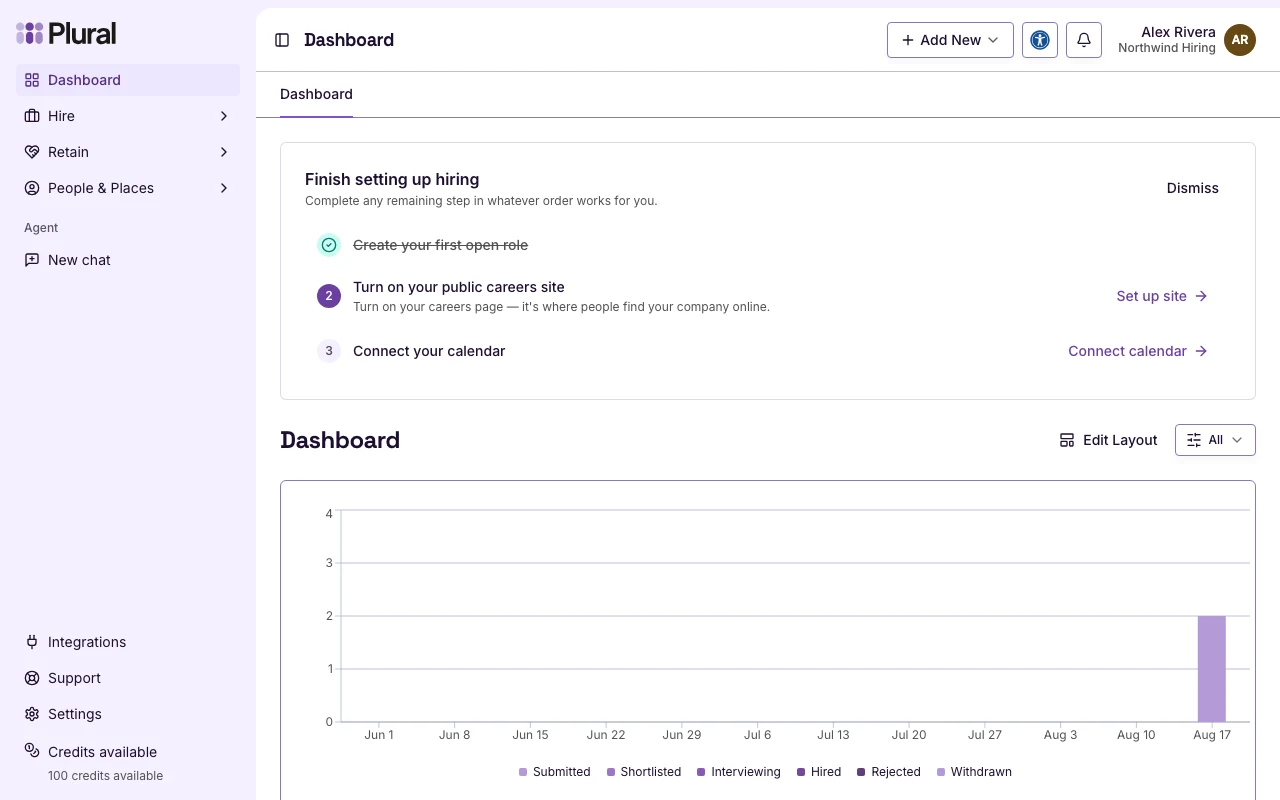
You can also press Command+I on a Mac, or Ctrl+I on Windows.
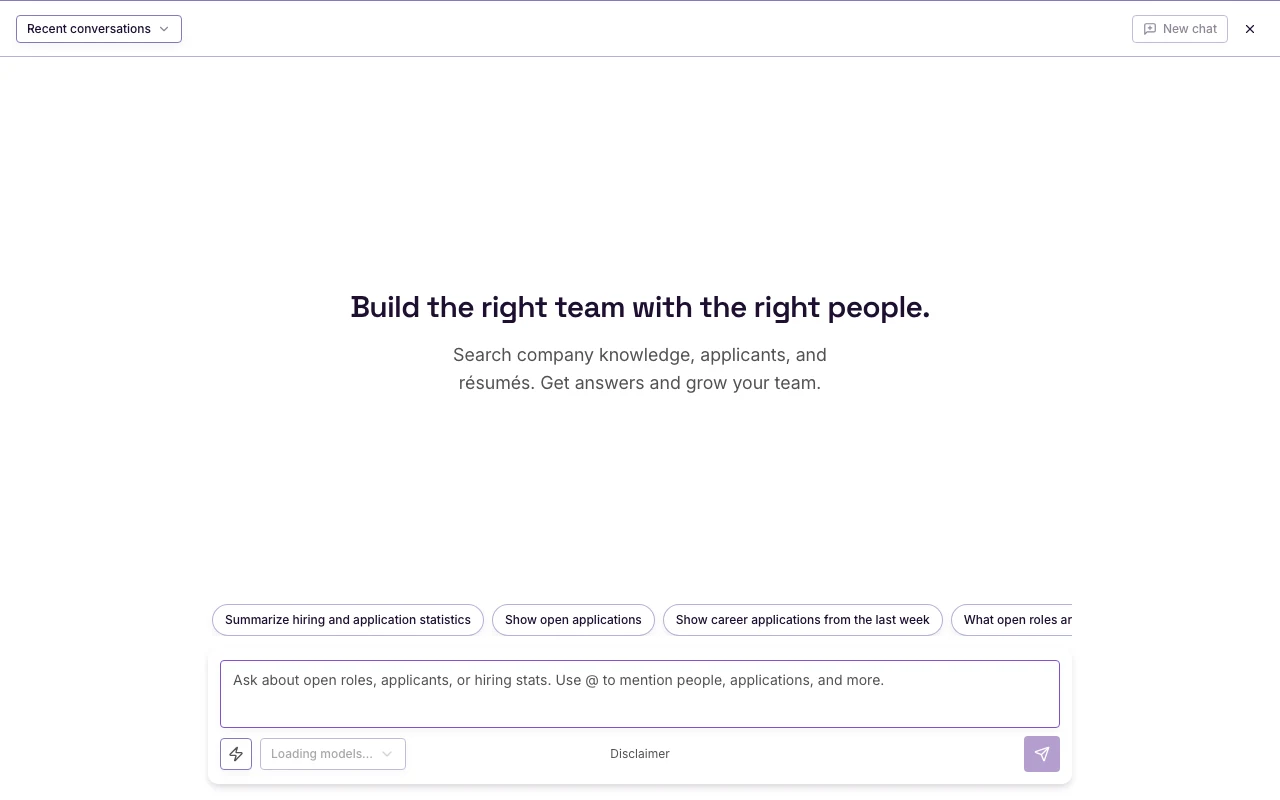
The Agent opens over the page. The heading is Build the right team with the right people. The text below the heading is Search company knowledge, applicants, and résumés. Get answers and grow your team.
Question
The composer placeholder is Ask about open roles, applicants, or hiring stats. Use @ to mention people, applications, and more.
Suggested prompts appear above the composer:
- Summarize hiring and application statistics
- Show open applications
- Show career applications from the last week
- What open roles are we hiring for?
- Type your question in the composer. This example uses What open roles are we hiring for?
- Select a suggested prompt if you want to use that text instead.
- Select Send message.
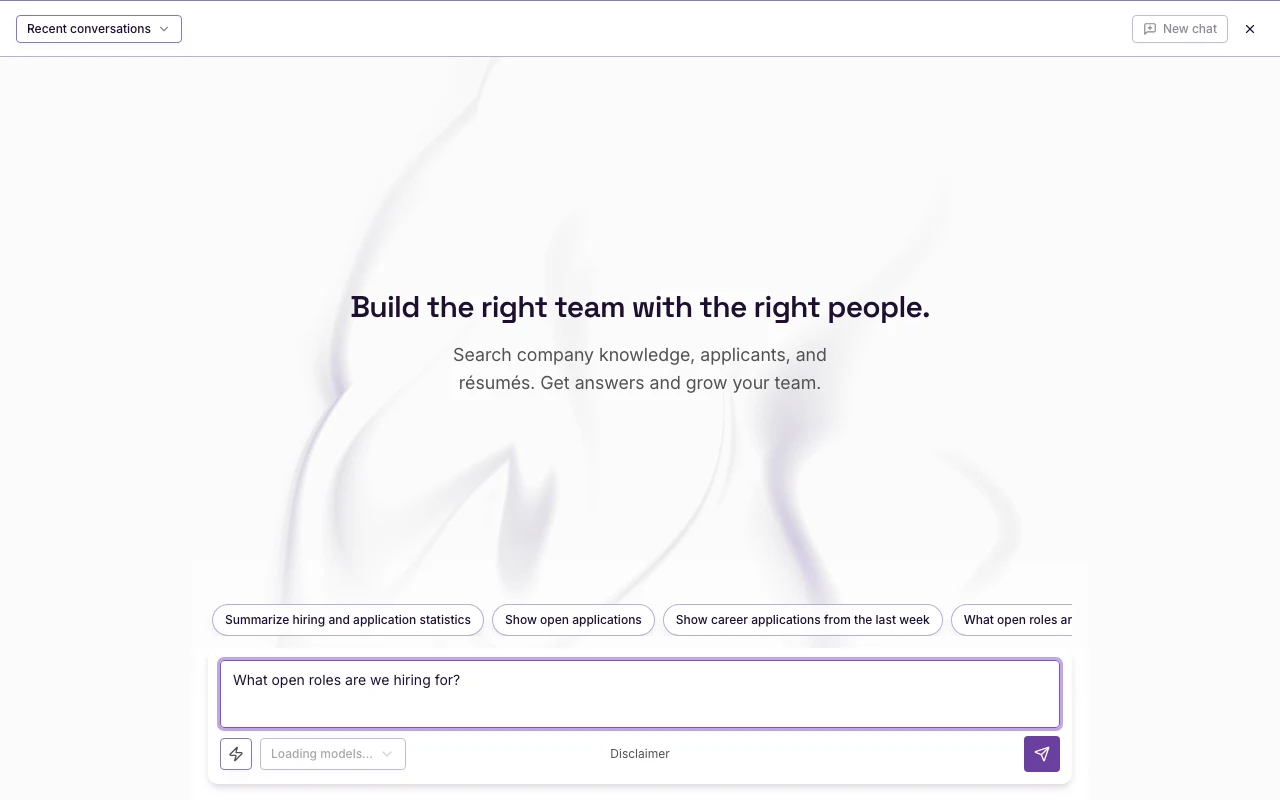
While the Agent works, the status can show Working… and Looking up careers, applications, and hiring data. After a tool runs, the status can show Used.
What you can ask
You can ask the Agent to look up hiring data in the current organization. Examples:
- Open roles (Careers)
- Career applications, including open applications and applications from a date range
- Applicants and résumé text
- Interviews
- Employees, teams, and offices
- Organization members
- Hiring and application statistics
You can also ask the Agent to create or update a Career, or to update a career application, when your role already has that permission.
The Agent answers in the current organization only. Review the reply before you act on it.
Mention a person or Career
Use @ to attach a record to your question.
- Type
@in the composer. - Type part of the name.
- Select the record in the list.
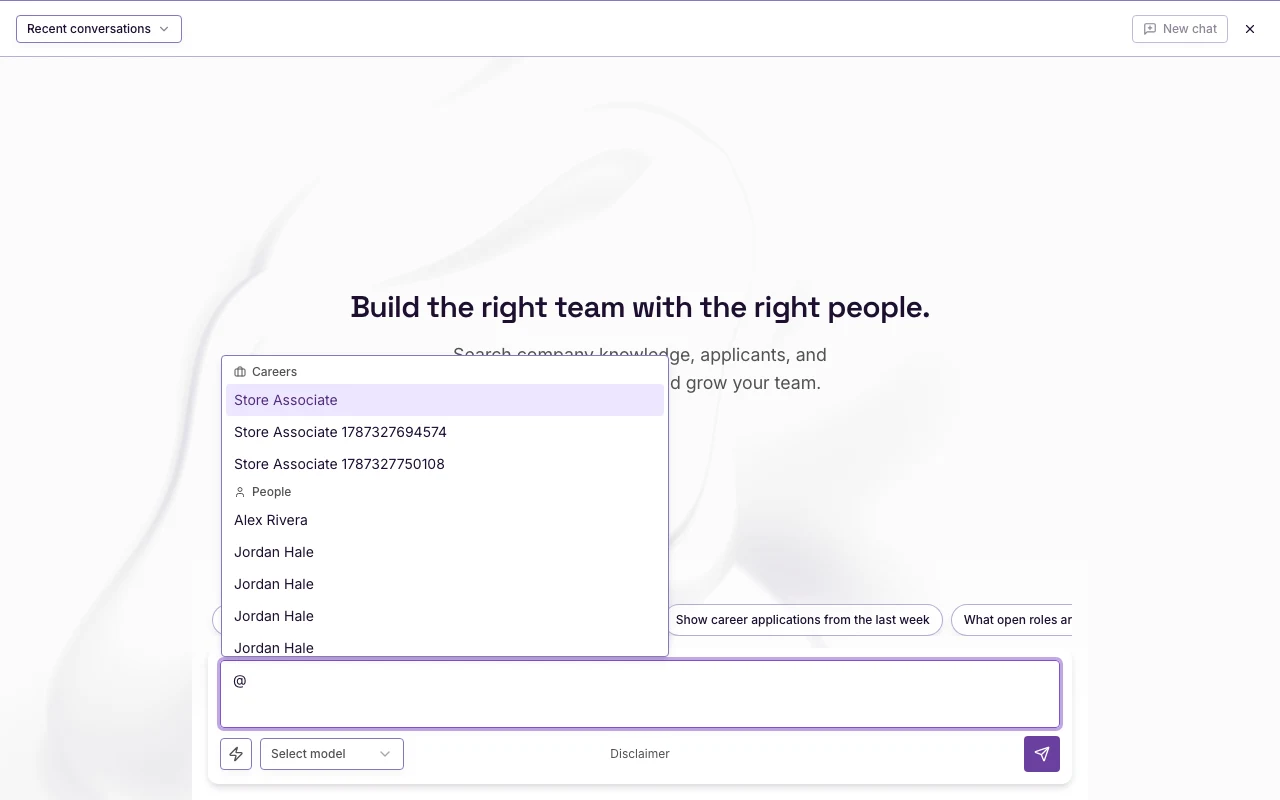
The list groups matching records. Groups can include Careers, People, Users, Teams, and Knowledge sources. If there is no match, the list shows No results found.
Add a file
You can attach files to the message.
- Select Composer actions.
- Select Add attachments.
- Choose one or more files.
Model
If your organization has more than one model, the composer shows Select model. Open Select AI model and select a model. While models load, the control shows Loading models….
View a recent conversation
The Agent stores your chats. You can open a recent chat from the header or from the sidebar.
- Select Recent conversations.
- Select the chat you want.
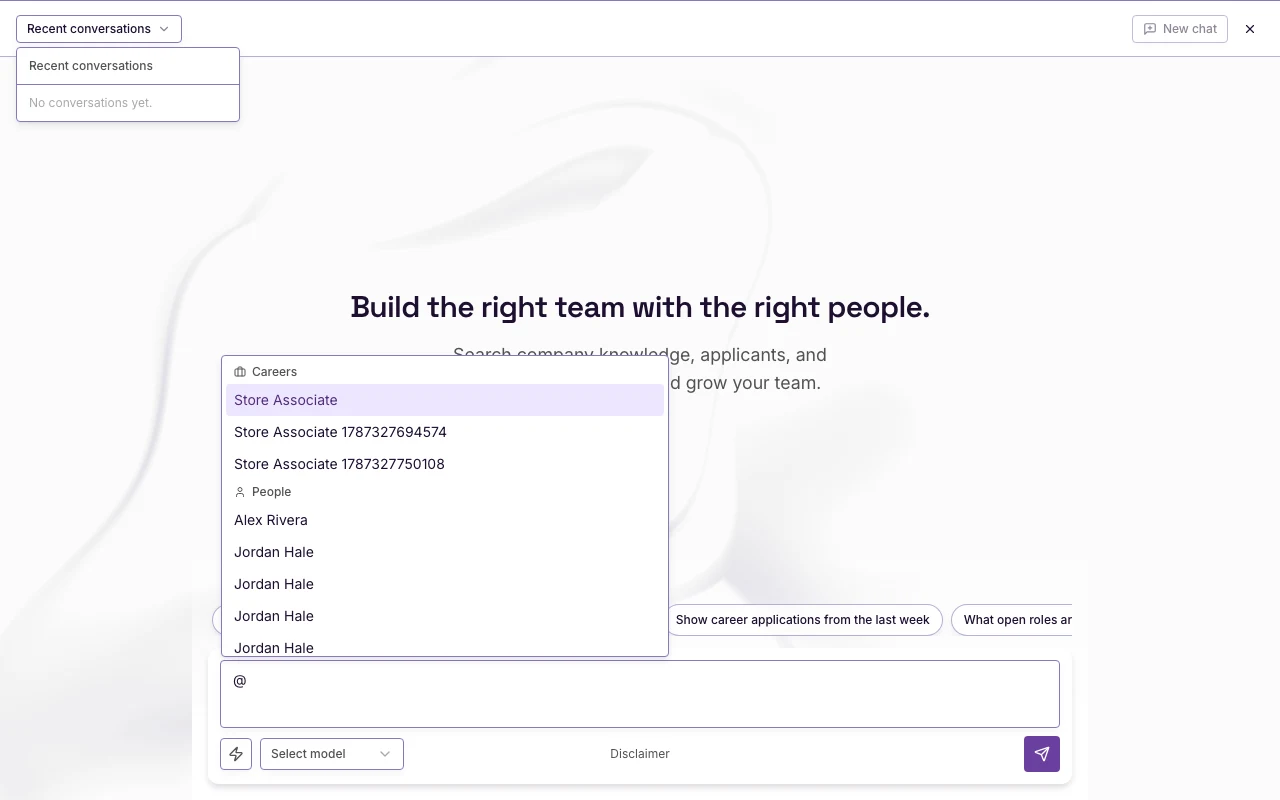
If you have no chats yet, the menu shows No conversations yet. While chats load, the menu shows Loading conversations….
In the sidebar, if you have recent chats, select Recent chats next to New chat. Then select the chat title. The sidebar shows up to five recent chats.
Another chat
- Select New chat in the Agent header.
New chat in the header stays disabled until the current chat has a message.
Close
- Select Close agent, or press Escape.