
Sign in with SSO
Sign in with your organization identity provider from the log in page or the organization login URL.
Organization Single Sign-On sends you to your company identity provider. An owner or administrator must add an active SAML or OpenID Connect connection first.
Before you start
- These plans include this feature: Enterprise.
- You need the Plural log in page, or the organization login URL from Settings.
- Your organization must have at least one active SAML or OpenID Connect connection.
- You do not need an organization role to start SSO from the log in page.
Log in page
- Open the log in page.
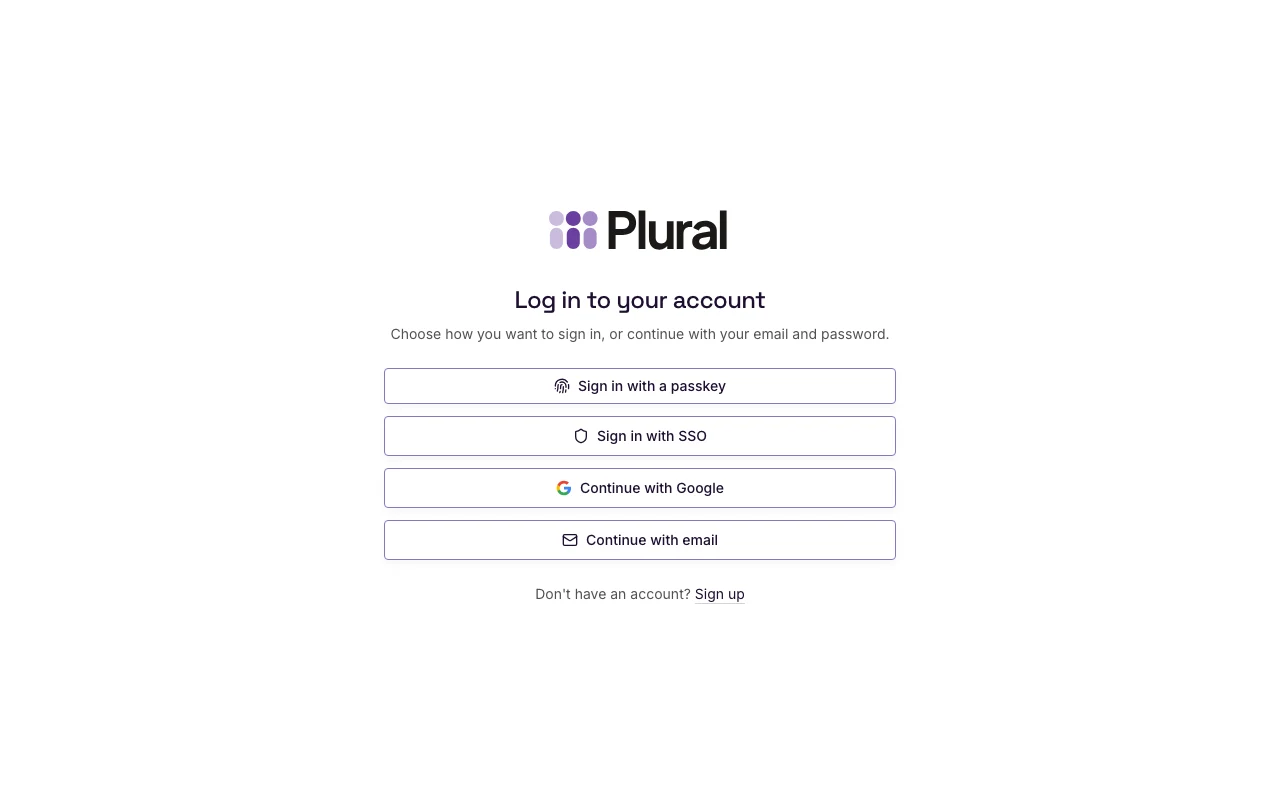
- Select Sign in with SSO.
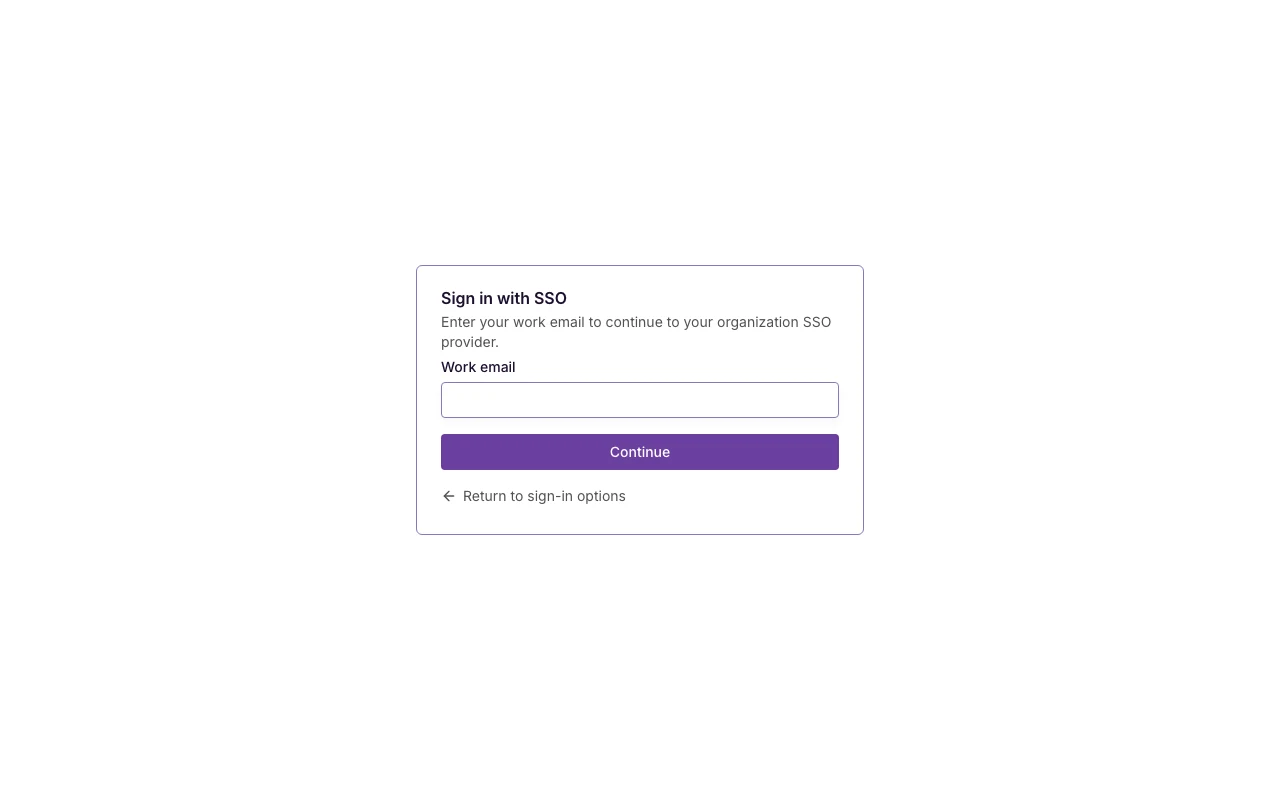
- In Work email, type the email address you use at work.
- Select Continue.
If the page shows the email and password form first, select Other sign-in options. Then select Sign in with SSO.
If the email is not associated with a single sign-on configuration, Plural returns you to the log in page. The message is: This email address is not associated with a single sign-on configuration. Try another sign-in option. Use Continue with Google, Continue with email, or the organization login URL.
Select Return to sign-in options if you want to leave this page without sending an email.
Organization login URL
An owner or administrator can copy the organization login URL from Settings.
- Open the URL that your administrator shared. The path looks like
/sso/northwind-hiring/login. - If the organization has one active connection, Plural opens that identity provider.
- If the organization has more than one active connection, the page title is Sign in to your organization name. The description is Choose your organization SSO connection. Select the connection label.
- Complete sign-in with your identity provider.
If the organization has no active connection, the page title is SSO is not configured. Select Continue to login.