
How to disable two-factor authentication
Turn off 2FA so sign-in no longer asks for a pin from your authenticator app.
Disable 2FA when you replace your authenticator app and you want to set 2FA up again, or when you no longer want a second check at sign-in.
Plural names this control Disable 2FA.
Before you start
- You must be signed in.
- 2FA must show Enabled. If the badge shows Disabled, 2FA is already off.
- If your organization turns on Require MFA for all members, you must enable 2FA again before you can use the app.
After you disable 2FA, you sign in with your password only until you enable 2FA again.
View Two-Factor Authentication
- Open Settings.
- Under User settings, select Two-Factor Authentication.
The page title is Two-Factor Authentication. The badge shows Enabled. The page shows Disable 2FA.
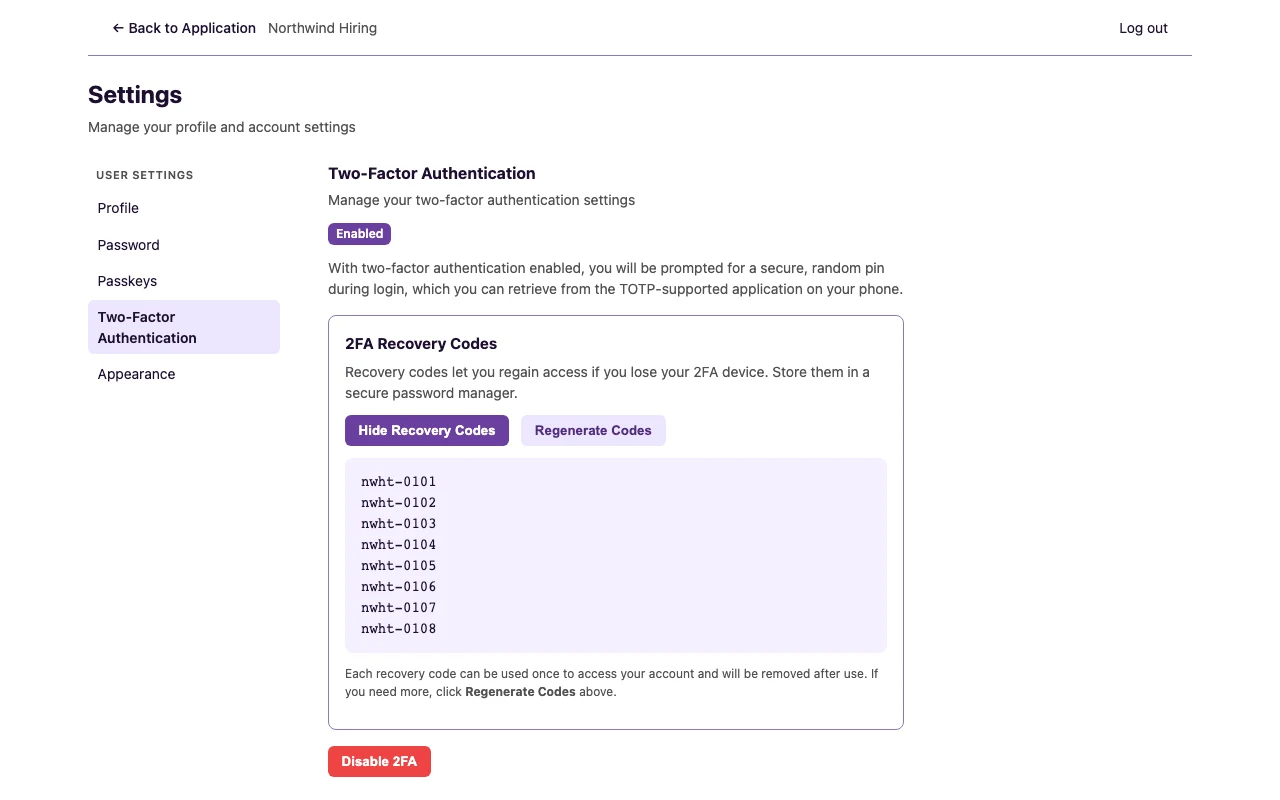
Two-factor authentication
- Select Disable 2FA.
The badge changes to Disabled. The page shows Enable 2FA. Recovery codes are no longer on the page.
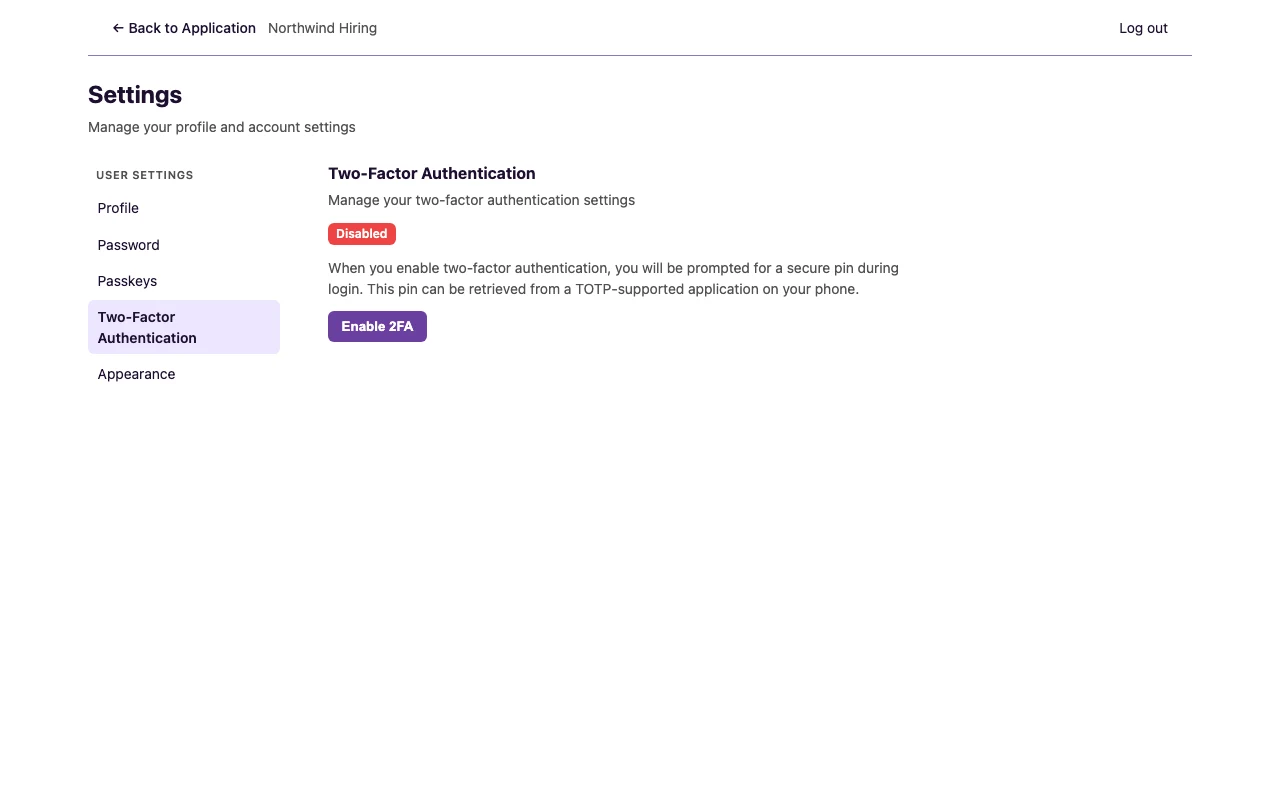
After you finish
2FA is off. Sign-in no longer asks for a pin.
To turn 2FA on again, see How to enable two-factor authentication.