
Viewing feedback
View Feedback, use the tabs and filters, and view a feedback card.
You can view feedback that you wrote. You can also view feedback that is visible to you.
Before you start
- You must be signed in.
- These plans include this feature: Retain, Hire + Retain, and Enterprise.
- These roles can view Feedback: Owner, Administrator, Auditor, Hiring Manager, Office Administrator, and Employee.
- You see a card when the visibility includes you, or when you wrote the feedback.
If your account is not linked to a person record, the Received tab shows: Your account is not linked to a person record. Contact your administrator.
View Feedback
- Open Retain, then open Feedback.
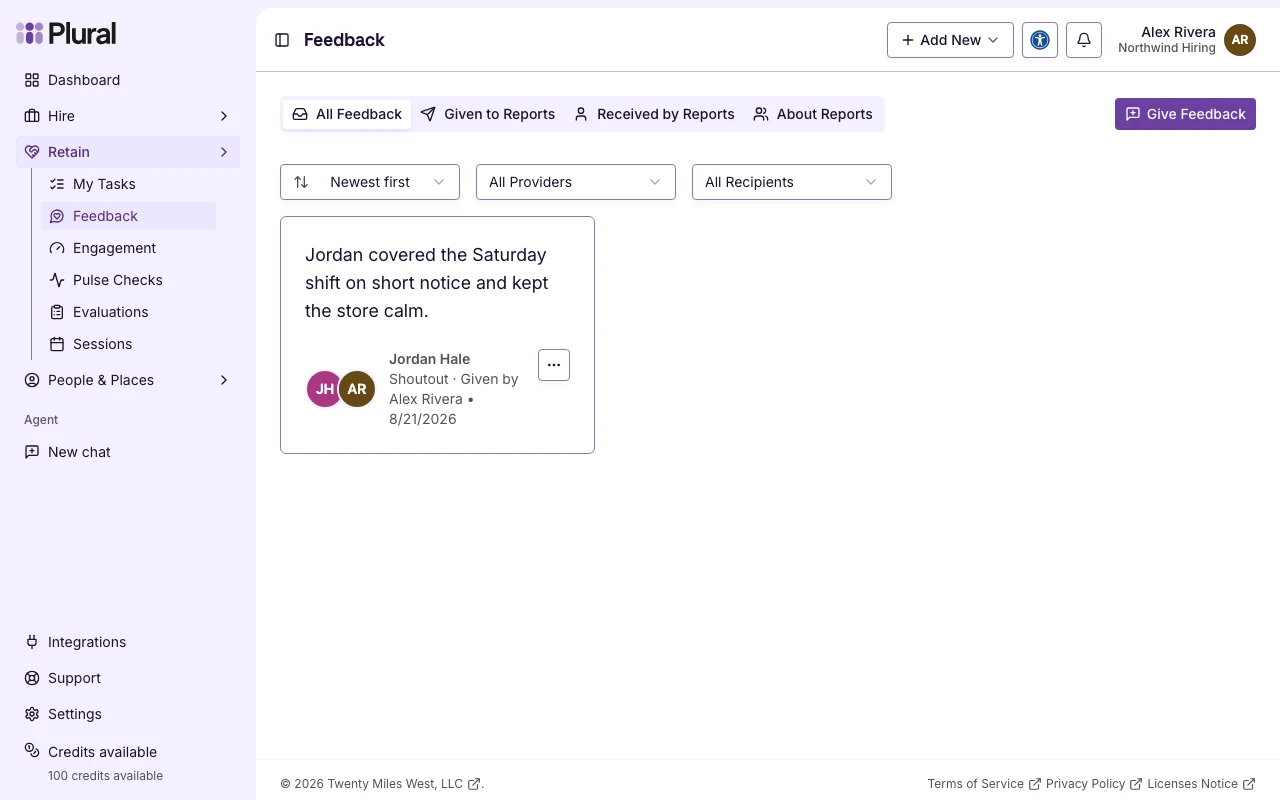
The page title is Feedback. Give Feedback is at the top right if you can create feedback.
Tabs
If you do not manage people, the tabs are:
- All Feedback — every card that you can see
- Given — feedback that you wrote
- Received — feedback where you are the recipient
If you manage people, the tabs are:
- All Feedback — every card that you can see
- Given to Reports — feedback that you wrote to a direct report
- Received by Reports — feedback that a direct report received
- About Reports — feedback about a direct report that you did not write
- Select a tab.
- Use Newest first or Oldest first to sort by date.
- Use Filter by recipient when the tab is not limited to one recipient. Select All Recipients to clear the filter.
If no card matches, the page shows No Feedback Found.
View a feedback card
Each card shows the content, the recipient name, the type, the person who gave it, and the date.
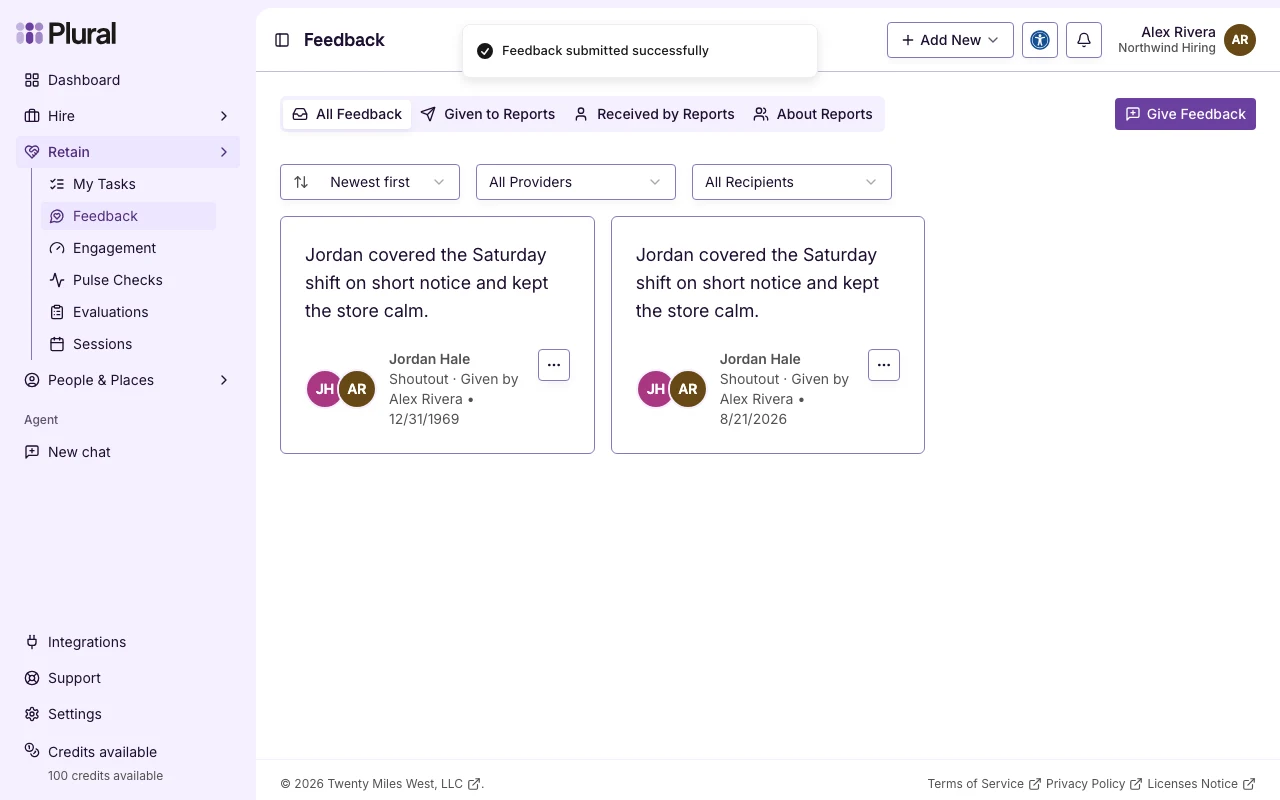
- Open the menu on the card.
- Select View.
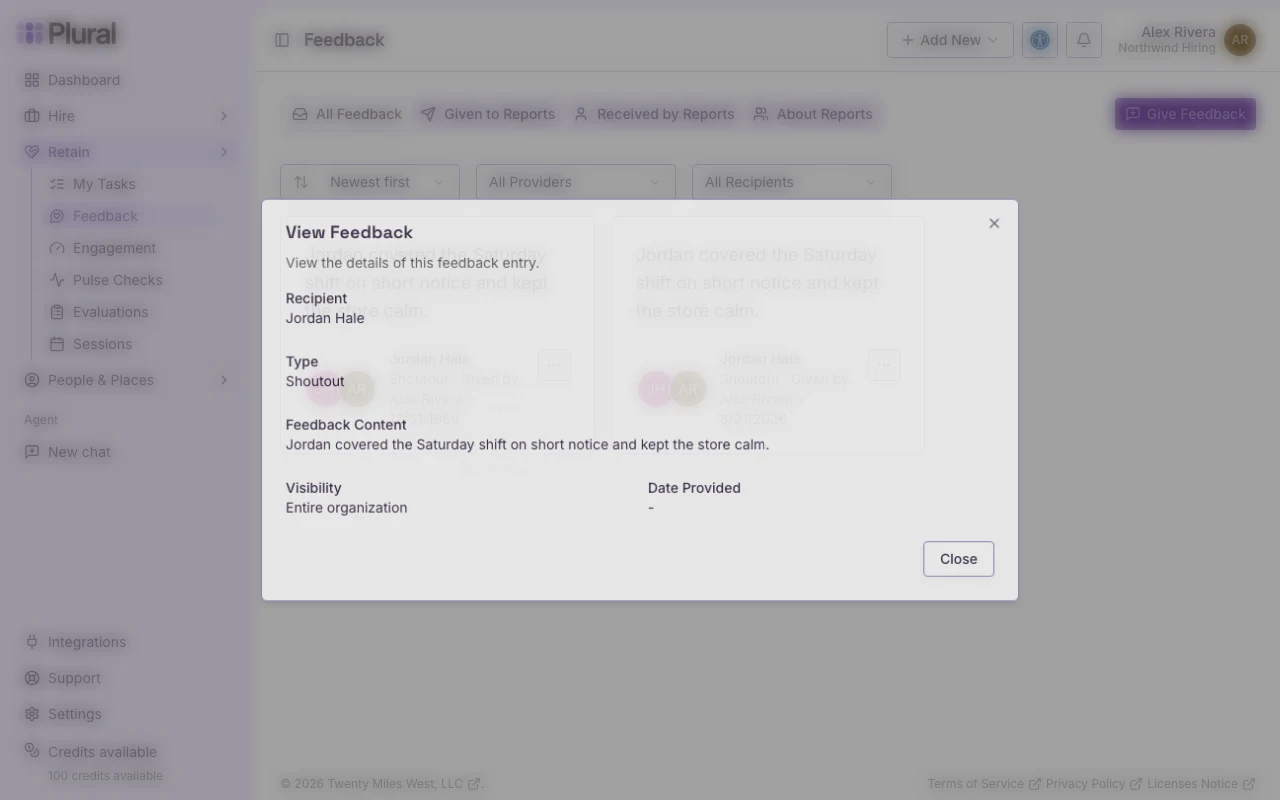
The dialog title is View Feedback. The dialog shows:
- Recipient
- Type
- Feedback Content
- Visibility
- Date Provided
- Select Close.
If you wrote the feedback and you have permission, the card menu also has Delete.
If you manage the recipient, the card menu can also have Add to Next Session. That action needs an active session with that person.
When there is more than one page of cards, use Previous and Next.