
Giving feedback
Give Feedback to a teammate, choose who can see it, and submit.
Feedback is a note that you write about a teammate. The teammate is the recipient.
Before you start
- You must be signed in.
- These plans include this feature: Retain, Hire + Retain, and Enterprise.
- These roles can give Feedback: Owner, Administrator, Hiring Manager, Office Administrator, and Employee.
- You must have at least one person to select as the recipient.
- If you do not have permission to view all people, you can select your manager and your direct reports only.
The give flow has four steps: type, recipient, visibility, and content.
View Feedback
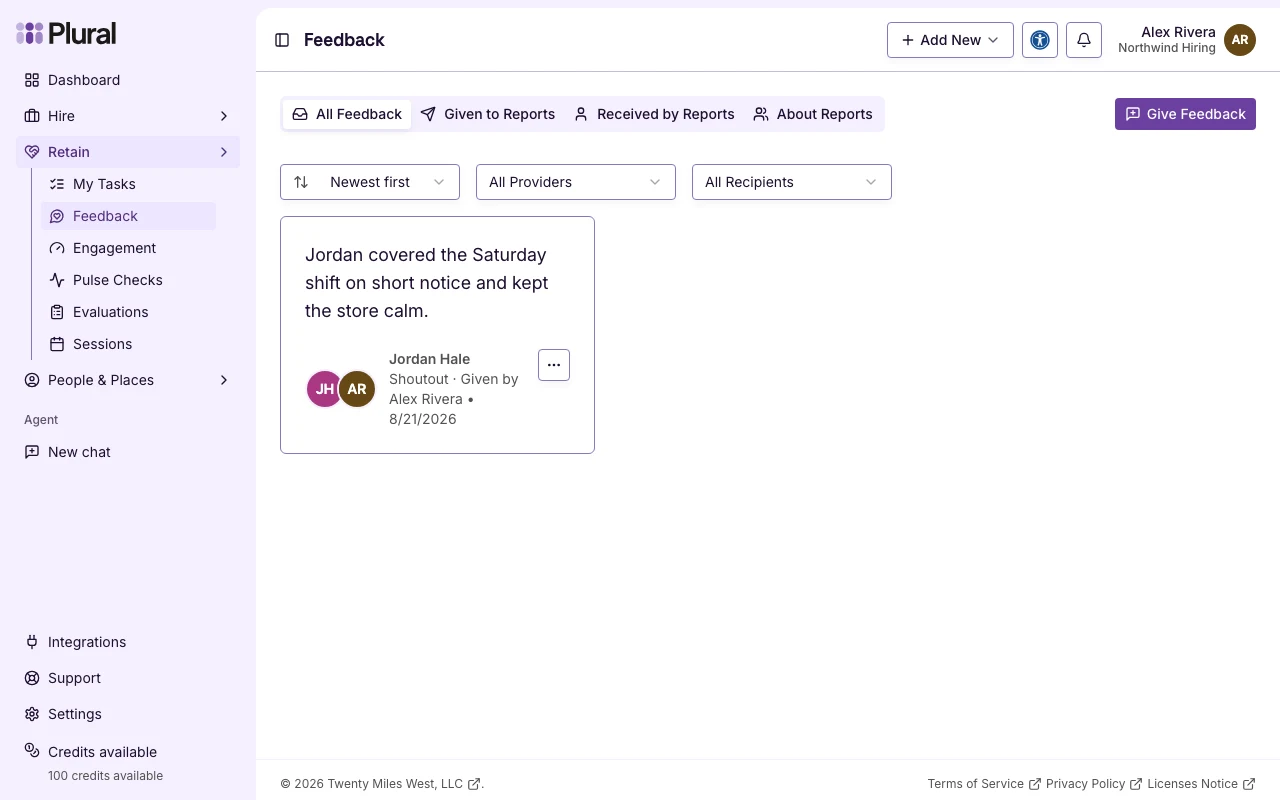
- Open Retain, then open Feedback.
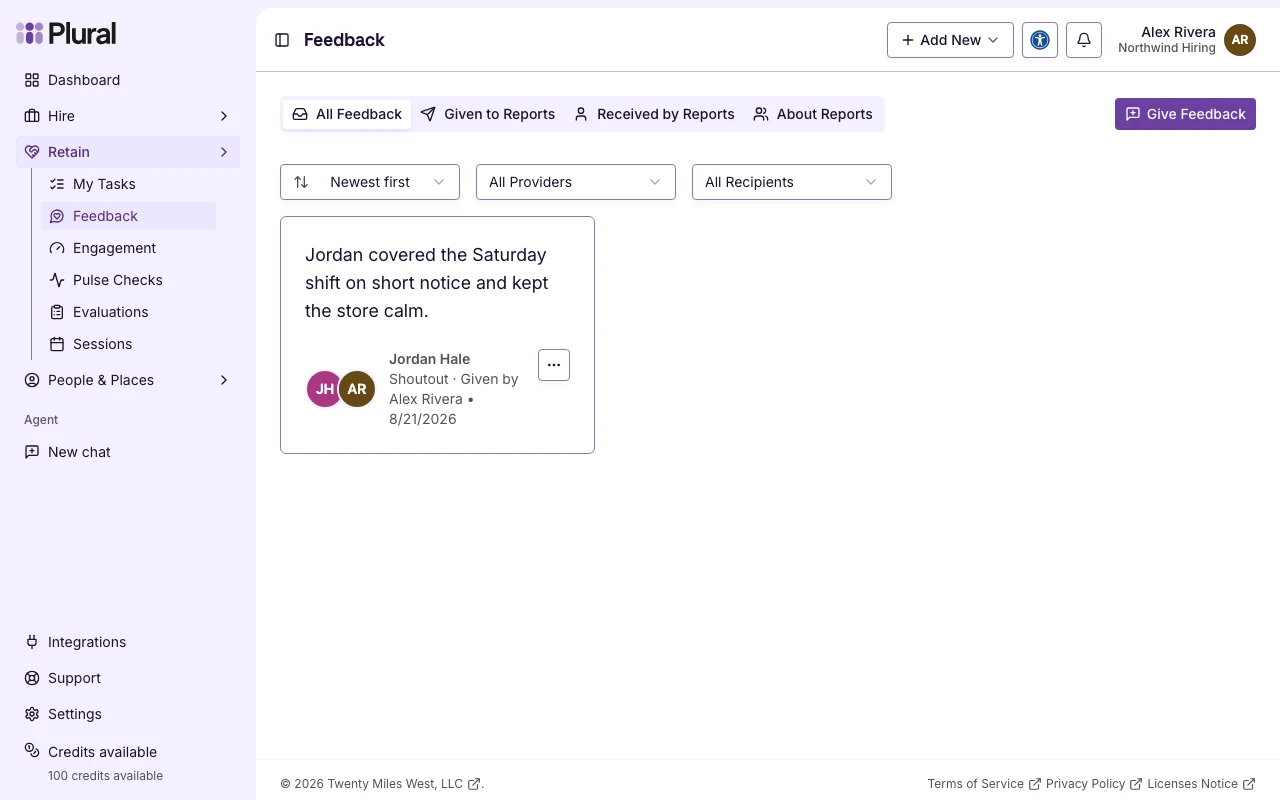
- Select Give Feedback.
The dialog title is Give Feedback. The dialog shows Step 1 of 4.
Feedback type
The first step title is What type of feedback is it?
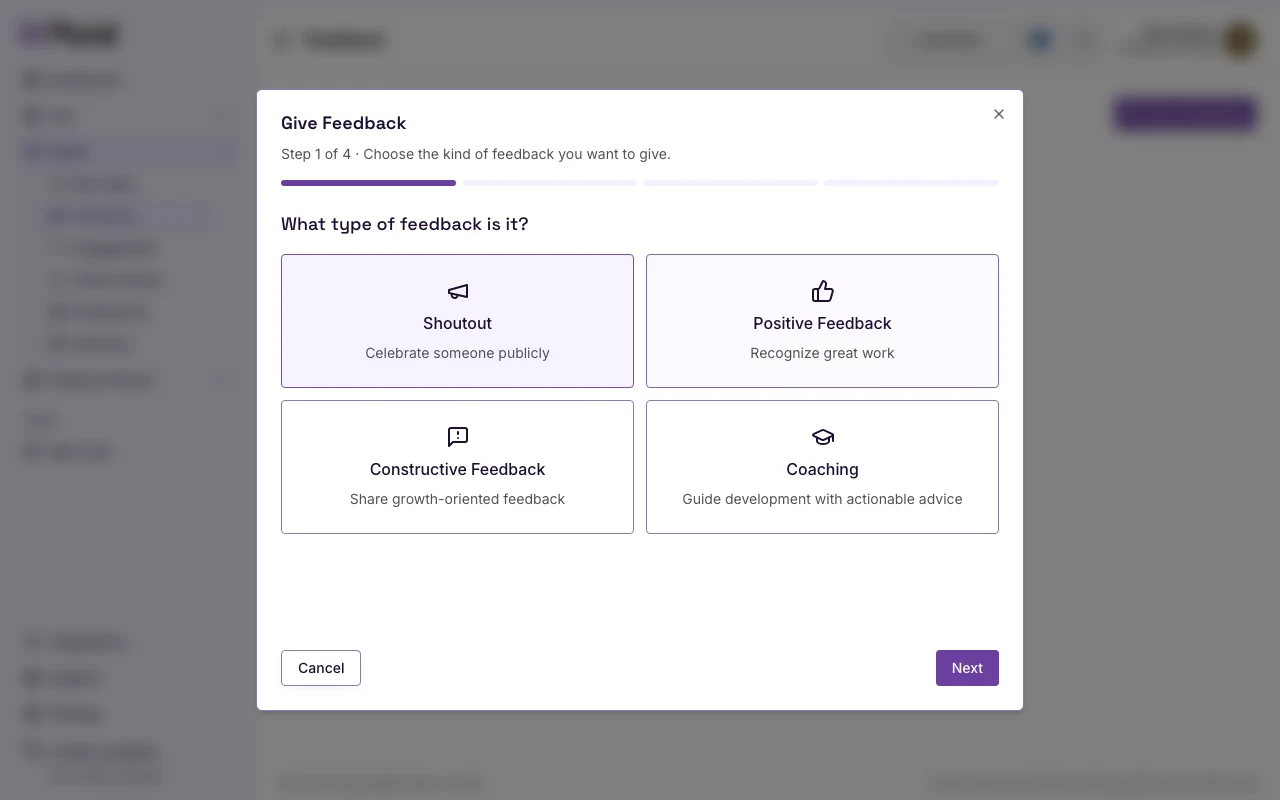
- Select a type.
- Select Next.
Type options:
- Shoutout — celebrate someone publicly. The default visibility is Entire organization.
- Positive Feedback — recognize great work. The default visibility is Entire organization.
- Constructive Feedback — share growth-oriented feedback. The default visibility is Just the recipient.
- Coaching — guide development with actionable advice. The default visibility is Recipient’s Manager.
The form starts with Positive Feedback. This example uses Shoutout. You can change visibility in the next visibility step.
Select Cancel to close the dialog without saving.
Recipient
The second step title is Who is this feedback for?
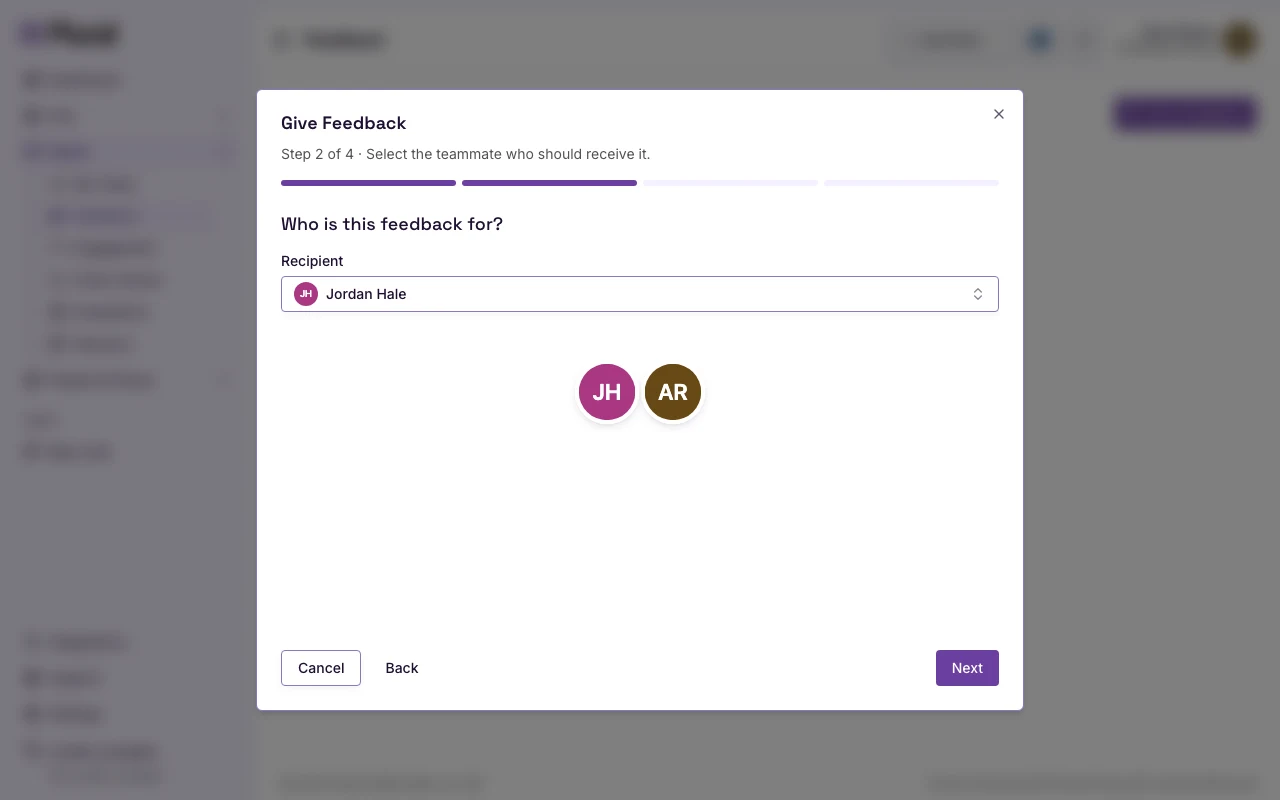
- In Recipient, open Select a recipient.
- Type a name in Search people…. This example uses Jordan Hale.
- Select the person.
- Select Next.
If no person matches, the list shows No matching people.
After you select a person, the dialog can show a short summary. Example: Alex Rivera is providing shoutout feedback for Jordan Hale.
Select Back to return to the type step.
Visibility
The third step title is Who do you want to see this feedback?
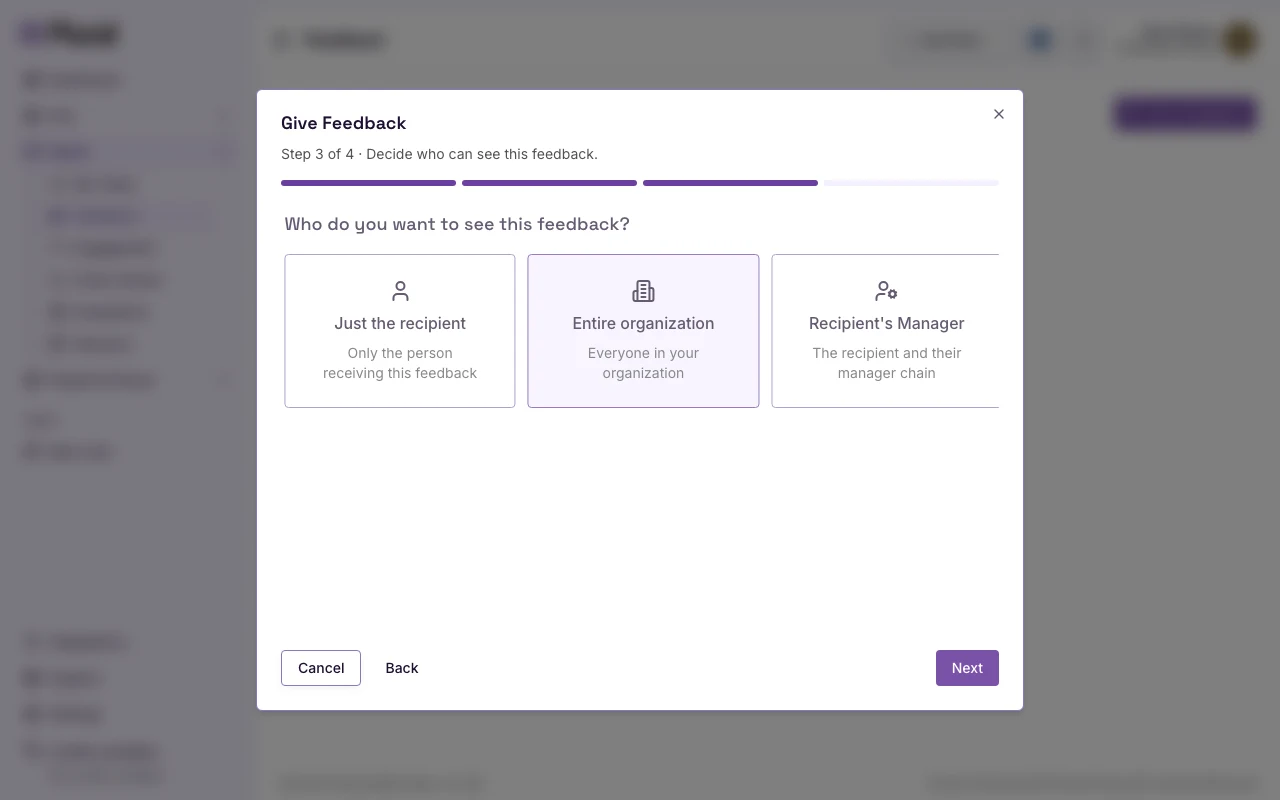
- Select a visibility option. You can keep the default for the type, or you can change it.
- Select Next.
Visibility options:
- Just the recipient — only the person who receives the feedback. You can still see the feedback that you wrote.
- Entire organization — everyone in your organization.
- Recipient’s Manager — the recipient and the managers above that person. You can still see the feedback that you wrote.
Content
The fourth step title is Write your feedback.
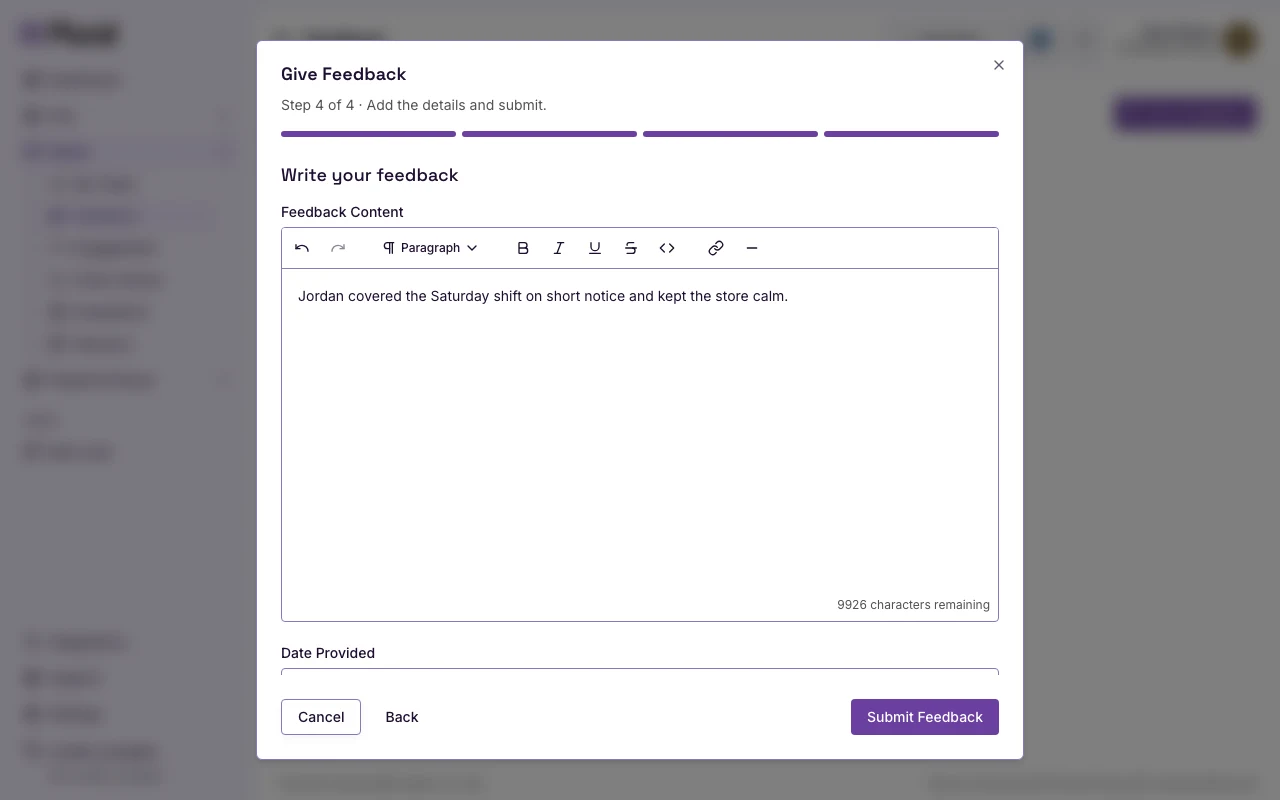
- In Feedback Content, type the note. The text can have up to 10,000 characters. The placeholder changes with the type. For a shoutout, the placeholder is What made this shoutout-worthy?
- Leave Date Provided on today.
- Select Submit Feedback.
Submit Feedback stays disabled until you select a recipient and enter content.
This example uses: Jordan covered the Saturday shift on short notice and kept the store calm.
While the form saves, the button can show Submitting….