
How to enable two-factor authentication
Turn on 2FA with an authenticator app and confirm the six-digit code.
Two-factor authentication adds a second check when you sign in. After you enable it, you enter a pin from an authenticator app on your phone.
Plural names this setting Two-Factor Authentication and 2FA. This is also called MFA.
Before you start
- You must be signed in.
- You can change 2FA only for your own account.
- You need an authenticator app that supports TOTP.
- If your organization turns on Require MFA for all members, you must enable 2FA before you can use the app. That page title is Enable Two-Factor Authentication.
View Two-Factor Authentication
- Open Settings.

The Settings page title is Settings. The text below the title is Manage your profile and account settings.
- Under User settings, select Two-Factor Authentication.
The page title is Two-Factor Authentication. The text below the title is Manage your two-factor authentication settings.
When 2FA is off, the badge shows Disabled. The page shows Enable 2FA.
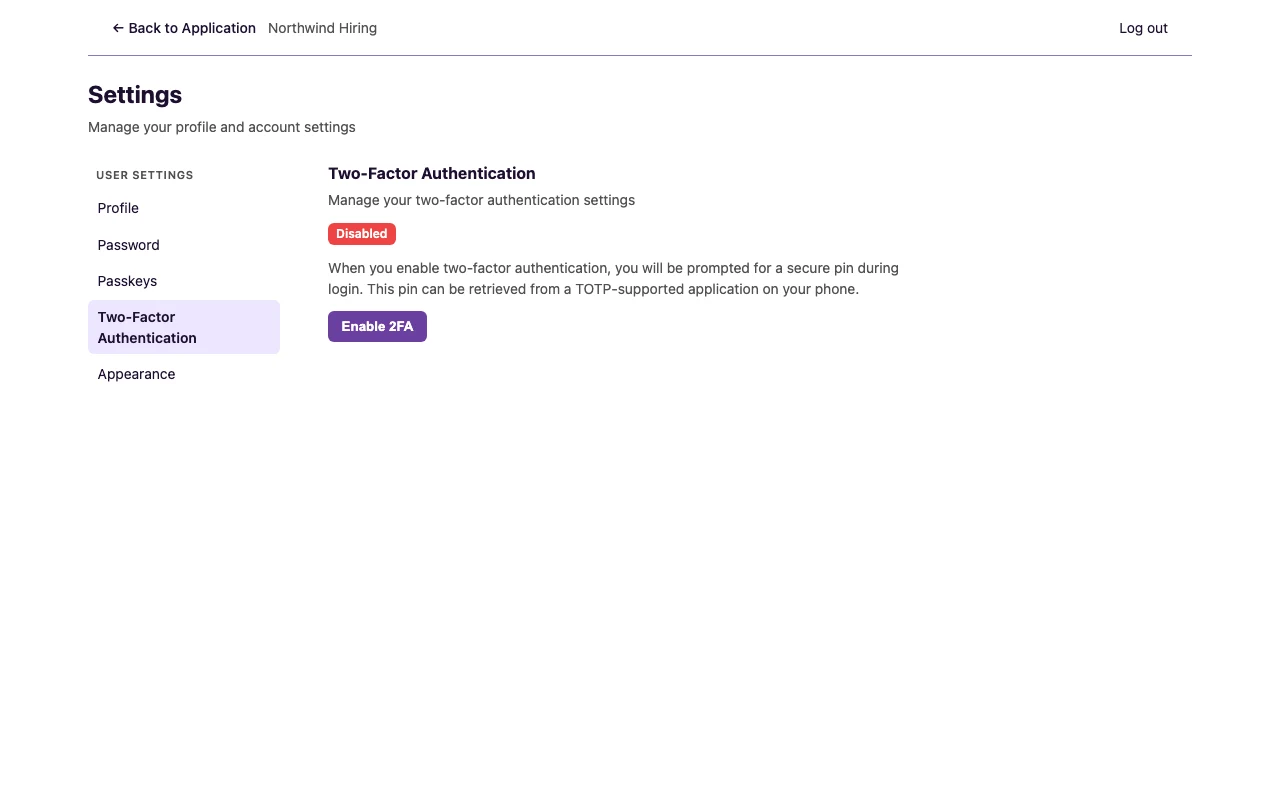
Two-factor authentication
- Select Enable 2FA.
The dialog title is Enable Two-Factor Authentication. The text below the title is To finish enabling two-factor authentication, scan the QR code or enter the setup key in your authenticator app.
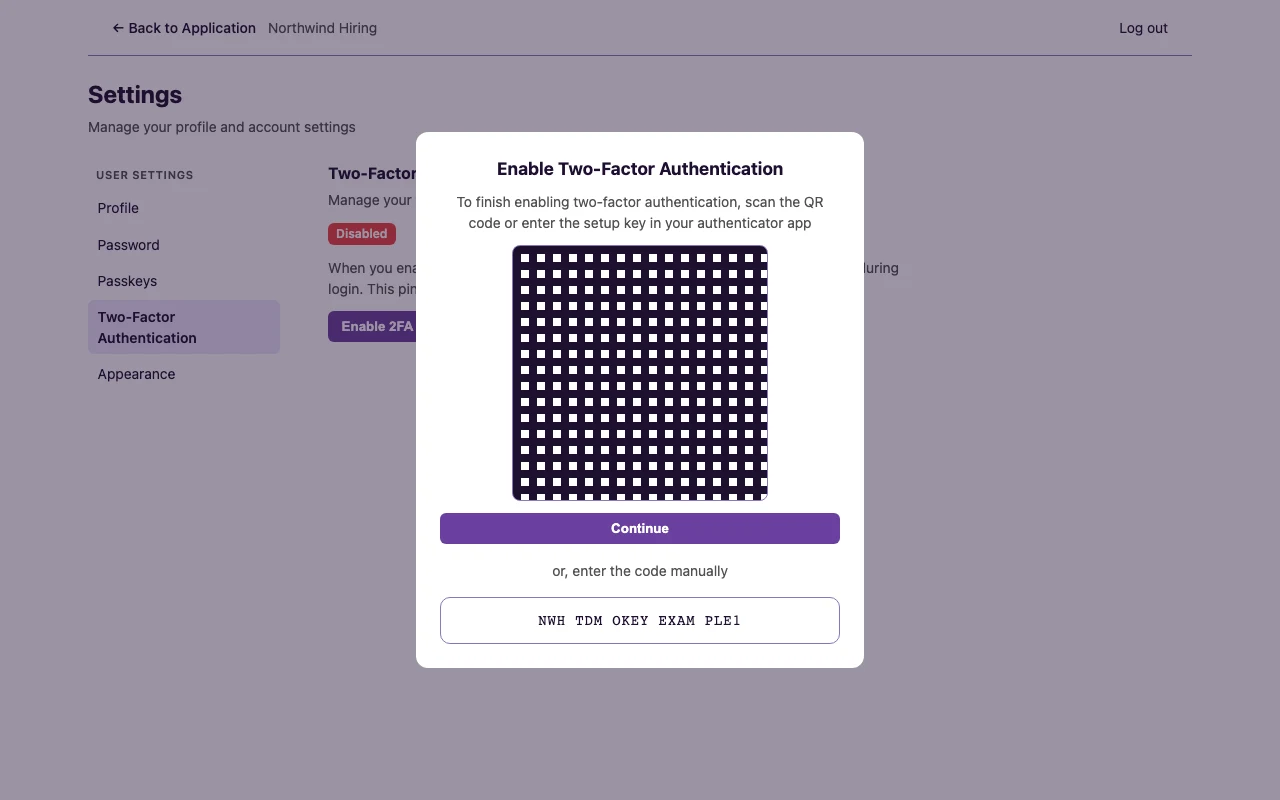
- Scan the QR code in your authenticator app. The image name is Two-factor authentication QR code.
- If you cannot scan, use the setup key next to or, enter the code manually.
- Select Continue.
The dialog title is Verify Authentication Code. The text below the title is Enter the 6-digit code from your authenticator app.
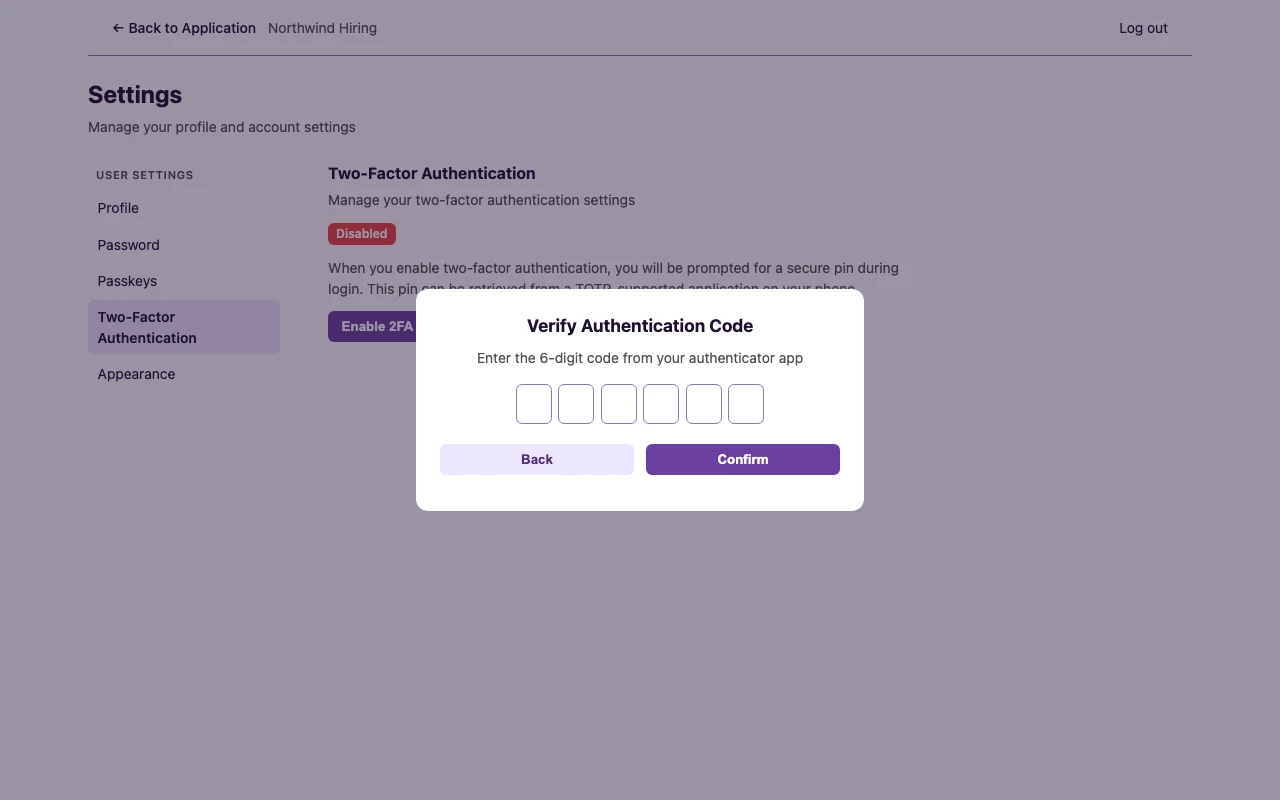
- Type the 6-digit code from your authenticator app.
- Select Confirm. Select Back to return to the QR code.
If you close the dialog before you confirm, the page shows Continue Setup. Select that button to open the dialog again.
If the code is wrong, the dialog shows: The provided two factor authentication code was invalid.
If enable fails before the dialog opens, the page shows: Failed to enable two-factor authentication. Please try again.
After you finish
The badge shows Enabled. You see 2FA Recovery Codes and Disable 2FA.
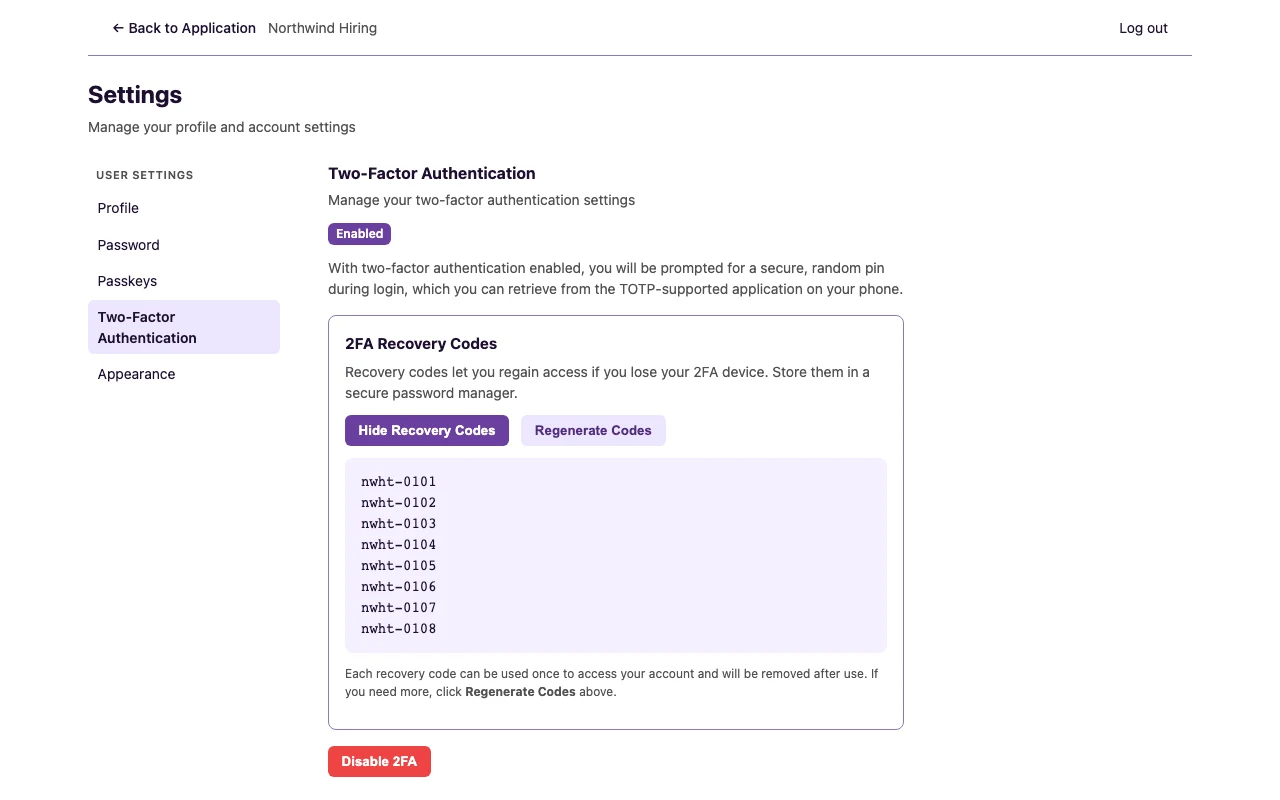
Store your recovery codes. See How to view recovery codes.
The next time you sign in, the page title is Two-Factor Authentication. Type the Authentication Code. Then select Continue.